Introduction
Our company was commissioned by a new customer (Inlanefreight) to perform an external and internal penetration test. As already mentioned, proper Operating System preparation is required before conducting any penetration test. Our customer provides us with internal systems that we should prepare before the engagement so that the penetration testing activities commence without delays. For this, we have to prepare the necessary operating systems accordingly and efficiently.
Penetration Testing Stages & Situations
Every penetration test is different in terms of scope, expected results, and environment, depending on the customer's service line and infrastructure. Apart from the different penetration testing stages we usually go through; our activities can vary depending on the type of penetration test, which can either extend or limit our working environment and capabilities.
For example, if we are performing an internal penetration test, in most cases, we are provided with an internal host from which we can work. Suppose this host has internet access (which is usually the case). In that case, we need a corresponding Virtual Private Server (VPS) with our tools to access and download the related penetration testing resources quickly.
Testing may be performed remotely or on-site, depending on the client's preference. If remote, we will typically ship them a device with our penetration testing distro of choice pre-installed or provide them with a custom VM that will call back to our infrastructure via OpenVPN. The client will elect to either host an image (that we must log into and customize a bit on day one) and give us SSH access via IP whitelisting or VPN access directly into their network. Some clients will prefer not to host any image and provide VPN access, in which case we are free to test from our own local Linux and Windows VMs.
When traveling on-site to a client, it is essential to have both a customized and fully up-to-date Linux and Windows VM. Certain tools work best (or only) on Linux, and having a Windows VM makes specific tasks (such as enumerating Active Directory) much easier and more efficient. Regardless of the setup chosen, we must guide our clients on the pros and cons and help guide them towards the best possible solution based on their network and requirements.
This is yet another area of penetration testing in which we must be versatile and adaptable as subject matter experts. We must make sure we are fully prepared on day 1 of the assessment with the proper tools to provide the client with the best possible value and in-depth assessment. Every environment is different, and we never know what we will encounter once we start enumerating the network and uncovering issues. We have to compile/install tools or download specific scripts to our attack VM during almost every assessment we perform. Having our tools set up in the best way possible will ensure that we don't waste time in the early days of the assessment but instead only have to make changes to our assessment VMs for specific scenarios we encounter during the assessment.
Setup & Efficiency
Over time, we all gather different experiences and collections of tools that we are most familiar with. Being structured is of paramount importance, as it increases our efficiency in penetration testing. Searching for individual resources and even needing additional tools to make these resources work by the time an engagement starts can be eliminated by having access to a prebaked, organized, and structured environment. Doing so requires some preparation and knowledge of different operating systems.
Mark Complete & NextNext
Organization
As we have already seen in the Learning Process module, organization plays a significant role in our penetration tests. It does not matter what type of penetration test it is. Having a working environment that we can navigate almost blindly saves a tremendous amount of time researching resources that we are already familiar with and have invested our time learning. These sources can be found within a few minutes, but once we have an extensive list of resources required for each assessment and include installation, this results in a few hours of pure preparation.
Corporate environments usually consist of heterogeneous networks (hosts/servers having different Operating Systems). Therefore, it makes sense to organize hosts and servers based on their Operating System. If we organize our structure according to penetration testing stages and the targets’ Operating System, then a sample folder structure could look as follows.
Organization
sasorirose@htb[/htb]$ tree ..
└── Penetration-Testing
	│
	├── Pre-Engagement
	│       └── ...
    ├── Linux
    │   ├── Information-Gathering
    │   │   └── ...
    │   ├── Vulnerability-Assessment
    │   │   └── ...
    │   ├── Exploitation
    │   │   └── ...
    │   ├── Post-Exploitation
    │   │   └── ...
    │   └── Lateral-Movement
    │       └── ...
    ├── Windows
    │   ├── Information-Gathering
    │   │   └── ...
    │   ├── Vulnerability-Assessment
    │   │   └── ...
    │   ├── Exploitation
    │   │   └── ...
    │   ├── Post-Exploitation
    │   │   └── ...
    │   └── Lateral-Movement
    │       └── ...
    ├── Reporting
    │   └── ...
	└── Results
	    └── ...
If we are specialized in specific penetration testing fields, we can, of course, reorganize the structure according to these fields. We are all free to develop a system with which we are familiar, and in fact, it is recommended that we do so. Everyone works differently and has their strengths and weaknesses. If we work in a team, we should develop a structure that each team member is familiar with. Take this example as a starting point for creating your system.
Organization
sasorirose@htb[/htb]$ tree ..
└── Penetration-Testing
	│
	├── Pre-Engagement
	│       └── ...
    ├── Network-Pentesting
	│       ├── Linux
	│       │   ├── Information-Gathering
	│		│   │   └── ...
	│       │   ├── Vulnerability-Assessment
    │       │   │	└── ...
    │       │	└── ...
    │       │    	└── ...
    │		├── Windows
    │ 		│   ├── Information-Gathering
    │		│   │   └── ...
    │		│   └── ...
    │       └── ...
    ├── WebApp-Pentesting
	│       └── ...
    ├── Social-Engineering
	│       └── ...
    ├── .......
	│       └── ...
    ├── Reporting
    │   └── ...
	└── Results
	    └── ...
Proper organization helps us in both keeping track of everything and finding errors in our processes. During our studies here, we will come across many different fields that we can use to expand and enhance our understanding of the cybersecurity domain. Not only can we save the cheatsheets or scripts provided within Modules in Academy, but we can also keep notes regarding all phases of a penetration test we will come across in HTB Academy to ensure that no critical steps are missed in future engagements. We recommend starting with small structures, especially when entering the penetration testing field. Organizing based on the Operating System is, therefore, more suitable for newcomers.
While organizing things for ourselves or an entire team, we should make sure that we all work according to a specific procedure. Everyone should know how where they fit in and where each member fits in throughout the entire penetration testing process. There should also be a common understanding regarding the activities of each member. Otherwise, things may end up in the wrong subdirectory, or evidence necessary for reporting could be lost or corrupted.
Bookmarks
Numerous browser add-ons exist that can significantly enhance both our penetration testing activities and efficiency. Having to reinstall them over and over again takes time and slows us down unnecessarily. Thankfully Firefox offers add-on and bookmark synchronization after creating and using a Firefox account. All add-ons installed using this account are automatically installed and synchronized when we log in again. The same applies to any saved bookmarks. Therefore, logging in with a Firefox account will be enough to transfer everything from a prefabricated environment to a new one.
We should be cautious not to store any resources containing potentially sensitive information or private resources. We should always keep in mind that third parties could view these stored resources. Therefore, customer-related bookmarks should never be saved. A list of bookmarks should always be created with a single principle:
This list will be seen by third parties sooner or later.
For this reason, we should create an account for penetration testing purposes only. If our bookmark list must be edited and extended, then the safest route is to store the list locally and import it to the pentesting account. Once we have done this, we should change our private one (the non-pentesting one).
Password Manager
One other essential component for us is password managers. Password managers can prove helpful not only for personal purposes but also for penetration tests. One of the most common vulnerabilities or attack methods within a network is "password reuse". We try to use found or decrypted passwords and usernames to log in to multiple systems and services within the company network through this attack. It is still quite common to come across credentials that can be used to access several services or servers, making our work easier and offering us more opportunities for attack. There are only three problems with passwords:
- Complexity
- Re-usage
- Remembering
1. Complexity
The first problem with passwords is complexity and remembering it. It is already a challenge for standard users to create a complex password, as they are often associated with content that users know and can remember. NordPass has created a list of the most commonly used passwords that we can view here. We can see here that these passwords can be guessed within seconds without any special preparations, such as password mutation.
2. Re-usage
Once the user has created and memorized a complex password, only two problems remain. Remembering a complex and hard-to-guess password is still within the realm of possibility for a standard user. The second problem is that this password is then used for all services, which allows us to work across several components of the company's infrastructure. To prevent this, the user would have to create and remember complex passwords for all services used.
3. Remembering
This brings us to the third problem with passwords. If a standard user uses several dozen services, human nature forces them to become lazy. Very few will make an effort actually to remember all passwords. If a user creates multiple passwords, the risk of forgetting them or mixing them up with other password components is high if a secure password-keeping solution is not used.
Password Managers solve all problems mentioned above not only for standard users but also for penetration testers. We work with dozens, if not hundreds, of different services and servers for which we need a new, strong, and complex password every time. Some providers include the following, but are not limited to:
Another advantage to this is that we only have to remember one password to access all of our other passwords. One of the most recommended is 1Password password manager, which offers 1GB (personal) or 5GB/person (teams) of storage and a 2FA function for entire teams. This storage space can be used to store important notes and results collected during the penetration test. Furthermore, a security key can be installed on a physical device that can serve as an additional 2FA. All included features can be found here.
Let us assume that we need to perform an internal penetration test.
- Before we go to the company, we regenerate a new Secret Key and Master Password and make sure that the 2FA function is enabled.
- Once we are at the company's internal host, we can install the 1Password add-on for Firefox and log in with the newly generated keys (which we can view from our smartphone or laptop). Even if this host is compromised and a keylogger runs on it, our vault cannot be used by third parties without our 2FA code.
- Once we are logged in, we can log in with the Firefox account credentials stored in 1Password, and all our add-ons and bookmarks will be available in a few seconds.
Updates & Automation
We should continually update the components we have organized before starting a new penetration test. This applies to the operating system we use and all the Github collections we will collect and use over time. It is highly recommended to record all the resources and their sources in a file to more easily automate them later. Any automation scripts can also be saved in 1Password to download them directly when needed.
When we create automated scripts, they are operating system-dependent. For example, we can work with Bash, Python, and PowerShell. Creating automation scripts is a good exercise for learning and practicing scripting and can also help us prepare and even reinstall a system more efficiently. We will find more tools, practical explanations, and cheat sheets when learning new methods and technologies. It is recommended that we keep those in a record and keep the entries up to date.
Note Taking
Note-taking is another essential part of our penetration testing because we accumulate a lot of different information, results, and ideas that are difficult to remember all at once. There are five different main types of information that need to be noted down:
- Newly discovered information
- Ideas for further tests and processing
- Scan results
- Logging
- Screenshots
1. Discovered Information
By discovered information we mean, general information, such as new IP addresses, usernames, passwords, source code, etc., that we identified and are related to the penetration testing engagement and process. This is information that we can use against our target company. We often obtain such information through OSINT, active scans, and manual analysis of the given information resources and services.
2. Processing
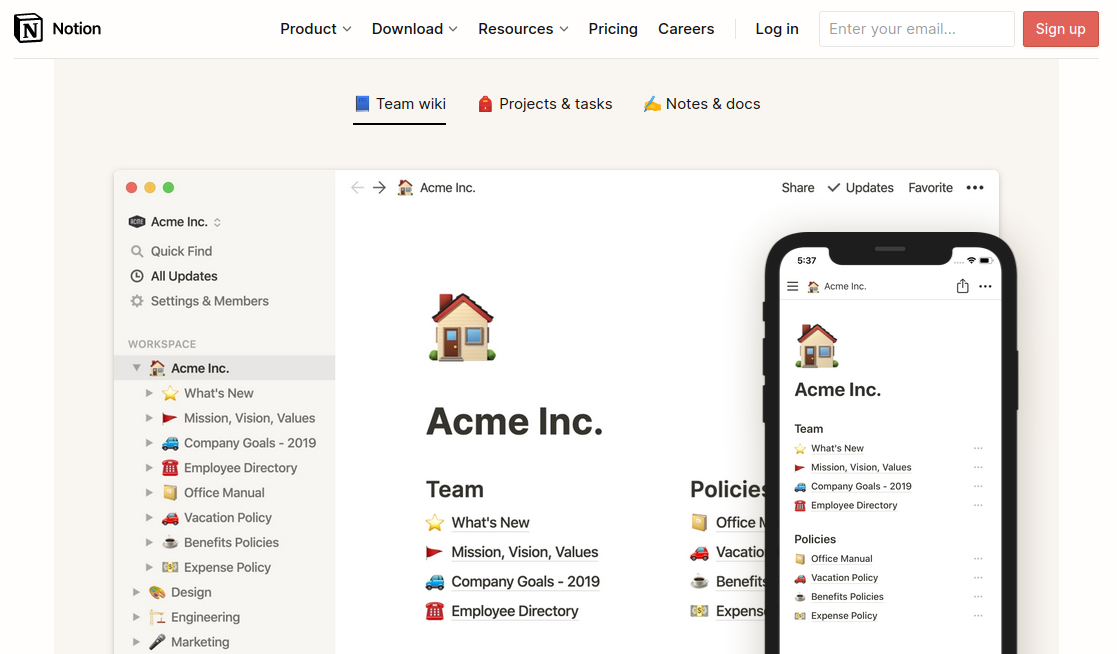
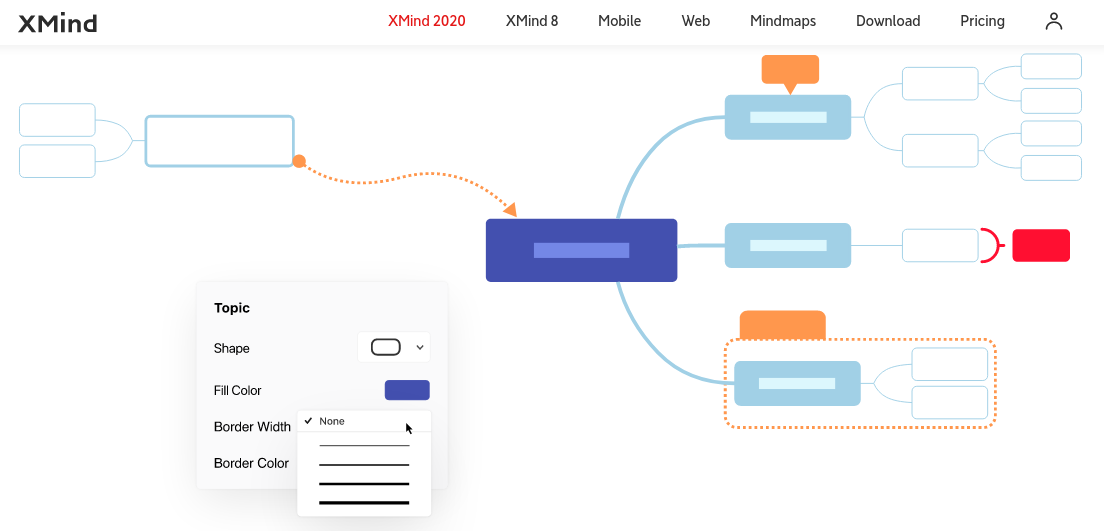
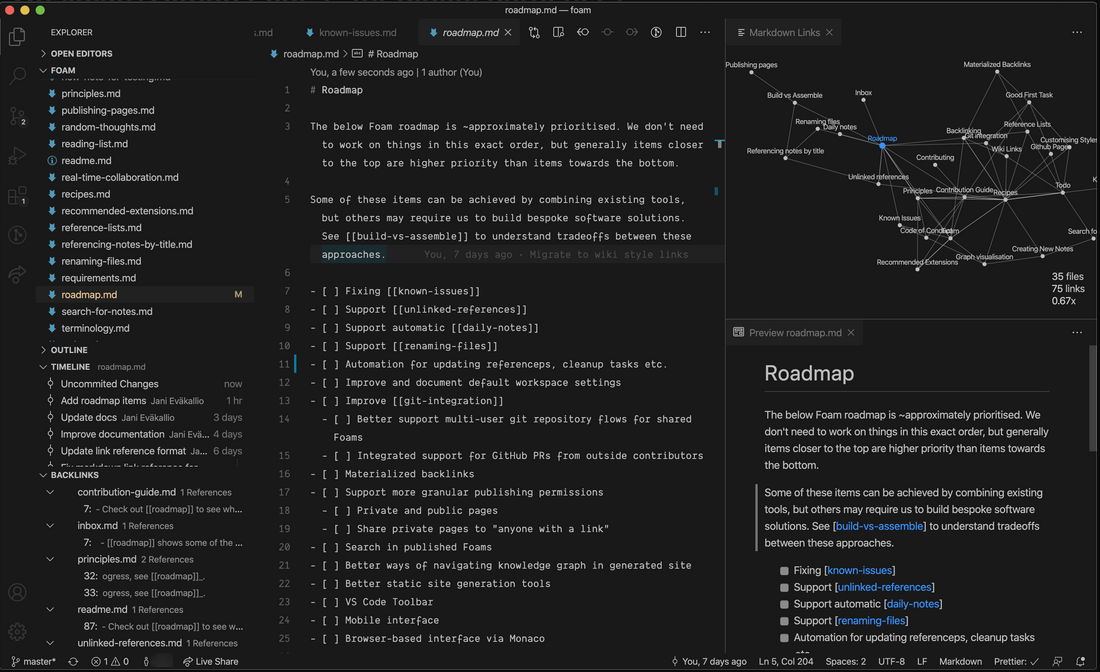
We will receive a lot of different information during our penetration testing that will require us to adapt our approach. These results may give us ideas for subsequent steps we can take, and other vulnerabilities or misconfigurations may be forgotten or overlooked. Therefore, we should get in the habit of noting down everything we see that should be investigated as part of the assessment. Notion.so, Obsidian and Xmind are very suitable for this.
Notion.so is a fancy online markdown editor that offers many different functions and gives us the ability to shape our ideas and thoughts according to our preferences.
Xmind is an excellent mind map editor that can visualize relevant information components and processes very well.
Obsidian is a powerful knowledge base that works on top of a local folder of plain text Markdown files.
3. Results
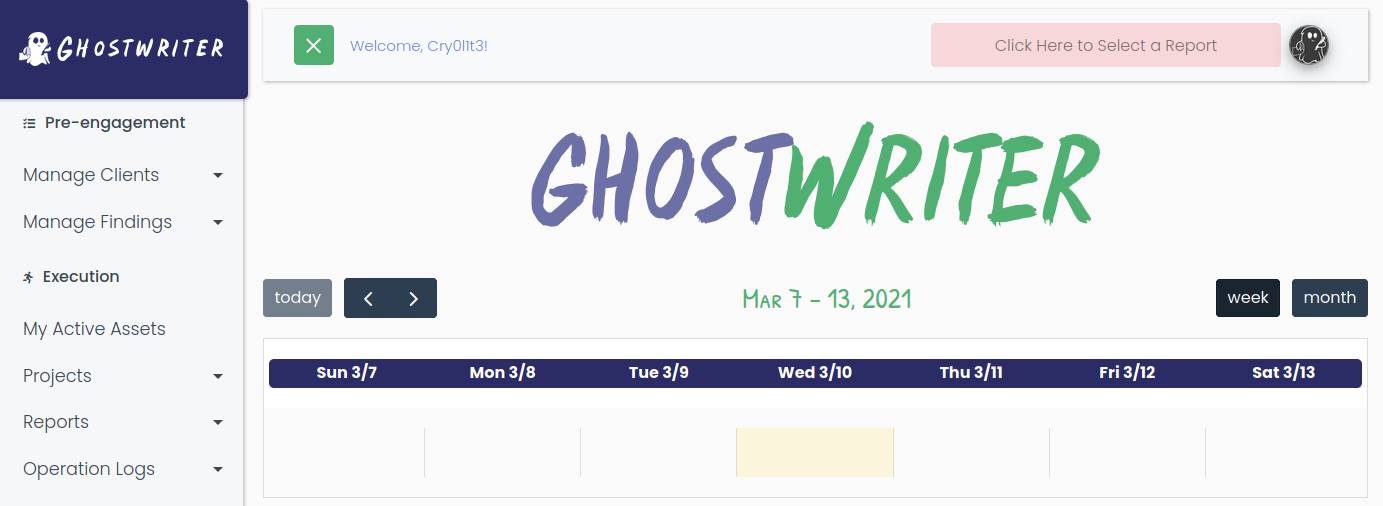
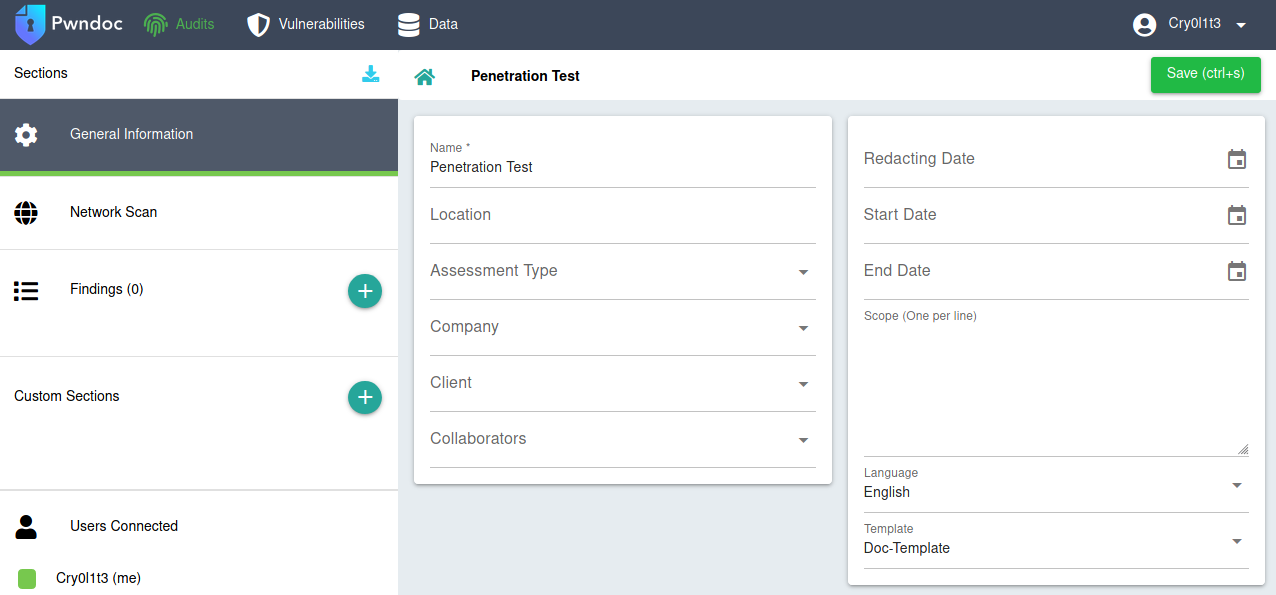
The results we get after our scans and penetration testing steps are significant. With such a large amount of information in a short time, one can quickly feel overwhelmed. It is not easy at first to filter out the most critical pieces of information. This is something that will come with experience and practice. Only through practice, our eyes can be trained to recognize the essential small fragments of information. Nevertheless, we should keep all information and results not to miss something meaningful and because a piece of information may prove helpful later in the engagement. Besides, these results are also often used for documentation. For this, we can use GhostWriter or Pwndoc. These allow us to generate our documentation and have a clear overview of the steps we have taken.
GhostWriter
Pwndoc
4. Logging
Logging is essential for both documentation and our protection. If third parties attack the company during our penetration test and damage occurs, we can prove that the damage did not result from our activities. For this, we can use the tools script and date. Date can be used to display the exact date and time of each command in our command line. With the help of script, every command and the subsequent result is saved in a background file. To display the date and time, we can replace the PS1 variable in our .bashrc file with the following content.
PS1
Code: bash
PS1="\[\033[1;32m\]\342\224\200\$([[ \$(/opt/vpnbash.sh) == *\"10.\"* ]] && echo \"[\[\033[1;34m\]\$(/opt/vpnserver.sh)\[\033[1;32m\]]\342\224\200[\[\033[1;37m\]\$(/opt/vpnbash.sh)\[\033[1;32m\]]\342\224\200\")[\[\033[1;37m\]\u\[\033[01;32m\]@\[\033[01;34m\]\h\[\033[1;32m\]]\342\224\200[\[\033[1;37m\]\w\[\033[1;32m\]]\n\[\033[1;32m\]\342\224\224\342\224\200\342\224\200\342\225\274 [\[\e[01;33m\]$(date +%D-%r)\[\e[01;32m\]]\\$ \[\e[0m\]"
Date
Organization
─[eu-academy-1]─[10.10.14.2]─[Cry0l1t3@htb]─[~]
└──╼ [03/21/21-01:45:04 PM]$
To start logging with script (for Linux) and Start-Transcript (for Windows), we can use the following command and rename it according to our needs. It is recommended to define a certain format in advance after saving the individual logs. One option is using the format
Script
Organization
sasorirose@htb[/htb]$ script 03-21-2021-0200pm-exploitation.logsasorirose@htb[/htb]$ ...SNIP...sasorirose@htb[/htb]$ exitStart-Transcript
Organization
C:\> Start-Transcript -Path "C:\Pentesting\03-21-2021-0200pm-exploitation.log"

Transcript started, output file is C:\Pentesting\03-21-2021-0200pm-exploitation.log

C:\> ...SNIP...
C:\> Stop-Transcript
This will automatically sort our logs in the correct order, and we will no longer have to examine them manually. This also makes it more straightforward for our team members to understand what steps have been taken and when.
Another significant advantage is that we can later analyze our approach to optimize our process. If we repeat one or two steps repeatedly and use them in combination, it may be worthwhile to examine these steps with the help of a simple script to save time.
In addition, most tools offer the possibility to save the results in separate files. It is highly recommended always to use these functions because the results can also change. Therefore, if specific results seem to have changed, we can compare the current results with the previous ones. There are also terminal emulators, such as Tmux and Terminator, which allow, among other things, to log all commands and output automatically. If we come across a tool that does not allow us to log the output, we can work with redirections and the program tee. This would look like this:
Linux Output Redirection
Organization
sasorirose@htb[/htb]$ ./custom-tool.py 10.129.28.119 > logs.custom-tool