Interacting with Common Services
Vulnerabilities are commonly discovered by people who use and understand technology, a protocol, or a service. As we evolve in this field, we will find different services to interact with, and we will need to evolve and learn new technology constantly.
To be successful at attacking a service, we need to know its purpose, how to interact with it, what tools we can use, and what we can do with it. This section will focus on common services and how we can interact with them.
File Share Services
A file sharing service is a type of service that provides, mediates, and monitors the transfer of computer files. Years ago, businesses commonly used only internal services for file sharing, such as SMB, NFS, FTP, TFTP, SFTP, but as cloud adoption grows, most companies now also have third-party cloud services such as Dropbox, Google Drive, OneDrive, SharePoint, or other forms of file storage such as AWS S3, Azure Blob Storage, or Google Cloud Storage. We will be exposed to a mixture of internal and external file-sharing services, and we need to be familiar with them.
This section will focus on internal services, but this may apply to cloud storage synced locally to servers and workstations.
Server Message Block (SMB)
SMB is commonly used in Windows networks, and we will often find share folders in a Windows network. We can interact with SMB using the GUI, CLI, or tools. Let us cover some common ways of interacting with SMB using Windows & Linux.
Windows
There are different ways we can interact with a shared folder using Windows, and we will explore a couple of them. On Windows GUI, we can press [WINKEY] + [R] to open the Run dialog box and type the file share location, e.g.: \\192.168.220.129\Finance\
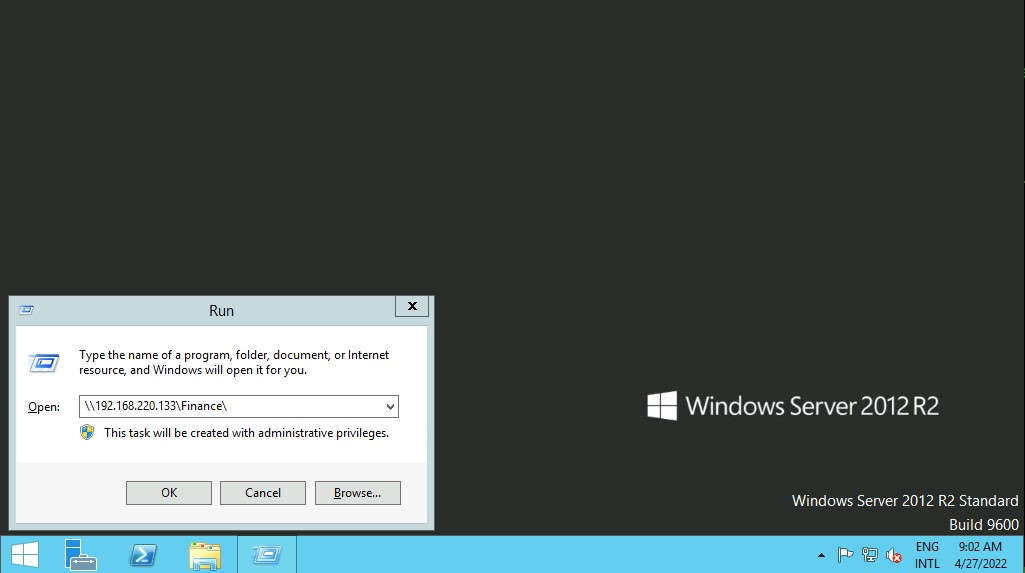
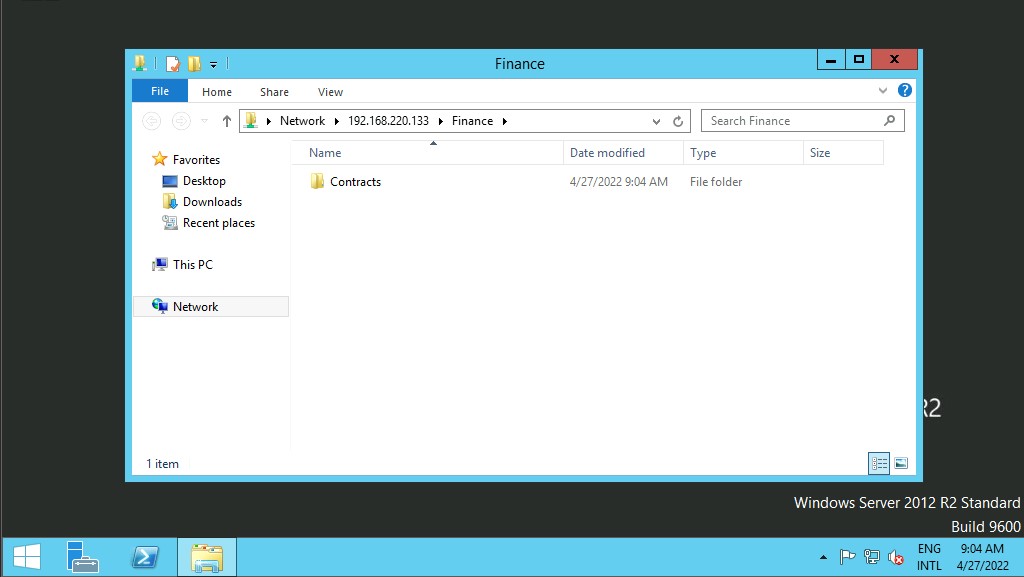
Suppose the shared folder allows anonymous authentication, or we are authenticated with a user who has privilege over that shared folder. In that case, we will not receive any form of authentication request, and it will display the content of the shared folder.
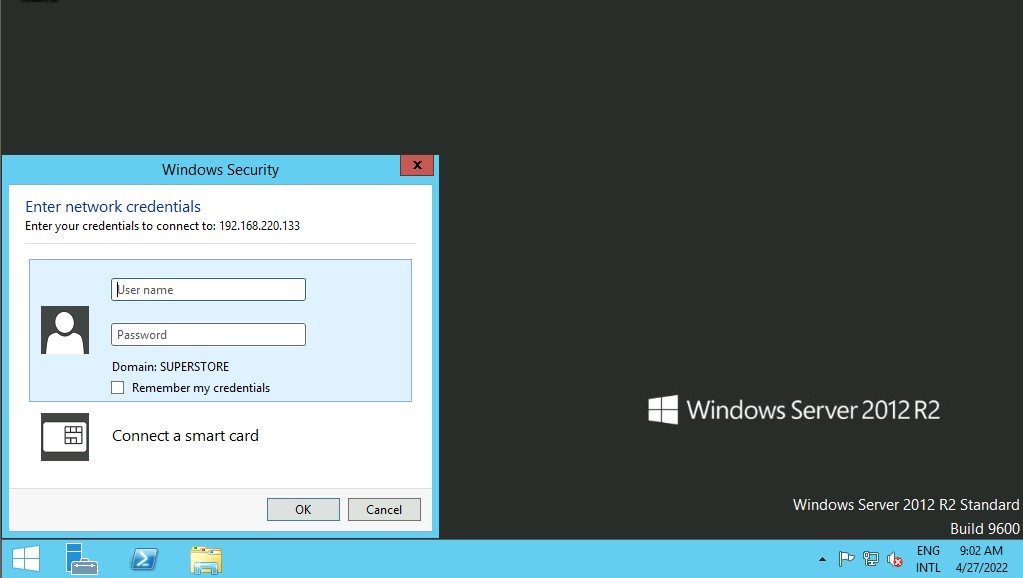
If we do not have access, we will receive an authentication request.
Windows has two command-line shells: the Command shell and PowerShell. Each shell is a software program that provides direct communication between us and the operating system or application, providing an environment to automate IT operations.
Let's discuss some commands to interact with file share using Command Shell (CMD) and PowerShell. The command dir displays a list of a directory's files and subdirectories.
Windows CMD - DIR
Interacting with Common Services
C:\htb> dir \\192.168.220.129\Finance\

Volume in drive \\192.168.220.129\Finance has no label.
Volume Serial Number is ABCD-EFAA

Directory of \\192.168.220.129\Finance

02/23/2022  11:35 AM              Contracts
               0 File(s)          4,096 bytes
               1 Dir(s)  15,207,469,056 bytes free
The command net use connects a computer to or disconnects a computer from a shared resource or displays information about computer connections. We can connect to a file share with the following command and map its content to the drive letter n.
Windows CMD - Net Use
Interacting with Common Services
C:\htb> net use n: \\192.168.220.129\Finance

The command completed successfully.
We can also provide a username and password to authenticate to the share.
Interacting with Common Services
C:\htb> net use n: \\192.168.220.129\Finance /user:plaintext Password123

The command completed successfully.
With the shared folder mapped as the n drive, we can execute Windows commands as if this shared folder is on our local computer. Let's find how many files the shared folder and its subdirectories contain.
Windows CMD - DIR
Interacting with Common Services
C:\htb> dir n: /a-d /s /b | find /c ":\"

29302
We found 29,302 files. Let's walk through the command:
Interacting with Common Services
dir n: /a-d /s /b | find /c ":\"
The following command | find /c ":\\" process the output of dir n: /a-d /s /b to count how many files exist in the directory and subdirectories. You can use dir /? to see the full help. Searching through 29,302 files is time consuming, scripting and command line utilities can help us speed up the search. With dir we can search for specific names in files such as:
- cred
- password
- users
- secrets
- key
- Common File Extensions for source code such as: .cs, .c, .go, .java, .php, .asp, .aspx, .html.
Interacting with Common Services
C:\htb>dir n:\*cred* /s /b

n:\Contracts\private\credentials.txt


C:\htb>dir n:\*secret* /s /b

n:\Contracts\private\secret.txt
If we want to search for a specific word within a text file, we can use findstr.
Windows CMD - Findstr
Interacting with Common Services
c:\htb>findstr /s /i cred n:\*.*

n:\Contracts\private\secret.txt:file with all credentials
n:\Contracts\private\credentials.txt:admin:SecureCredentials!
We can find more findstr examples here.
Windows PowerShell
PowerShell was designed to extend the capabilities of the Command shell to run PowerShell commands called cmdlets. Cmdlets are similar to Windows commands but provide a more extensible scripting language. We can run both Windows commands and PowerShell cmdlets in PowerShell, but the Command shell can only run Windows commands and not PowerShell cmdlets. Let's replicate the same commands now using Powershell.
Windows PowerShell
Interacting with Common Services
PS C:\htb> Get-ChildItem \\192.168.220.129\Finance\

    Directory: \\192.168.220.129\Finance

Mode                 LastWriteTime         Length Name
----                 -------------         ------ ----
d-----         2/23/2022   3:27 PM                Contracts
Instead of net use, we can use New-PSDrive in PowerShell.
Interacting with Common Services
PS C:\htb> New-PSDrive -Name "N" -Root "\\192.168.220.129\Finance" -PSProvider "FileSystem"

Name           Used (GB)     Free (GB) Provider      Root                                               CurrentLocation
----           ---------     --------- --------      ----                                               ---------------
N                                      FileSystem    \\192.168.220.129\Finance
To provide a username and password with Powershell, we need to create a PSCredential object. It offers a centralized way to manage usernames, passwords, and credentials.
Windows PowerShell - PSCredential Object
Interacting with Common Services
PS C:\htb> $username = 'plaintext'PS C:\htb> $password = 'Password123'PS C:\htb> $secpassword = ConvertTo-SecureString $password -AsPlainText -ForcePS C:\htb> $cred = New-Object System.Management.Automation.PSCredential $username, $secpasswordPS C:\htb> New-PSDrive -Name "N" -Root "\\192.168.220.129\Finance" -PSProvider "FileSystem" -Credential $credName           Used (GB)     Free (GB) Provider      Root                                                              CurrentLocation
----           ---------     --------- --------      ----                                                              ---------------
N                                      FileSystem    \\192.168.220.129\Finance
In PowerShell, we can use the command Get-ChildItem or the short variant gci instead of the command dir.
Windows PowerShell - GCI
Interacting with Common Services
PS C:\htb> N:
PS N:\> (Get-ChildItem -File -Recurse | Measure-Object).Count

29302
We can use the property -Include to find specific items from the directory specified by the Path parameter.
Interacting with Common Services
PS C:\htb> Get-ChildItem -Recurse -Path N:\ -Include *cred* -File

    Directory: N:\Contracts\private

Mode                 LastWriteTime         Length Name
----                 -------------         ------ ----
-a----         2/23/2022   4:36 PM             25 credentials.txt
The Select-String cmdlet uses regular expression matching to search for text patterns in input strings and files. We can use Select-String similar to grep in UNIX or findstr.exe in Windows.
Windows PowerShell - Select-String
Interacting with Common Services
PS C:\htb> Get-ChildItem -Recurse -Path N:\ | Select-String "cred" -List

N:\Contracts\private\secret.txt:1:file with all credentials
N:\Contracts\private\credentials.txt:1:admin:SecureCredentials!
CLI enables IT operations to automate routine tasks like user account management, nightly backups, or interaction with many files. We can perform operations more efficiently by using scripts than the user interface or GUI.
Linux
Linux (UNIX) machines can also be used to browse and mount SMB shares. Note that this can be done whether the target server is a Windows machine or a Samba server. Even though some Linux distributions support a GUI, we will focus on Linux command-line utilities and tools to interact with SMB. Let's cover how to mount SMB shares to interact with directories and files locally.
Linux - Mount
Interacting with Common Services
sasorirose@htb[/htb]$ sudo mkdir /mnt/Financesasorirose@htb[/htb]$ sudo mount -t cifs -o username=plaintext,password=Password123,domain=. //192.168.220.129/Finance /mnt/FinanceAs an alternative, we can use a credential file.
Interacting with Common Services
sasorirose@htb[/htb]$ mount -t cifs //192.168.220.129/Finance /mnt/Finance -o credentials=/path/credentialfileThe file credentialfile has to be structured like this:
CredentialFile
Code: txt
username=plaintext
password=Password123
domain=.
Note: We need to install cifs-utils to connect to an SMB share folder. To install it we can execute from the command line sudo apt install cifs-utils.
Once a shared folder is mounted, you can use common Linux tools such as find or grep to interact with the file structure. Let's hunt for a filename that contains the string cred:
Linux - Find
Interacting with Common Services
sasorirose@htb[/htb]$ find /mnt/Finance/ -name *cred*/mnt/Finance/Contracts/private/credentials.txt
Next, let's find files that contain the string cred:
Interacting with Common Services
sasorirose@htb[/htb]$ grep -rn /mnt/Finance/ -ie cred/mnt/Finance/Contracts/private/credentials.txt:1:admin:SecureCredentials!
/mnt/Finance/Contracts/private/secret.txt:1:file with all credentials
Other Services
There are other file-sharing services such as FTP, TFTP, and NFS that we can attach (mount) using different tools and commands. However, once we mount a file-sharing service, we must understand that we can use the available tools in Linux or Windows to interact with files and directories. As we discover new file-sharing services, we will need to investigate how they work and what tools we can use to interact with them.