User Management
Effective user management is a fundamental aspect of Linux system administration. Administrators frequently need to create new user accounts or assign existing users to specific groups to enforce appropriate access controls. Additionally, executing commands as a different user is often necessary for tasks that require different privileges. For example, certain groups may have exclusive permissions to view or modify specific files or directories, which is essential for maintaining system security and integrity. This capability allows us to gather more detailed information locally on the machine, which can be critically important for troubleshooting or auditing purposes.
For example, imagine a new employee named Alex joins your company and is provided with a Linux-based workstation to perform their tasks. As a system administrator, you need to create a user account for Alex and add them to the appropriate groups that grant access to necessary resources, such as project files or development tools. Additionally, there may be situations where Alex needs to execute commands with elevated privileges or as a different user to complete certain tasks.
Execution as a user
User Management
sasorirose@htb[/htb]$ cat /etc/shadowcat: /etc/shadow: Permission denied
The /etc/shadow file is a critical system file that stores encrypted password information for all user accounts. For security reasons, it is readable and writable only by the root user to prevent unauthorized access to sensitive authentication data.
To perform tasks that require elevated privileges, users can utilize the sudo command. The sudo command, short for "superuser do," allows permitted users to execute commands with the security privileges of another user, typically the superuser or root. This enables users to perform administrative tasks without logging in as the root user, which is a best practice for maintaining system security. We will explore sudo permissions in greater detail in the Linux Security section.
Execution as root
User Management
sasorirose@htb[/htb]$ sudo cat /etc/shadowroot::18395:0:99999:7:::
daemon:*:17737:0:99999:7:::
bin:*:17737:0:99999:7:::
Here is a list that will help us to better understand and deal with user management.
Understanding how user accounts, permissions, and authentication mechanisms operate enables us to identify vulnerabilities, exploit misconfigurations, and assess the security posture of a system effectively. The most effective way to gain proficiency in user management is to practice using the individual commands along with their various options in a controlled environment.
Feel free to experiment with the various commands and explore their functionalities. It's important to let your creativity guide you in deciding what you want to achieve. By combining these user management tools with the knowledge you've gained from the previous sections, you'll realize how much you've already learned. Apply your understanding of the Linux system: create new user accounts, set up files and directories for these users, select files, read and filter specific elements, and redirect them to the files and directories of the new users you've created. Feel free to explore extensively. On your target system, there's nothing that can't be fixed, and even if something goes wrong, you have the ability to reset the target and start anew until you feel confident.
Package Management
Whether working as a system administrator, maintaining our own Linux machines at home, or building/upgrading/maintaining our penetration testing distribution of choice, it is crucial to have a firm grasp on the available Linux package managers and the various ways to utilize them to install, update, or remove packages. Packages are archives that contain binaries of software, configuration files, information about dependencies and keep track of updates and upgrades. The features that most package management systems provide are:
- Package downloading
- Dependency resolution
- A standard binary package format
- Common installation and configuration locations
- Additional system-related configuration and functionality
- Quality control
We can use many different package management systems that cover different types of files like ".deb", ".rpm", and others. The package management requirement is that the software to be installed is available as a corresponding package. Typically this is created, offered, and maintained centrally under Linux distributions. In this way, the software is integrated directly into the system, and its various directories are distributed throughout the system. The package management software retrieves the necessary changes for system installation from the package itself and then implements these changes to install the package successfully. If the package management software recognizes that additional packages are required for the proper functioning of the package that has not yet been installed, a dependency is included and either warns the administrator or tries to reload the missing software from a repository, for example, and install it in advance.
If an installed software has been deleted, the package management system then retakes the package's information, modifies it based on its configuration, and deletes files. There are different package management programs that we can use for this. Here is a list of examples of such programs:
It is highly recommended to set up our virtual machine (VM) locally to experiment with it. Let us experiment a bit in our local VM and extend it with a few additional packages. First, let us install git by using apt.
Advanced Package Manager (APT)
Debian-based Linux distributions use the APT package manager. A package is an archive file containing multiple ".deb" files. The dpkg utility is used to install programs from the associated ".deb" file. APT makes updating and installing programs easier because many programs have dependencies. When installing a program from a standalone ".deb" file, we may run into dependency issues and need to download and install one or multiple additional packages. APT makes this easier and more efficient by packaging together all of the dependencies needed to install a program.
Each Linux distribution uses software repositories that are updated often. When we update a program or install a new one, the system queries these repositories for the desired package. Repositories can be labeled as stable, testing, or unstable. Most Linux distributions utilize the most stable or "main" repository. This can be checked by viewing the contents of the /etc/apt/sources.list file. The repository list for Parrot OS is at /etc/apt/sources.list.d/parrot.list.
Package Management
sasorirose@htb[/htb]$ cat /etc/apt/sources.list.d/parrot.list# parrot repository# this file was automatically generated by parrot-mirror-selectordeb http://htb.deb.parrot.sh/parrot/ rolling main contrib non-free
#deb-src https://deb.parrot.sh/parrot/ rolling main contrib non-freedeb http://htb.deb.parrot.sh/parrot/ rolling-security main contrib non-free
#deb-src https://deb.parrot.sh/parrot/ rolling-security main contrib non-free
APT uses a database called the APT cache. This is used to provide information about packages installed on our system offline. We can search the APT cache, for example, to find all Impacket related packages.
Package Management
sasorirose@htb[/htb]$ apt-cache search impacketimpacket-scripts - Links to useful impacket scripts examples
polenum - Extracts the password policy from a Windows system
python-pcapy - Python interface to the libpcap packet capture library (Python 2)
python3-impacket - Python3 module to easily build and dissect network protocols
python3-pcapy - Python interface to the libpcap packet capture library (Python 3)
We can then view additional information about a package.
Package Management
sasorirose@htb[/htb]$ apt-cache show impacket-scriptsPackage: impacket-scripts
Version: 1.4
Architecture: all
Maintainer: Kali Developers
Installed-Size: 13
Depends: python3-impacket (>= 0.9.20), python3-ldap3 (>= 2.5.0), python3-ldapdomaindump
Breaks: python-impacket (<< 0.9.18)
Replaces: python-impacket (<< 0.9.18)
Priority: optional
Section: misc
Filename: pool/main/i/impacket-scripts/impacket-scripts_1.4_all.deb
Size: 2080
We can also list all installed packages.
Package Management
sasorirose@htb[/htb]$ apt list --installedListing... Done
accountsservice/rolling,now 0.6.55-2 amd64 [installed,automatic]
adapta-gtk-theme/rolling,now 3.95.0.11-1 all [installed]
adduser/rolling,now 3.118 all [installed]
adwaita-icon-theme/rolling,now 3.36.1-2 all [installed,automatic]
aircrack-ng/rolling,now 1:1.6-4 amd64 [installed,automatic]
If we are missing some packages, we can search for it and install it using the following command.
Package Management
sasorirose@htb[/htb]$ sudo apt install impacket-scripts -yReading package lists... Done
Building dependency tree
Reading state information... Done
The following NEW packages will be installed:
  impacket-scripts
0 upgraded, 1 newly installed, 0 to remove and 0 not upgraded.
Need to get 2,080 B of archives.
After this operation, 13.3 kB of additional disk space will be used.
Get:1 https://euro2-emea-mirror.parrot.sh/mirrors/parrot rolling/main amd64 impacket-scripts all 1.4 [2,080 B]
Fetched 2,080 B in 0s (15.2 kB/s)
Selecting previously unselected package impacket-scripts.
(Reading database ... 378459 files and directories currently installed.)
Preparing to unpack .../impacket-scripts_1.4_all.deb ...
Unpacking impacket-scripts (1.4) ...
Setting up impacket-scripts (1.4) ...
Scanning application launchers
Removing duplicate launchers from Debian
Launchers are updated
Git
Now that we have git installed, we can use it to download useful tools from Github. One such project is called 'Nishang'. We will deal with and work with the project itself later. First, we need to navigate to the project's repository and copy the Github link before using git to download it.
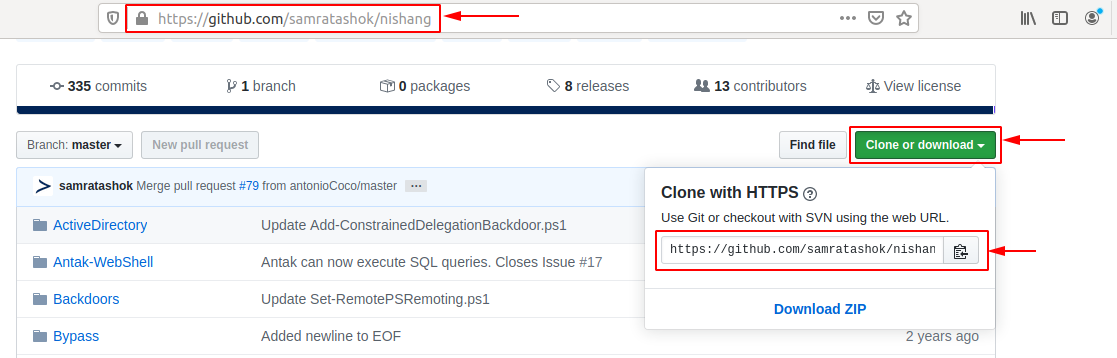
Nevertheless, before we download the project and its scripts and lists, we should create a particular folder.
Package Management
sasorirose@htb[/htb]$ mkdir ~/nishang/ && git clone https://github.com/samratashok/nishang.git ~/nishangCloning into '/opt/nishang/'...
remote: Enumerating objects: 15, done.
remote: Counting objects: 100% (15/15), done.
remote: Compressing objects: 100% (13/13), done.
remote: Total 1691 (delta 4), reused 6 (delta 2), pack-reused 1676
Receiving objects: 100% (1691/1691), 7.84 MiB | 4.86 MiB/s, done.
Resolving deltas: 100% (1055/1055), done.
DPKG
We can also download the programs and tools from the repositories separately. In this example, we download 'strace' for Ubuntu 18.04 LTS.
Package Management
sasorirose@htb[/htb]$ wget http://archive.ubuntu.com/ubuntu/pool/main/s/strace/strace_4.21-1ubuntu1_amd64.deb--2020-05-15 03:27:17--  http://archive.ubuntu.com/ubuntu/pool/main/s/strace/strace_4.21-1ubuntu1_amd64.deb
Resolving archive.ubuntu.com (archive.ubuntu.com)... 91.189.88.142, 91.189.88.152, 2001:67c:1562::18, ...
Connecting to archive.ubuntu.com (archive.ubuntu.com)|91.189.88.142|:80... connected.
HTTP request sent, awaiting response... 200 OK
Length: 333388 (326K) [application/x-debian-package]
Saving to: ‘strace_4.21-1ubuntu1_amd64.deb’

strace_4.21-1ubuntu1_amd64.deb       100%[===================================================================>] 325,57K  --.-KB/s    in 0,1s

2020-05-15 03:27:18 (2,69 MB/s) - ‘strace_4.21-1ubuntu1_amd64.deb’ saved [333388/333388]
Furthermore, now we can use both apt and dpkg to install the package. Since we have already worked with apt, we will turn to dpkg in the next example.
Package Management
sasorirose@htb[/htb]$ sudo dpkg -i strace_4.21-1ubuntu1_amd64.deb (Reading database ... 154680 files and directories currently installed.)
Preparing to unpack strace_4.21-1ubuntu1_amd64.deb ...
Unpacking strace (4.21-1ubuntu1) over (4.21-1ubuntu1) ...
Setting up strace (4.21-1ubuntu1) ...
Processing triggers for man-db (2.8.3-2ubuntu0.1) ...
With this, we have already installed the tool and can test if it works properly.
Package Management
sasorirose@htb[/htb]$ strace -husage: strace [-CdffhiqrtttTvVwxxy] [-I n] [-e expr]...
              [-a column] [-o file] [-s strsize] [-P path]...
              -p pid... / [-D] [-E var=val]... [-u username] PROG [ARGS]
   or: strace -c[dfw] [-I n] [-e expr]... [-O overhead] [-S sortby]
              -p pid... / [-D] [-E var=val]... [-u username] PROG [ARGS]

Output format:
  -a column      alignment COLUMN for printing syscall results (default 40)
  -i             print instruction pointer at time of syscall
Service and Process Management
Services, also known as daemons, are fundamental components of a Linux system that run silently in the background "without direct user interaction". They perform crucial tasks that keep the system operational and provide additional functionalities. Generally, services can be categorized into two types:
System Services
These are internal services required during system startup. They perform essential hardware-related tasks and initialize system components necessary for the operating system to function properly. These are like the engine and transmission systems. They start when you turn the ignition key and are essential for the car to run. Without them, the car wouldn't move.
User-Installed Services
These services are added by users and typically include server applications and other background processes that provide specific features or capabilities. These types of services are like the car's air conditioning or GPS navigation system. While not critical for the car to operate, they enhance functionality and provide additional features based on the driver's preferences.
Daemons are often identified by the letter d at the end of their program names, such as sshd (SSH daemon) or systemd. Just as a car relies on both its core components and optional features to provide a complete experience, a Linux system utilizes both system and user-installed services to function efficiently and meet user needs.
In general, there are just a few goals that we have when we deal with a service or a process:
- Start/Restart a service/process
- Stop a service/process
- See what is/was happening with a service/process
- Enable/Disable a service/process on boot
- Find a service/process
Most modern Linux distributions have adopted systemd as their initialization system (init system). It is the first process that starts during the boot process and is assigned the Process ID (PID). All processes in a Linux system are assigned a PID and can be viewed under the /proc/ directory, which contains information about each process. Processes may also have a Parent Process ID (PPID), indicating that they were started by another process (the parent), making them child processes.
Systemctl
After installing OpenSSH on our VM, we can start the service with the following command.
Service and Process Management
sasorirose@htb[/htb]$ systemctl start sshAfter we have started the service, we can now check if it runs without errors.
Service and Process Management
sasorirose@htb[/htb]$ systemctl status ssh● ssh.service - OpenBSD Secure Shell server
   Loaded: loaded (/lib/systemd/system/ssh.service; enabled; vendor preset: enabled)
   Active: active (running) since Thu 2020-05-14 15:08:23 CEST; 24h ago
   Main PID: 846 (sshd)
   Tasks: 1 (limit: 4681)
   CGroup: /system.slice/ssh.service
           └─846 /usr/sbin/sshd -D

Mai 14 15:08:22 inlane systemd[1]: Starting OpenBSD Secure Shell server...
Mai 14 15:08:23 inlane sshd[846]: Server listening on 0.0.0.0 port 22.
Mai 14 15:08:23 inlane sshd[846]: Server listening on :: port 22.
Mai 14 15:08:23 inlane systemd[1]: Started OpenBSD Secure Shell server.
Mai 14 15:08:30 inlane systemd[1]: Reloading OpenBSD Secure Shell server.
Mai 14 15:08:31 inlane sshd[846]: Received SIGHUP; restarting.
Mai 14 15:08:31 inlane sshd[846]: Server listening on 0.0.0.0 port 22.
Mai 14 15:08:31 inlane sshd[846]: Server listening on :: port 22.
To add OpenSSH to the SysV script to tell the system to run this service after startup, we can link it with the following command:
Service and Process Management
sasorirose@htb[/htb]$ systemctl enable sshSynchronizing state of ssh.service with SysV service script with /lib/systemd/systemd-sysv-install.
Executing: /lib/systemd/systemd-sysv-install enable ssh
Once we reboot the system, the OpenSSH server will automatically run. We can check this with a tool called ps.
Service and Process Management
sasorirose@htb[/htb]$ ps -aux | grep sshroot 846 0.0 0.1 72300 5660 ? Ss Mai14 0:00 /usr/sbin/sshd -D
We can also use systemctl to list all services.
Service and Process Management
sasorirose@htb[/htb]$ systemctl list-units --type=serviceUNIT                                                       LOAD   ACTIVE SUB     DESCRIPTION
accounts-daemon.service                                    loaded active running Accounts Service
acpid.service                                              loaded active running ACPI event daemon
apache2.service                                            loaded active running The Apache HTTP Server
apparmor.service                                           loaded active exited  AppArmor initialization
apport.service                                             loaded active exited  LSB: automatic crash repor
avahi-daemon.service                                       loaded active running Avahi mDNS/DNS-SD Stack
bolt.service                                               loaded active running Thunderbolt system service
It is quite possible that the services do not start due to an error. To see the problem, we can use the tool journalctl to view the logs.
Service and Process Management
sasorirose@htb[/htb]$ journalctl -u ssh.service --no-pager-- Logs begin at Wed 2020-05-13 17:30:52 CEST, end at Fri 2020-05-15 16:00:14 CEST. --
Mai 13 20:38:44 inlane systemd[1]: Starting OpenBSD Secure Shell server...
Mai 13 20:38:44 inlane sshd[2722]: Server listening on 0.0.0.0 port 22.
Mai 13 20:38:44 inlane sshd[2722]: Server listening on :: port 22.
Mai 13 20:38:44 inlane systemd[1]: Started OpenBSD Secure Shell server.
Mai 13 20:39:06 inlane sshd[3939]: Connection closed by 10.22.2.1 port 36444 [preauth]
Mai 13 20:39:27 inlane sshd[3942]: Accepted password for master from 10.22.2.1 port 36452 ssh2
Mai 13 20:39:27 inlane sshd[3942]: pam_unix(sshd:session): session opened for user master by (uid=0)
Mai 13 20:39:28 inlane sshd[3942]: pam_unix(sshd:session): session closed for user master
Mai 14 02:04:49 inlane sshd[2722]: Received signal 15; terminating.
Mai 14 02:04:49 inlane systemd[1]: Stopping OpenBSD Secure Shell server...
Mai 14 02:04:49 inlane systemd[1]: Stopped OpenBSD Secure Shell server.
-- Reboot --