Access Control List (ACL) Abuse Primer
For security reasons, not all users and computers in an AD environment can access all objects and files. These types of permissions are controlled through Access Control Lists (ACLs). Posing a serious threat to the security posture of the domain, a slight misconfiguration to an ACL can leak permissions to other objects that do not need it.
Access Control List (ACL) Overview
In their simplest form, ACLs are lists that define a) who has access to which asset/resource and b) the level of access they are provisioned. The settings themselves in an ACL are called Access Control Entries (ACEs). Each ACE maps back to a user, group, or process (also known as security principals) and defines the rights granted to that principal. Every object has an ACL, but can have multiple ACEs because multiple security principals can access objects in AD. ACLs can also be used for auditing access within AD.
There are two types of ACLs:
- Discretionary Access Control List (DACL) - defines which security principals are granted or denied access to an object. DACLs are made up of ACEs that either allow or deny access. When someone attempts to access an object, the system will check the DACL for the level of access that is permitted. If a DACL does not exist for an object, all who attempt to access the object are granted full rights. If a DACL exists, but does not have any ACE entries specifying specific security settings, the system will deny access to all users, groups, or processes attempting to access it.
- System Access Control Lists (SACL) - allow administrators to log access attempts made to secured objects.
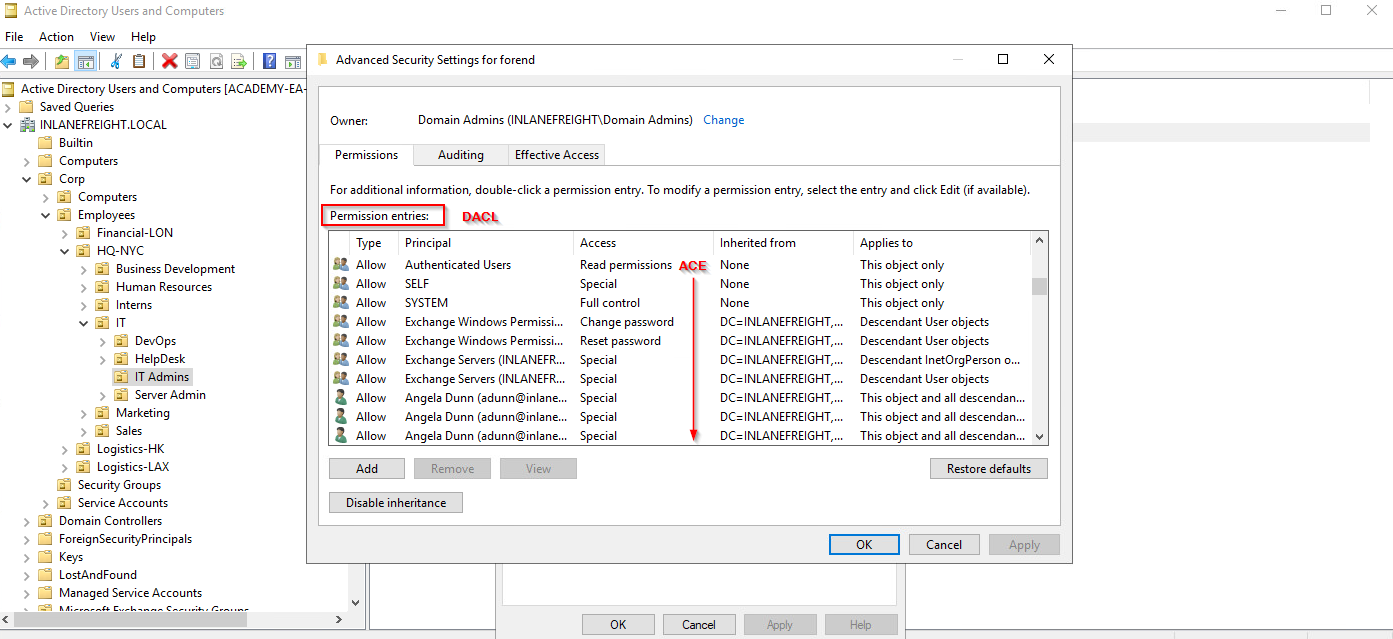
We see the ACL for the user account forend in the image below. Each item under Permission entries makes up the DACL for the user account, while the individual entries (such as Full Control or Change Password) are ACE entries showing rights granted over this user object to various users and groups.
Viewing forend's ACL
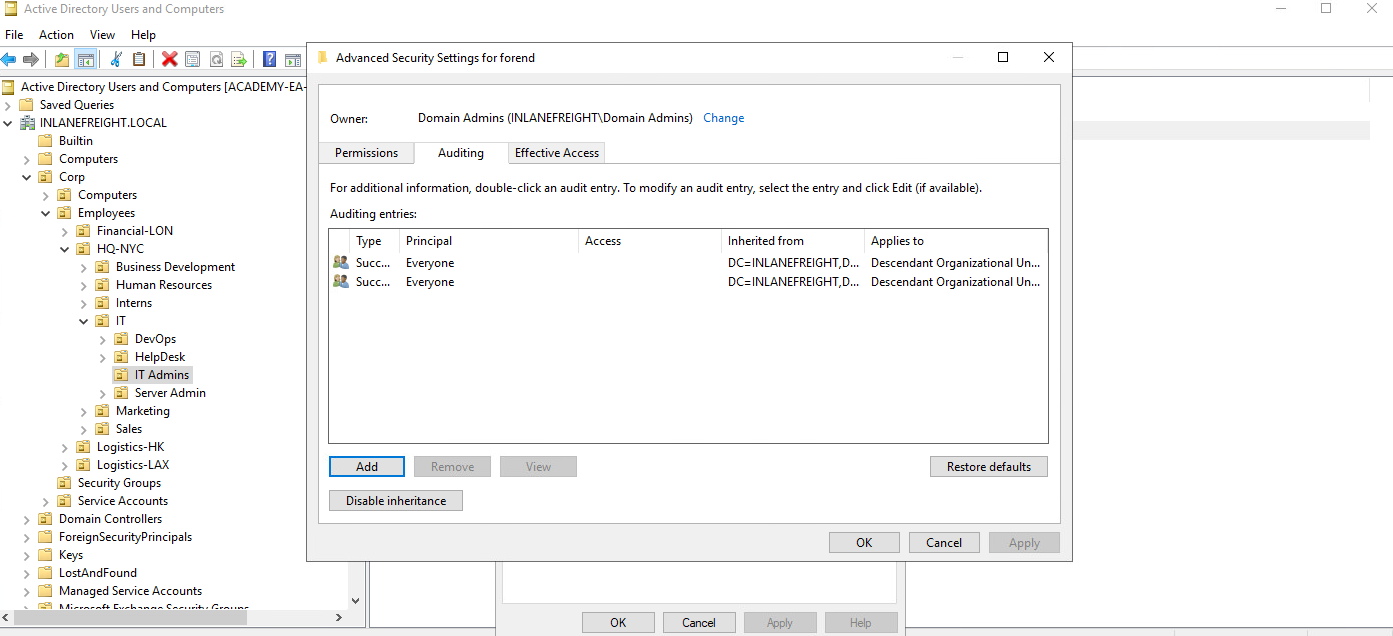
The SACLs can be seen within the Auditing tab.
Viewing the SACLs through the Auditing Tab
Access Control Entries (ACEs)
As stated previously, Access Control Lists (ACLs) contain ACE entries that name a user or group and the level of access they have over a given securable object. There are three main types of ACEs that can be applied to all securable objects in AD:
Each ACE is made up of the following four components:
- The security identifier (SID) of the user/group that has access to the object (or principal name graphically)
- A flag denoting the type of ACE (access denied, allowed, or system audit ACE)
- A set of flags that specify whether or not child containers/objects can inherit the given ACE entry from the primary or parent object
- An access mask which is a 32-bit value that defines the rights granted to an object
We can view this graphically in Active Directory Users and Computers (ADUC). In the example image below, we can see the following for the ACE entry for the user forend:
Viewing Permissions through Active Directory Users & Computers
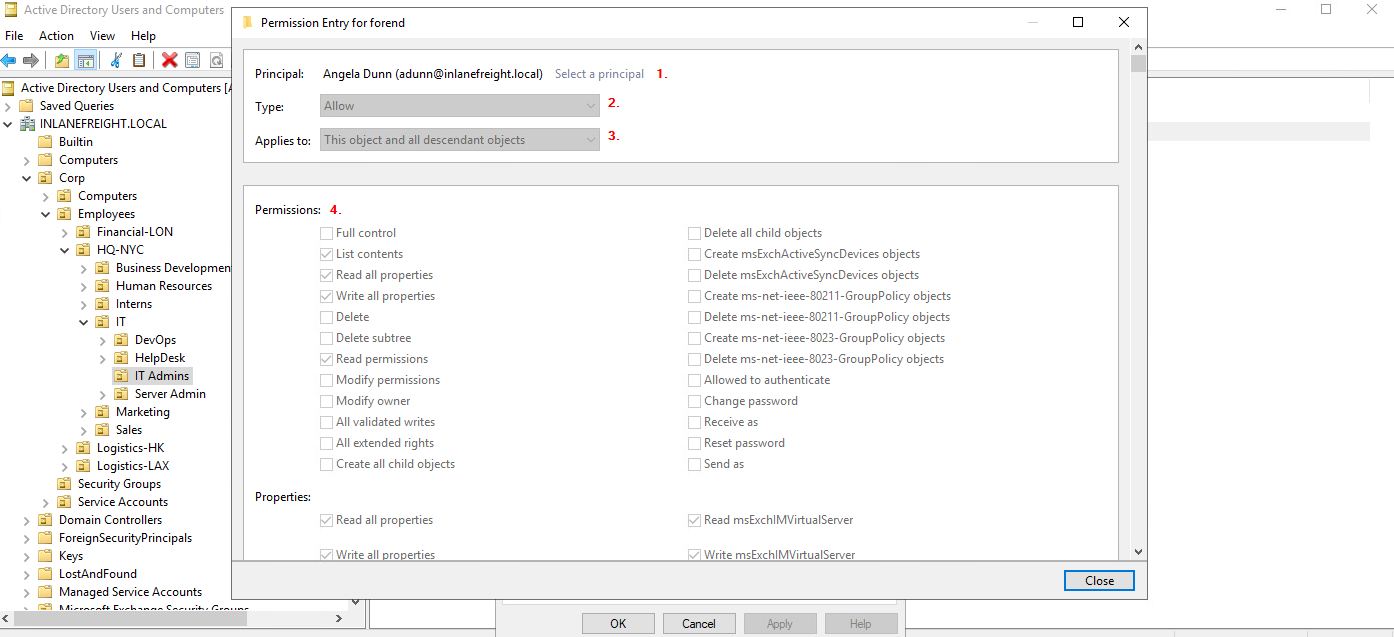
- The security principal is Angela Dunn (adunn@inlanefreight.local)
- The ACE type is Allow
- Inheritance applies to the "This object and all descendant objects,” meaning any child objects of the forend object would have the same permissions granted
- The rights granted to the object, again shown graphically in this example
When access control lists are checked to determine permissions, they are checked from top to bottom until an access denied is found in the list.
Why are ACEs Important?
Attackers utilize ACE entries to either further access or establish persistence. These can be great for us as penetration testers as many organizations are unaware of the ACEs applied to each object or the impact that these can have if applied incorrectly. They cannot be detected by vulnerability scanning tools, and often go unchecked for many years, especially in large and complex environments. During an assessment where the client has taken care of all of the "low hanging fruit" AD flaws/misconfigurations, ACL abuse can be a great way for us to move laterally/vertically and even achieve full domain compromise. Some example Active Directory object security permissions are as follows. These can be enumerated (and visualized) using a tool such as BloodHound, and are all abusable with PowerView, among other tools:
- ForceChangePassword abused with Set-DomainUserPassword
- Add Members abused with Add-DomainGroupMember
- GenericAll abused with Set-DomainUserPassword or Add-DomainGroupMember
- GenericWrite abused with Set-DomainObject
- WriteOwner abused with Set-DomainObjectOwner
- WriteDACL abused with Add-DomainObjectACL
- AllExtendedRights abused with Set-DomainUserPassword or Add-DomainGroupMember
- Addself abused with Add-DomainGroupMember
In this module, we will cover enumerating and leveraging four specific ACEs to highlight the power of ACL attacks:
- ForceChangePassword - gives us the right to reset a user's password without first knowing their password (should be used cautiously and typically best to consult our client before resetting passwords).
- GenericWrite - gives us the right to write to any non-protected attribute on an object. If we have this access over a user, we could assign them an SPN and perform a Kerberoasting attack (which relies on the target account having a weak password set). Over a group means we could add ourselves or another security principal to a given group. Finally, if we have this access over a computer object, we could perform a resource-based constrained delegation attack which is outside the scope of this module.
- AddSelf - shows security groups that a user can add themselves to.
- GenericAll - this grants us full control over a target object. Again, depending on if this is granted over a user or group, we could modify group membership, force change a password, or perform a targeted Kerberoasting attack. If we have this access over a computer object and the Local Administrator Password Solution (LAPS) is in use in the environment, we can read the LAPS password and gain local admin access to the machine which may aid us in lateral movement or privilege escalation in the domain if we can obtain privileged controls or gain some sort of privileged access.
This graphic, adapted from a graphic created by Charlie Bromberg (Shutdown), shows an excellent breakdown of the varying possible ACE attacks and the tools to perform these attacks from both Windows and Linux (if applicable). In the following few sections, we will mainly cover enumerating and performing these attacks from a Windows attack host with mentions of how these attacks could be performed from Linux. A later module specifically on ACL Attacks will go much further in-depth on each of the attacks listed in this graphic and how to perform them from Windows and Linux.
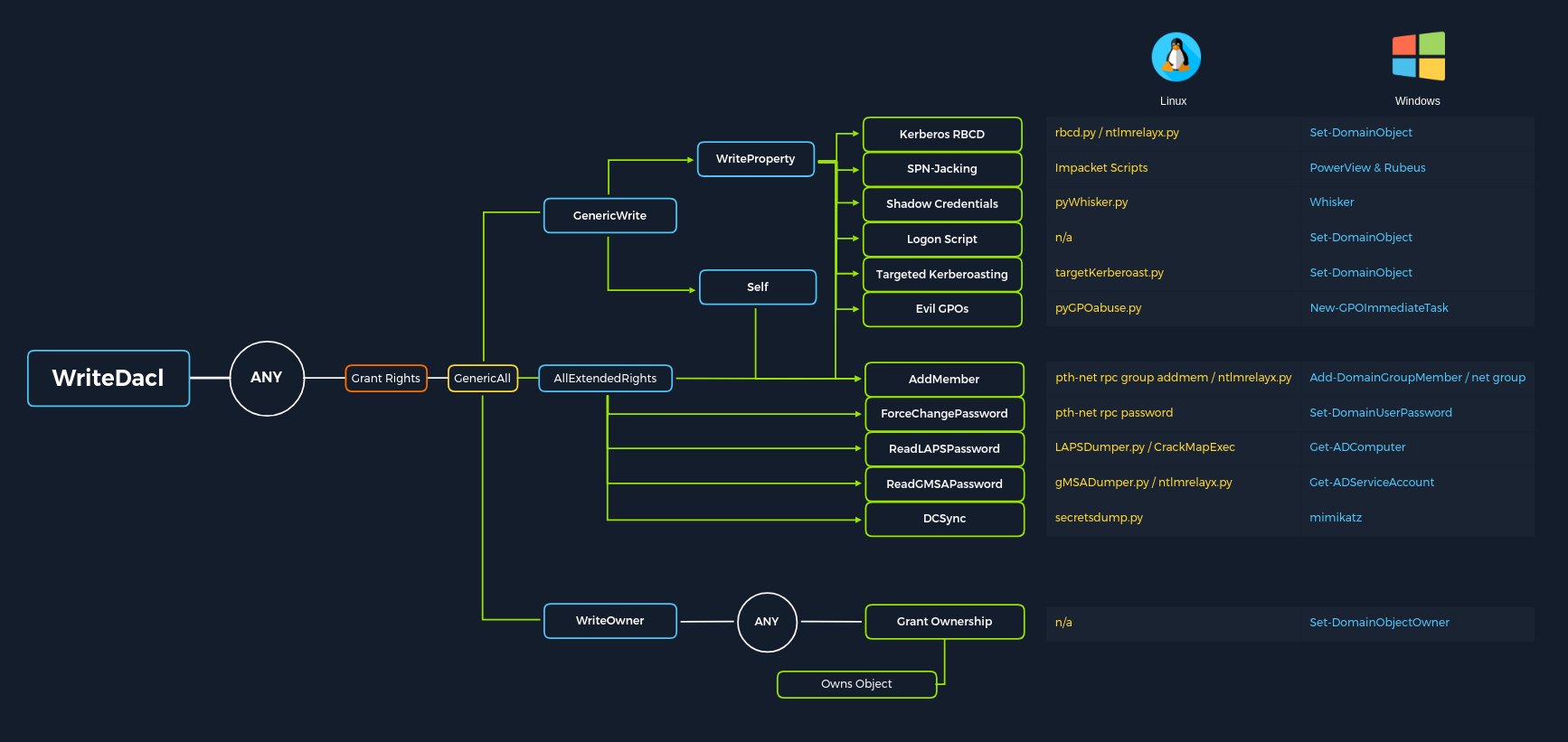
We will run into many other interesting ACEs (privileges) in Active Directory from time to time. The methodology for enumerating possible ACL attacks using tools such as BloodHound and PowerView and even built-in AD management tools should be adaptable enough to assist us whenever we encounter new privileges in the wild that we may not yet be familiar with. For example, we may import data into BloodHound and see that a user we have control over (or can potentially take over) has the rights to read the password for a Group Managed Service Account (gMSA) through the ReadGMSAPassword edge. In this case, there are tools such as GMSAPasswordReader that we could use, along with other methods, to obtain the password for the service account in question. Other times we may come across extended rights such as Unexpire-Password or Reanimate-Tombstones using PowerView and have to do a bit of research to figure out how to exploit these for our benefit. It's worth familiarizing yourself with all of the BloodHound edges and as many Active Directory Extended Rights as possible as you never know when you may encounter a less common one during an assessment.
ACL Attacks in the Wild
We can use ACL attacks for:
- Lateral movement
- Privilege escalation
- Persistence
Some common attack scenarios may include:
There are many other possible attack scenarios in the world of Active Directory ACLs, but these three are the most common. We will cover enumerating these rights in various ways, performing the attacks, and cleaning up after ourselves.
Note: Some ACL attacks can be considered "destructive," such as changing a user's password or performing other modifications within a client's AD domain. If in doubt, it's always best to run a given attack by our client before performing it to have written documentation of their approval in case an issue arises. We should always carefully document our attacks from start to finish and revert any changes. This data should be included in our report, but we should also highlight any changes we make clearly so that the client can go back and verify that our changes were indeed reverted properly.
ACL Enumeration
Let's jump into enumerating ACLs using PowerView and walking through some graphical representations using BloodHound. We will then cover a few scenarios/attacks where the ACEs we enumerate can be leveraged to gain us further access in the internal environment.
Enumerating ACLs with PowerView
We can use PowerView to enumerate ACLs, but the task of digging through all of the results will be extremely time-consuming and likely inaccurate. For example, if we run the function Find-InterestingDomainAcl we will receive a massive amount of information back that we would need to dig through to make any sense of:
Using Find-InterestingDomainAcl
ACL Enumeration
PS C:\htb> Find-InterestingDomainAcl

ObjectDN                : DC=INLANEFREIGHT,DC=LOCAL
AceQualifier            : AccessAllowed
ActiveDirectoryRights   : ExtendedRight
ObjectAceType           : ab721a53-1e2f-11d0-9819-00aa0040529b
AceFlags                : ContainerInherit
AceType                 : AccessAllowedObject
InheritanceFlags        : ContainerInherit
SecurityIdentifier      : S-1-5-21-3842939050-3880317879-2865463114-5189
IdentityReferenceName   : Exchange Windows Permissions
IdentityReferenceDomain : INLANEFREIGHT.LOCAL
IdentityReferenceDN     : CN=Exchange Windows Permissions,OU=Microsoft Exchange Security
                          Groups,DC=INLANEFREIGHT,DC=LOCAL
IdentityReferenceClass  : group

ObjectDN                : DC=INLANEFREIGHT,DC=LOCAL
AceQualifier            : AccessAllowed
ActiveDirectoryRights   : ExtendedRight
ObjectAceType           : 00299570-246d-11d0-a768-00aa006e0529
AceFlags                : ContainerInherit
AceType                 : AccessAllowedObject
InheritanceFlags        : ContainerInherit
SecurityIdentifier      : S-1-5-21-3842939050-3880317879-2865463114-5189
IdentityReferenceName   : Exchange Windows Permissions
IdentityReferenceDomain : INLANEFREIGHT.LOCAL
IdentityReferenceDN     : CN=Exchange Windows Permissions,OU=Microsoft Exchange Security
                          Groups,DC=INLANEFREIGHT,DC=LOCAL
IdentityReferenceClass  : group
If we try to dig through all of this data during a time-boxed assessment, we will likely never get through it all or find anything interesting before the assessment is over. Now, there is a way to use a tool such as PowerView more effectively -- by performing targeted enumeration starting with a user that we have control over. Let's focus on the user wley, which we obtained after solving the last question in the LLMNR/NBT-NS Poisoning - from Linux section. Let's dig in and see if this user has any interesting ACL rights that we could take advantage of. We first need to get the SID of our target user to search effectively.
ACL Enumeration
PS C:\htb> Import-Module .\PowerView.ps1
PS C:\htb> $sid = Convert-NameToSid wley
We can then use the Get-DomainObjectACL function to perform our targeted search. In the below example, we are using this function to find all domain objects that our user has rights over by mapping the user's SID using the $sid variable to the SecurityIdentifier property which is what tells us who has the given right over an object. One important thing to note is that if we search without the flag ResolveGUIDs, we will see results like the below, where the right ExtendedRight does not give us a clear picture of what ACE entry the user wley has over damundsen. This is because the ObjectAceType property is returning a GUID value that is not human readable.
Note that this command will take a while to run, especially in a large environment. It may take 1-2 minutes to get a result in our lab.
Using Get-DomainObjectACL
ACL Enumeration
PS C:\htb> Get-DomainObjectACL -Identity * | ? {$_.SecurityIdentifier -eq $sid}
ObjectDN               : CN=Dana Amundsen,OU=DevOps,OU=IT,OU=HQ-NYC,OU=Employees,OU=Corp,DC=INLANEFREIGHT,DC=LOCAL
ObjectSID              : S-1-5-21-3842939050-3880317879-2865463114-1176
ActiveDirectoryRights  : ExtendedRight
ObjectAceFlags         : ObjectAceTypePresent
ObjectAceType          : 00299570-246d-11d0-a768-00aa006e0529
InheritedObjectAceType : 00000000-0000-0000-0000-000000000000
BinaryLength           : 56
AceQualifier           : AccessAllowed
IsCallback             : False
OpaqueLength           : 0
AccessMask             : 256
SecurityIdentifier     : S-1-5-21-3842939050-3880317879-2865463114-1181
AceType                : AccessAllowedObject
AceFlags               : ContainerInherit
IsInherited            : False
InheritanceFlags       : ContainerInherit
PropagationFlags       : None
AuditFlags             : None
We could Google for the GUID value 00299570-246d-11d0-a768-00aa006e0529 and uncover this page showing that the user has the right to force change the other user's password. Alternatively, we could do a reverse search using PowerShell to map the right name back to the GUID value.
Note that if PowerView has already been imported, the cmdlet shown below will result in an error. Therefore, we may need to run it from a new PowerShell session.
Performing a Reverse Search & Mapping to a GUID Value
ACL Enumeration
PS C:\htb> $guid= "00299570-246d-11d0-a768-00aa006e0529"PS C:\htb> Get-ADObject -SearchBase "CN=Extended-Rights,$((Get-ADRootDSE).ConfigurationNamingContext)" -Filter {ObjectClass -like 'ControlAccessRight'} -Properties * |Select Name,DisplayName,DistinguishedName,rightsGuid| ?{$_.rightsGuid -eq $guid} | flName              : User-Force-Change-Password
DisplayName       : Reset Password
DistinguishedName : CN=User-Force-Change-Password,CN=Extended-Rights,CN=Configuration,DC=INLANEFREIGHT,DC=LOCAL
rightsGuid        : 00299570-246d-11d0-a768-00aa006e0529
This gave us our answer, but would be highly inefficient during an assessment. PowerView has the ResolveGUIDs flag, which does this very thing for us. Notice how the output changes when we include this flag to show the human-readable format of the ObjectAceType property as User-Force-Change-Password.
Using the -ResolveGUIDs Flag
ACL Enumeration
PS C:\htb> Get-DomainObjectACL -ResolveGUIDs -Identity * | ? {$_.SecurityIdentifier -eq $sid} AceQualifier           : AccessAllowed
ObjectDN               : CN=Dana Amundsen,OU=DevOps,OU=IT,OU=HQ-NYC,OU=Employees,OU=Corp,DC=INLANEFREIGHT,DC=LOCAL
ActiveDirectoryRights  : ExtendedRight
ObjectAceType          : User-Force-Change-Password
ObjectSID              : S-1-5-21-3842939050-3880317879-2865463114-1176
InheritanceFlags       : ContainerInherit
BinaryLength           : 56
AceType                : AccessAllowedObject
ObjectAceFlags         : ObjectAceTypePresent
IsCallback             : False
PropagationFlags       : None
SecurityIdentifier     : S-1-5-21-3842939050-3880317879-2865463114-1181
AccessMask             : 256
AuditFlags             : None
IsInherited            : False
AceFlags               : ContainerInherit
InheritedObjectAceType : All
OpaqueLength           : 0
Why did we walk through this example when we could have just searched using ResolveGUIDs first?
It is essential that we understand what our tools are doing and have alternative methods in our toolkit in case a tool fails or is blocked. Before moving on, let's take a quick look at how we could do this using the Get-Acl and Get-ADUser cmdlets which we may find available to us on a client system. Knowing how to perform this type of search without using a tool such as PowerView is greatly beneficial and could set us apart from our peers. We may be able to use this knowledge to achieve results when a client has us work from one of their systems, and we are restricted down to what tools are readily available on the system without the ability to pull in any of our own.
This example is not very efficient, and the command can take a long time to run, especially in a large environment. It will take much longer than the equivalent command using PowerView. In this command, we've first made a list of all domain users with the following command:
Creating a List of Domain Users
ACL Enumeration
PS C:\htb> Get-ADUser -Filter * | Select-Object -ExpandProperty SamAccountName > ad_users.txt
We then read each line of the file using a foreach loop, and use the Get-Acl cmdlet to retrieve ACL information for each domain user by feeding each line of the ad_users.txt file to the Get-ADUser cmdlet. We then select just the Access property, which will give us information about access rights. Finally, we set the IdentityReference property to the user we are in control of (or looking to see what rights they have), in our case, wley.
A Useful foreach Loop
ACL Enumeration
PS C:\htb> foreach($line in [System.IO.File]::ReadLines("C:\Users\htb-student\Desktop\ad_users.txt")) {get-acl  "AD:\$(Get-ADUser $line)" | Select-Object Path -ExpandProperty Access | Where-Object {$_.IdentityReference -match 'INLANEFREIGHT\\wley'}}Path                  : Microsoft.ActiveDirectory.Management.dll\ActiveDirectory:://RootDSE/CN=Dana
                        Amundsen,OU=DevOps,OU=IT,OU=HQ-NYC,OU=Employees,OU=Corp,DC=INLANEFREIGHT,DC=LOCAL
ActiveDirectoryRights : ExtendedRight
InheritanceType       : All
ObjectType            : 00299570-246d-11d0-a768-00aa006e0529
InheritedObjectType   : 00000000-0000-0000-0000-000000000000
ObjectFlags           : ObjectAceTypePresent
AccessControlType     : Allow
IdentityReference     : INLANEFREIGHT\wley
IsInherited           : False
InheritanceFlags      : ContainerInherit
PropagationFlags      : None
Once we have this data, we could follow the same methods shown above to convert the GUID to a human-readable format to understand what rights we have over the target user.
So, to recap, we started with the user wley and now have control over the user damundsen via the User-Force-Change-Password extended right. Let's use Powerview to hunt for where, if anywhere, control over the damundsen account could take us.