Network Communication
For a network to function and facilitate comunication properly, there are three crucial components: MAC addresses, IP addresses, and ports. Together, these elements ensure that data is correctly sent and received between devices across both local and global networks, forming the backbone of seamless network communication.
MAC Addresses
What is a MAC Address?
A Media Access Control (MAC) address is a unique identifier assigned to the network interface card (NIC) of a device, allowing it to be recognized on a local network. Operating at the Data Link Layer (Layer 2) of the OSI model, the MAC address is crucial for communication within a local network segment, ensuring that data reaches the correct physical device. Each MAC address is 48 bits long and is typically represented in hexadecimal format, appearing as six pairs of hexadecimal digits separated by colons or hyphens—for example, 00:1A:2B:3C:4D:5E. The uniqueness of a MAC address comes from its structure: the first 24 bits represent the Organizationally Unique Identifier (OUI) assigned to the manufacturer, while the remaining 24 bits are specific to the individual device. This design ensures that every MAC address is globally unique, allowing devices worldwide to communicate without address conflicts.
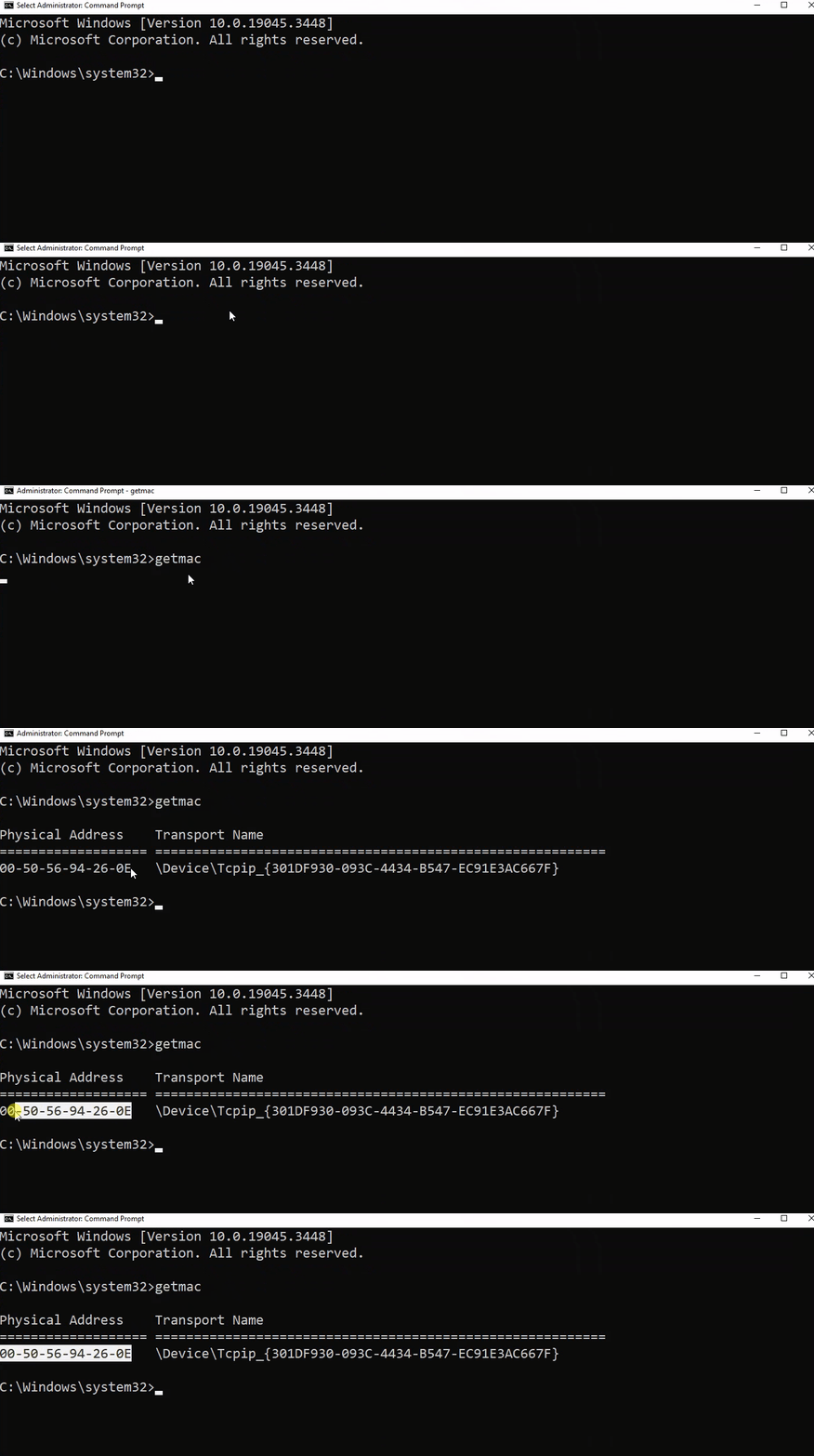
The Windows GETMAC command will return the MAC address of every network interface card on the host.
How MAC Addresses are Used in Network Communication
MAC addresses are fundamental for local communication within a local area network (LAN), as they are used to deliver data frames to the correct physical device. When a device sends data, it encapsulates the information in a frame containing the destination MAC address; network switches then use this address to forward the frame to the appropriate port. Additionally, the Address Resolution Protocol (ARP) plays a crucial role by mapping IP addresses to MAC addresses, allowing devices to find the MAC address associated with a known IP address within the same network. This mapping is bridging the gap between logical IP addressing and physical hardware addressing within the LAN.
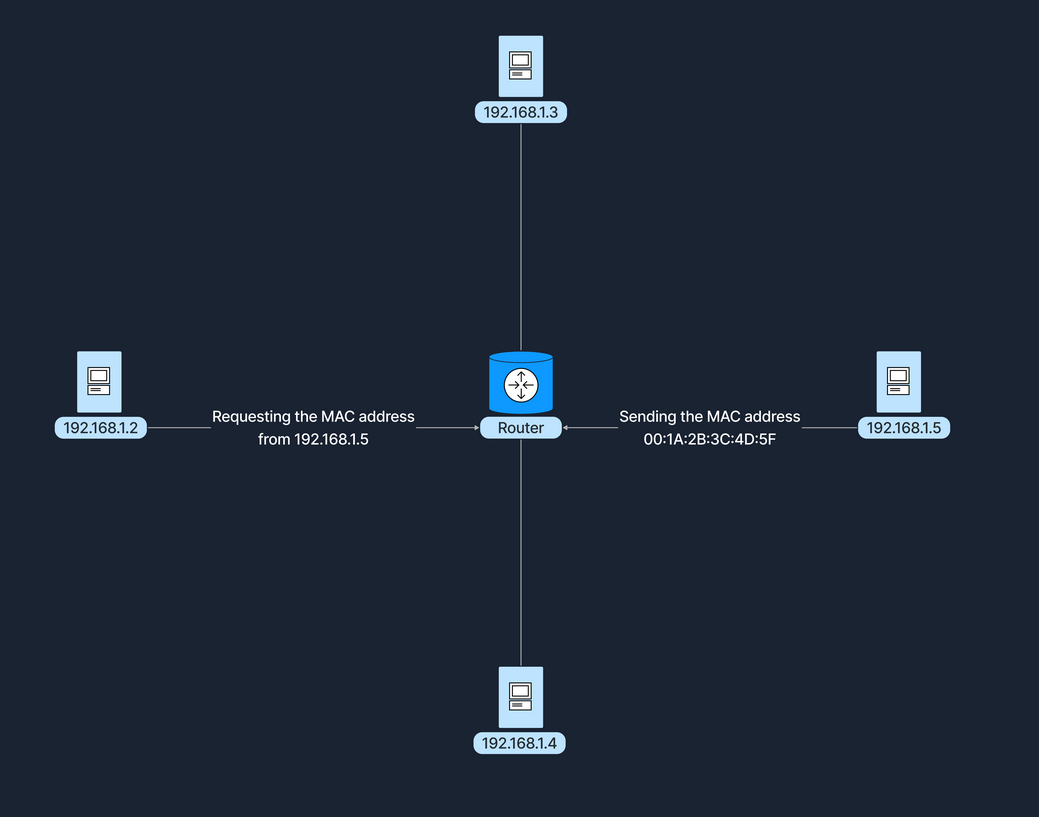
Imagine two computers, Computer A (with an IP address of 192.168.1.2 - which we will discuss shortly) and Computer B (192.168.1.5), connected to the same network switch. Computer A has the MAC address 00:1A:2B:3C:4D:5E, while Computer B's MAC address is 00:1A:2B:3C:4D:5F. When Computer A wants to send data to Computer B, it first uses the Address Resolution Protocol (ARP) to discover Computer B's MAC address associated with its IP address. After obtaining this information, Computer A sends a data frame with the destination MAC address set to 00:1A:2B:3C:4D:5F. The switch receives this frame and forwards it to the specific port where Computer B is connected, ensuring that the data reaches the correct device. This is illustrated in the following diagram.
IP Addresses
What is an IP Address?
An Internet Protocol (IP) address is a numerical label assigned to each device connected to a network that utilizes the Internet Protocol for communication. Functioning at the Network Layer (Layer 3) of the OSI model, IP addresses enable devices to locate and communicate with each other across various networks. There are two versions of IP addresses: IPv4 and IPv6. IPv4 addresses consist of a 32-bit address space, typically formatted as four decimal numbers separated by dots, such as 192.168.1.1. In contrast, IPv6 addresses, which were developed to address the depletion of IPv4 addresses, have a 128-bit address space and are formatted in eight groups of four hexadecimal digits, an example being 2001:0db8:85a3:0000:0000:8a2e:0370:7334.
How IP Addresses are Used in Network Communication
Routers use IP addresses to determine the optimal path for data to reach its intended destination across interconnected networks. Unlike MAC addresses, which are permanently tied to the device's network interface card, IP addresses are more flexible; they can change and are assigned based on the network topology and policies. A communication example between two devices on the same network can be similarly illustrated as shown previously in the MAC Address subsection.
Ports
A port is a number assigned to specific processes or services on a network to help computers sort and direct network traffic correctly. It functions at the Transport Layer (Layer 4) of the OSI model and works with protocols such as TCP and UDP. Ports facilitate the simultaneous operation of multiple network services on a single IP address by differentiating traffic intended for different applications.
When a client application initiates a connection, it specifies the destination port number corresponding to the desired service. Client applications are those who request data or services, while server applications respond to those requests and provide the data or services. The operating system then directs the incoming traffic to the correct application based on this port number. Consider a simple example where a user accesses a website: the user’s browser initiates a connection to the server's IP address on port 80, which is designated for HTTP. The server, listening on this port, responds to the request. If the user needs to access a secure site, the browser instead connects to port 443, the standard for HTTPS, ensuring secure communication. Port numbers range from 0 to 65535, and it is divided into three main categories, each serving a specific function.
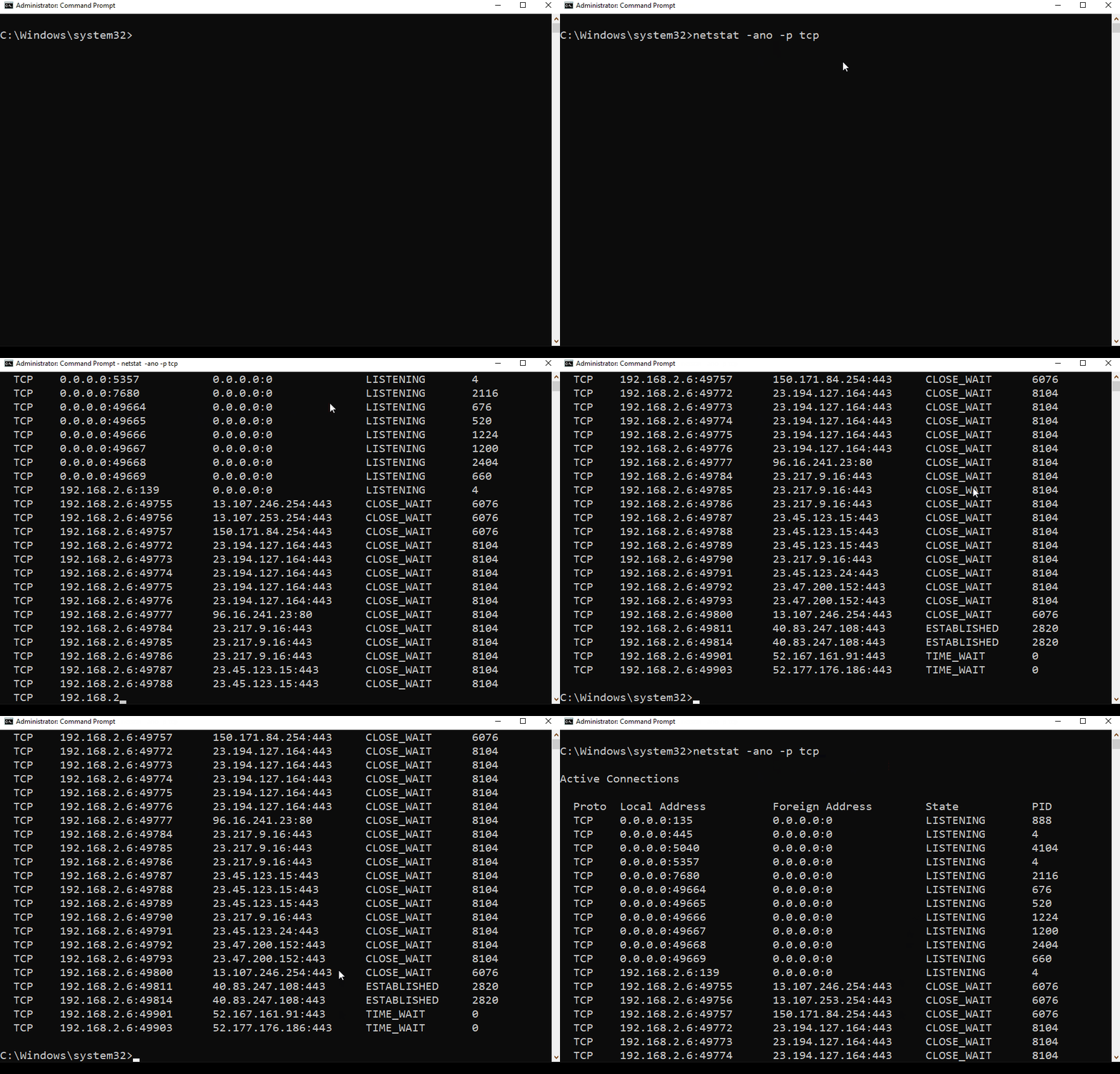
Using the netstat tool to view active connections and listening ports.
Well-Known Ports (0-1023):
Well-known ports, numbered from 0 to 1023, are reserved for common and universally recognized services and protocols, as standardized and managed by the Internet Assigned Numbers Authority (IANA). For instance, HTTP, which is the foundation of data communication for the World Wide Web, uses port 80, although browsers typically do not display this port number to simplify user experience. Similarly, HTTPS uses port 443 for secure communications over networks, and this port is also generally not displayed by browsers. Another example is FTP, which facilitates file transfers between clients and servers, using ports 20 and 21.
Registered Ports (1024-49151):
Registered ports, which range from 1024 to 49151, are not as strictly regulated as well-known ports but are still registered and assigned to specific services by the Internet Assigned Numbers Authority (IANA). These ports are commonly used for external services that users might install on a device. For instance, many database services, such as Microsoft SQL Server, use port 1433. Software companies frequently register a port for their applications to ensure that their software consistently uses the same port on any system. This registration helps in managing network traffic and preventing port conflicts across different applications.
Dynamic/Private Ports (49152-65535):
Dynamic or private ports, also known as ephemeral ports, range from 49152 to 65535 and are typically used by client applications to send and receive data from servers, such as when a web browser connects to a server on the internet. These ports are called dynamic because they are not fixed; rather, they can be randomly selected by the client's operating system as needed for each session. Generally used for temporary communication sessions, these ports are closed once the interaction ends. Additionally, dynamic ports can be assigned to custom server applications, often those handling short-term connections.
Browsing the Internet Example
The following example represents the steps taken for a web request to reach the correct destination and return the information we seek.
1. DNS Lookup
Our computer resolves the domain name to an IP address (e.g., 93.184.216.34 for example.com).
2. Data Encapsulation
Step
Your browser generates an HTTP request.
The request is encapsulated with TCP, specifying the destination port
80or
443.
The packet includes the destination IP address
93.184.216.34.
On the local network, our computer uses ARP to find the MAC address of the default gateway (router).
3. Data Transmission
Step
The data frame is sent to the router's MAC address.
The router forwards the packet toward the destination IP address.
Intermediate routers continue forwarding the packet based on the IP address.
4. Server Processing
Step
The server receives the packet and directs it to the application listening on port 80.
The server processes the HTTP request and sends back a response following the same path in reverse.
5. Response Transmission
Step
The server sends the response back to the client’s temporary port, which was randomly selected by the client’s operating system at the start of the session.
The response follows the reverse path back through the network, being directed from router to router based on the source IP address and port information until it reaches the client.
Dynamic Host Configuration Protocol (DHCP)
Introduction to DHCP
In a computer network, every device needs a unique IP (Internet Protocol) address to communicate with other devices. Manually assigning IP addresses to each device can be time-consuming and cause errors, especially in large networks. To resolve this issue, networks can rely on the Dynamic Host Configuration Protocol (DHCP). DHCP is a network management protocol used to automate the process of configuring devices on IP networks. It allows devices to automatically receive an IP address and other network configuration parameters, such as subnet mask, default gateway, and DNS servers, without manual intervention.
DHCP simplifies network management by automatically assigning IP addresses, significantly reducing the administrative workload. This automation ensures that each device connected to the network receives a unique IP address, preventing conflicts and duplication of addresses. Furthermore, DHCP recycles IP addresses that are no longer in use when devices disconnect from the network, optimizing the available address pool.
How DHCP Works
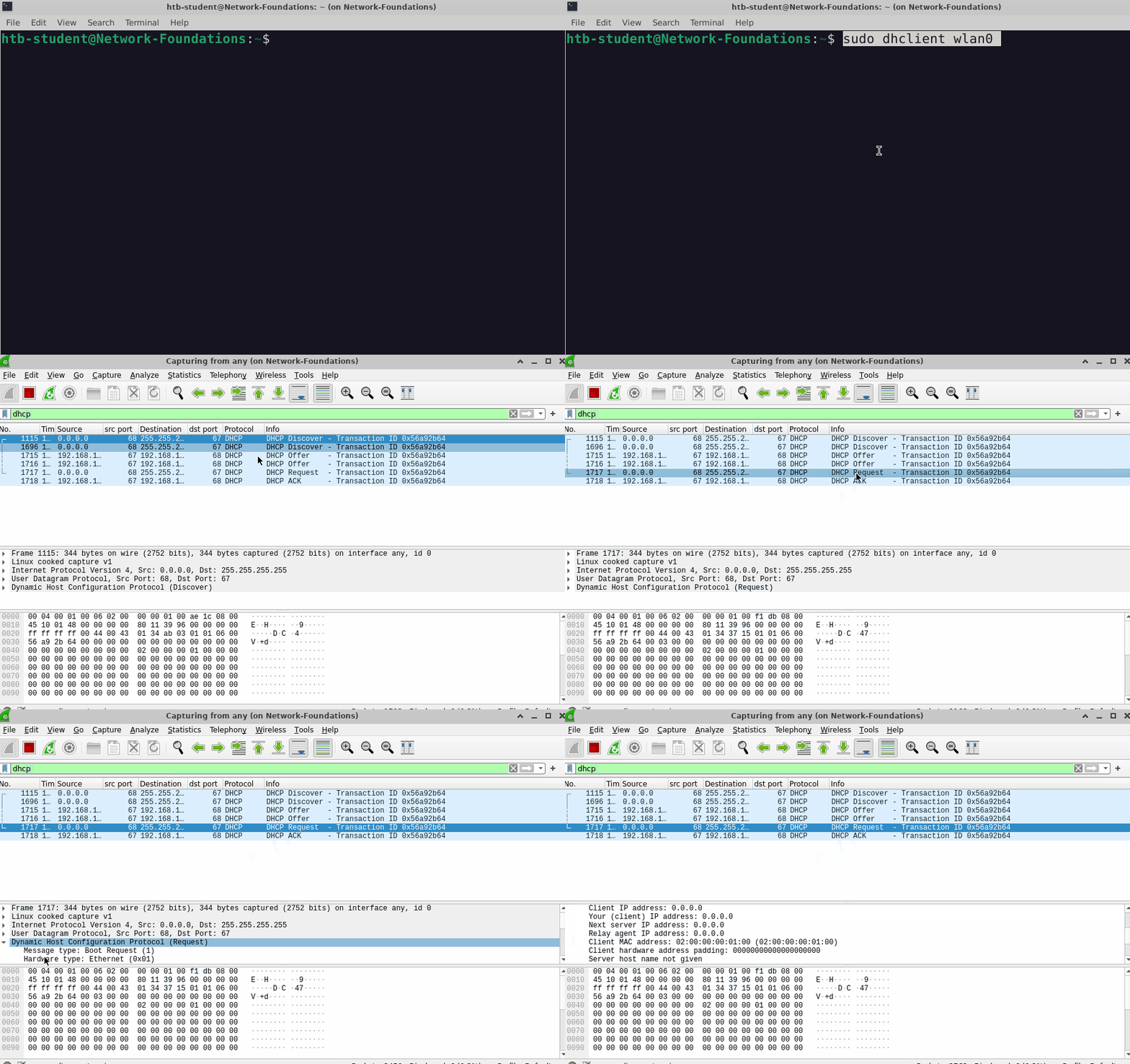
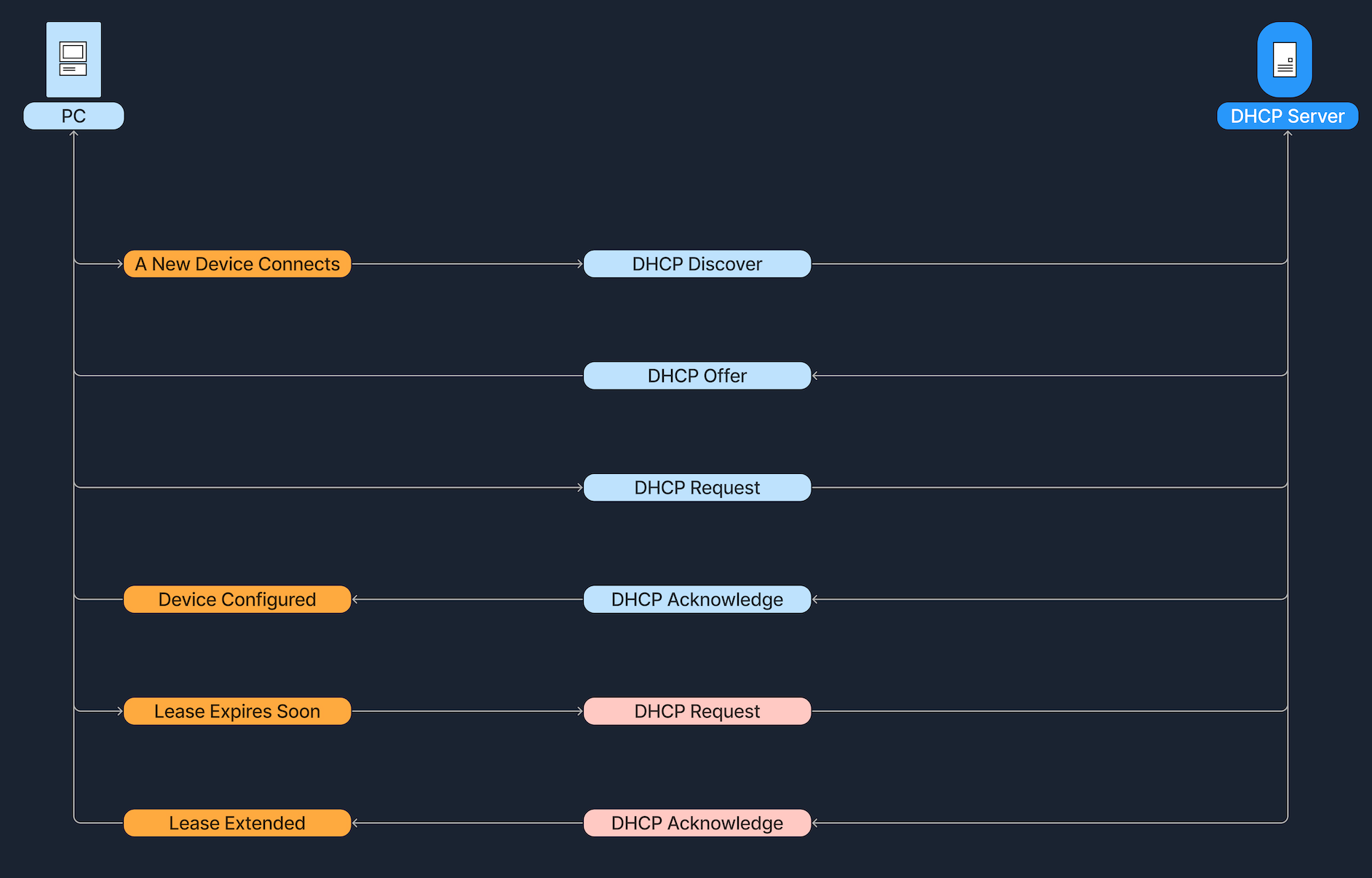
The DHCP process involves a series of interactions between the client (the device requesting an IP address) and the DHCP server (the service running on a network device that assigns IP addresses). This process is often referred to as DORA, an acronym for Discover, Offer, Request, and Acknowledge. Below we see a breakdown of DORA. Before we explore the DORA steps in detail, let's first clarify the roles of the DHCP server and the DHCP client:
Below, we break down each step of the DORA process:
A Linux host, connected to a wireless network, initializes the DORA process.
The IP address assignment via DHCP is not permanent but is instead issued with a specific lease time. For instance, a DHCP server might assign an IP address to a smartphone with a lease time of 24 hours. After this period, the smartphone must request a renewal of the lease to continue using the IP address. Regarding the renewal process, before the lease expires, the client must proactively attempt to renew its IP address lease. This involves sending a renewal request to the DHCP server. As the lease nears its expiration, the client communicates with the DHCP server, asking if it can continue using the assigned IP address, to which the server can respond affirmatively, extending the lease.
Example Scenario
Let's walk through a simple example, based on the steps previously discussed, of how DHCP assigns an IP address to a device: Alice brings her new laptop to the office and connects it to the network. Since the laptop doesn't have an IP address yet, it sends out a DHCP Discover message to find a DHCP server. The office's DHCP server receives this message and responds with an offer, proposing the IP address 192.168.1.10. Alice's laptop receives this offer and sends back a DHCP Request message to accept the IP address. Finally, the DHCP server acknowledges this request and confirms the assignment. The laptop is now configured with the IP address 192.168.1.10, allowing it to communicate on the network.
The IP address 192.168.1.10 assigned to Alice's laptop is not permanent but is instead provided for a specific duration, known as the lease time. As this lease nears expiration, Alice's laptop must renew it to continue using the IP address. To do this, it sends another DHCP Request to the DHCP server asking to extend the lease. If the server can renew the lease, it will respond with a DHCP Acknowledge message, confirming the continued use of the IP address.
Network Address Translation (NAT)
The Internet relies on a system of numerical addresses, known as IP addresses, to route data from one device to another. The original addressing scheme, IPv4, offers a finite number of IP addresses (approximately 4.3 billion). Although this might sound like a lot, the explosive growth of the internet has meant these addresses are in short supply. One solution to this insufficiency issue is Network Address Translation (NAT). The idea is that NAT allows multiple devices on a private network to share a single public IP address. This not only helps conserve the limited pool of public IP addresses but also adds a layer of security to the internal network.
Private vs. Public IP Addresses
Public IP addresses are globally unique identifiers assigned by Internet Service Providers (ISPs). Devices equipped with these IP addresses can be accessed from anywhere on the Internet, allowing them to communicate across the global network. For example, the IP address 8.8.8.8 is used for Google's DNS server, and 142.251.46.174 identifies one of Google’s web servers. These addresses ensure that devices can uniquely identify and reach each other over the internet.
Private IP addresses are designated for use within local networks such as homes, schools, and offices. These addresses are not routable on the global internet, meaning packets sent to these addresses are not forwarded by internet backbone routers. Defined by RFC 1918, common IPv4 private address ranges include 10.0.0.0 to 10.255.255.255, 172.16.0.0 to 172.31.255.255, and 192.168.0.0 to 192.168.255.255. This setup ensures that these private networks operate independently of the internet while facilitating internal communication and device connectivity.
Private IP addresses contribute to conserving public IP addresses. Using Network Address Translation (NAT), a local network can utilize private IP addresses while sharing a single public IP address, reducing the number of public IPs needed. This setup makes devices accessible from the internet without using multiple public addresses. Additionally, private IPs help secure the network by isolating internal devices from direct exposure to the internet, protecting them from potential external threats.