Analysis with Wireshark
Wireshark is a free and open-source network traffic analyzer much like tcpdump but with a graphical interface. Wireshark is multi-platform and capable of capturing live data off many different interface types (to include WiFi, USB, and Bluetooth) and saving the traffic to several different formats. Wireshark allows the user to dive much deeper into the inspection of network packets than other tools. What makes Wireshark truly powerful is the analysis capability it provides, giving a detailed insight into the traffic.
Depending on the host we are using, we may not always have a GUI to utilize traditional Wireshark. Lucky for us, several variants allow us to use it from the command line.
Features and Capabilities:
- Deep packet inspection for hundreds of different protocols
- Graphical and TTY interfaces
- Capable of running on most Operating systems
- Ethernet, IEEE 802.11, PPP/HDLC, ATM, Bluetooth, USB, Token Ring, Frame Relay, FDDI, among others
- Decryption capabilities for IPsec, ISAKMP, Kerberos, SNMPv3, SSL/TLS, WEP, and WPA/WPA2
- Many many more...
Requirements for Use
Wireshark requires the following for use:
Windows:
- The Universal C Runtime. This is included with Windows 10 and Windows Server 2019 and is installed automatically on earlier versions if Microsoft Windows Update is enabled. Otherwise, KB2999226 or KB3118401 must be installed.
- Any modern 64-bit AMD64/x86-64 or 32-bit x86 processor.
- 500 MB available RAM. Larger capture files require more RAM.
- 500 MB available disk space. Capture files require additional disk space.
- Any modern display. 1280 × 1024 or higher resolution is recommended. Wireshark will make use of HiDPI or Retina resolutions if available. Power users will find multiple monitors useful.
- A supported network card for capturing:
- To install, download the executable from wireshark.org, validate the hash, and install.
Linux:
- Wireshark runs on most UNIX and UNIX-like platforms, including Linux and most BSD variants. The system requirements should be comparable to the specifications listed above for Windows.
- Binary packages are available for most Unix and Linux distributions.
- To validate if the package exists on a host, use the following command:
Locating Wireshark
Analysis with Wireshark
sasorirose@htb[/htb]$ which wiresharkIf the package does not exist, (It can often be found in /usr/sbin/wireshark) you can install it with:
Installing Wireshark On Linux
Analysis with Wireshark
sasorirose@htb[/htb]$ sudo apt install wiresharkTShark VS. Wireshark (Terminal vs. GUI)
Both options have their merits. TShark is a purpose-built terminal tool based on Wireshark. TShark shares many of the same features that are included in Wireshark and even shares syntax and options. TShark is perfect for use on machines with little or no desktop environment and can easily pass the capture information it receives to another tool via the command line. Wireshark is the feature-rich GUI option for traffic capture and analysis. If you wish to have the full-featured experience and work from a machine with a desktop environment, the Wireshark GUI is the way to go.
Basic TShark Switches
To see the full list of switches you can utilize:
TShark Help
Analysis with Wireshark
sasorirose@htb[/htb]$ tshark -hTShark Basic Usage
TShark can use filters for protocols, common items like hosts and ports, and even the ability to dig deeper into the packets and dissect individual fields from the packet.
Locating TShark
Analysis with Wireshark
sasorirose@htb[/htb]$ which tsharksasorirose@htb[/htb]$ tshark -Dsasorirose@htb[/htb]$ tshark -i 1 -w /tmp/test.pcapCapturing on 'Wi-Fi: en0'
484
With the basic string in the command line above, we utilize TShark to capture on en0, specified with the -i flag and the -w option to save the capture to a specified output file. Utilizing TShark is very similar to TCPDump in the filters and switches we can use. Both tools utilize BPF syntax. To read the capture, tshark can be passed the -r switch just like in TCPDump, or we can pass the -P switch to have tshark print the packet summaries while writing out to a file. Below is an example of reading from the PCAP file we previously captured.
Selecting an Interface & Writing to a File
Analysis with Wireshark
sasorirose@htb[/htb]$ sudo tshark -i eth0 -w /tmp/test.pcapApplying Filters
Analysis with Wireshark
sasorirose@htb[/htb]$ sudo tshark -i eth0 -f "host 172.16.146.2"Capturing on 'eth0'
    1 0.000000000 172.16.146.2 → 172.16.146.1 DNS 70 Standard query 0x0804 A github.com
    2 0.258861645 172.16.146.1 → 172.16.146.2 DNS 86 Standard query response 0x0804 A github.com A 140.82.113.4
    3 0.259866711 172.16.146.2 → 140.82.113.4 TCP 74 48256 → 443 [SYN] Seq=0 Win=64240 Len=0 MSS=1460 SACK_PERM=1 TSval=1321417850 TSecr=0 WS=128
    4 0.299681376 140.82.113.4 → 172.16.146.2 TCP 74 443 → 48256 [SYN, ACK] Seq=0 Ack=1 Win=65535 Len=0 MSS=1436 SACK_PERM=1 TSval=3885991869 TSecr=1321417850 WS=1024
    5 0.299771728 172.16.146.2 → 140.82.113.4 TCP 66 48256 → 443 [ACK] Seq=1 Ack=1 Win=64256 Len=0 TSval=1321417889 TSecr=3885991869
    6 0.306888828 172.16.146.2 → 140.82.113.4 TLSv1 579 Client Hello
    7 0.347570701 140.82.113.4 → 172.16.146.2 TLSv1.3 2785 Server Hello, Change Cipher Spec, Application Data, Application Data, Application Data, Application Data
    8 0.347653593 172.16.146.2 → 140.82.113.4 TCP 66 48256 → 443 [ACK] Seq=514 Ack=2720 Win=63488 Len=0 TSval=1321417937 TSecr=3885991916
    9 0.358887130 172.16.146.2 → 140.82.113.4 TLSv1.3 130 Change Cipher Spec, Application Data
   10 0.359781588 172.16.146.2 → 140.82.113.4 TLSv1.3 236 Application Data
   11 0.360037927 172.16.146.2 → 140.82.113.4 TLSv1.3 758 Application Data
   12 0.360482668 172.16.146.2 → 140.82.113.4 TLSv1.3 258 Application Data
   13 0.397331368 140.82.113.4 → 172.16.146.2 TLSv1.3 145 Application Data
- f allows us to apply filters to the capture. In the example, we utilized host, but you can use almost any filter Wireshark recognizes. We have touched on TShark a bit now. Let's take a look at a nifty tool called Termshark.
Termshark
Termshark is a Text-based User Interface (TUI) application that provides the user with a Wireshark-like interface right in your terminal window.
Termshark
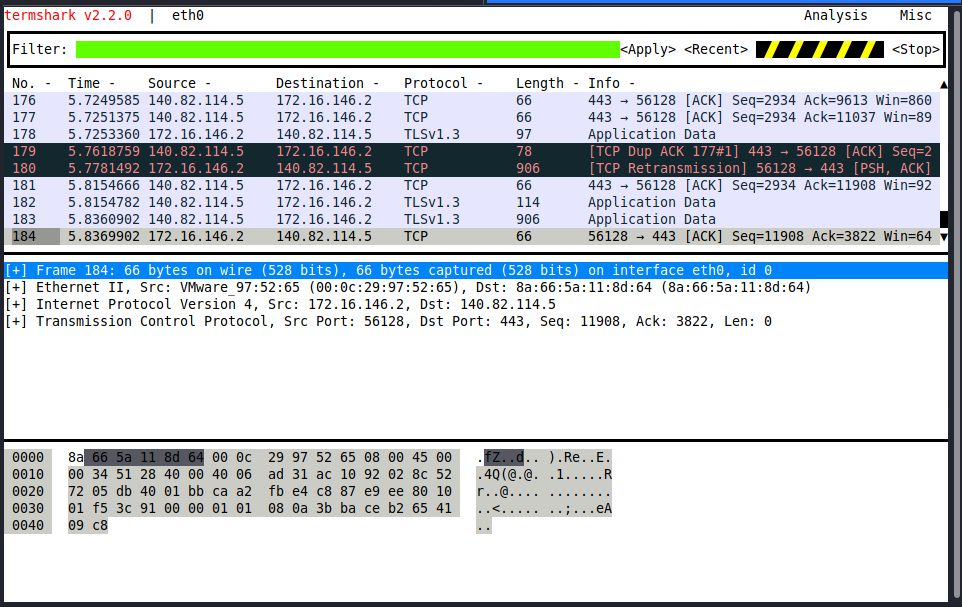
Termshark can be found at Termshark. It can be built from the source by cloning the repo, or pull down one of the current stable releases from https://github.com/gcla/termshark/releases , extract the file, and hit the ground running.
For help navigating this TUI, see the image below.
Termshark Help
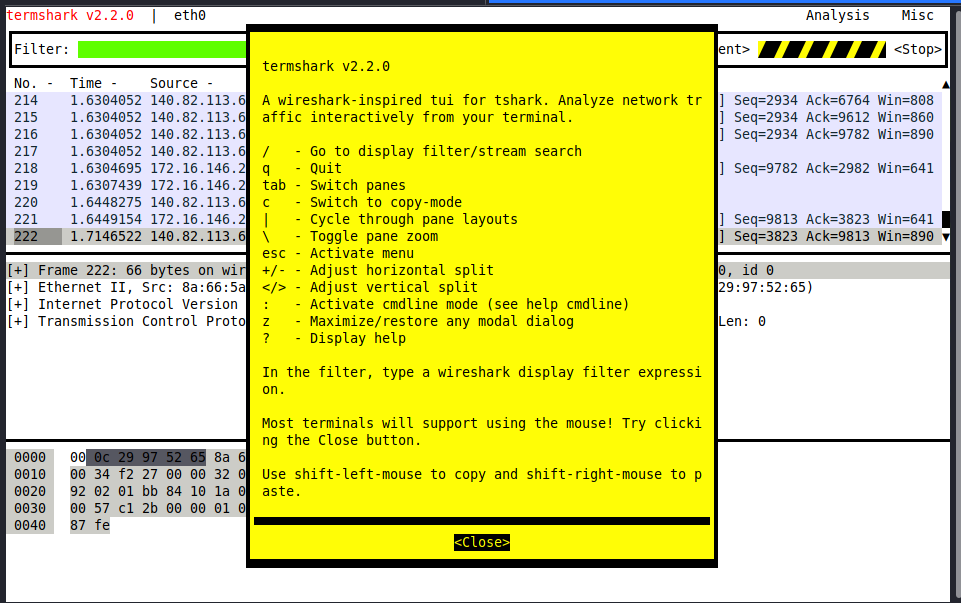
To start Termshark, issue the same strings, much like TShark or tcpdump. We can specify an interface to capture on, filters, and other settings from the terminal. The Termshark window will not open until it senses traffic in its capture filter. So give it a second if nothing happens.
Wireshark GUI Walkthrough
Now that we have spent time learning the art of packet capture from the command line let's spend some time in Wireshark. We will take a few minutes to examine what we are looking at in the output below. Let's dissect this view of the Wireshark GUI.
Wireshark GUI
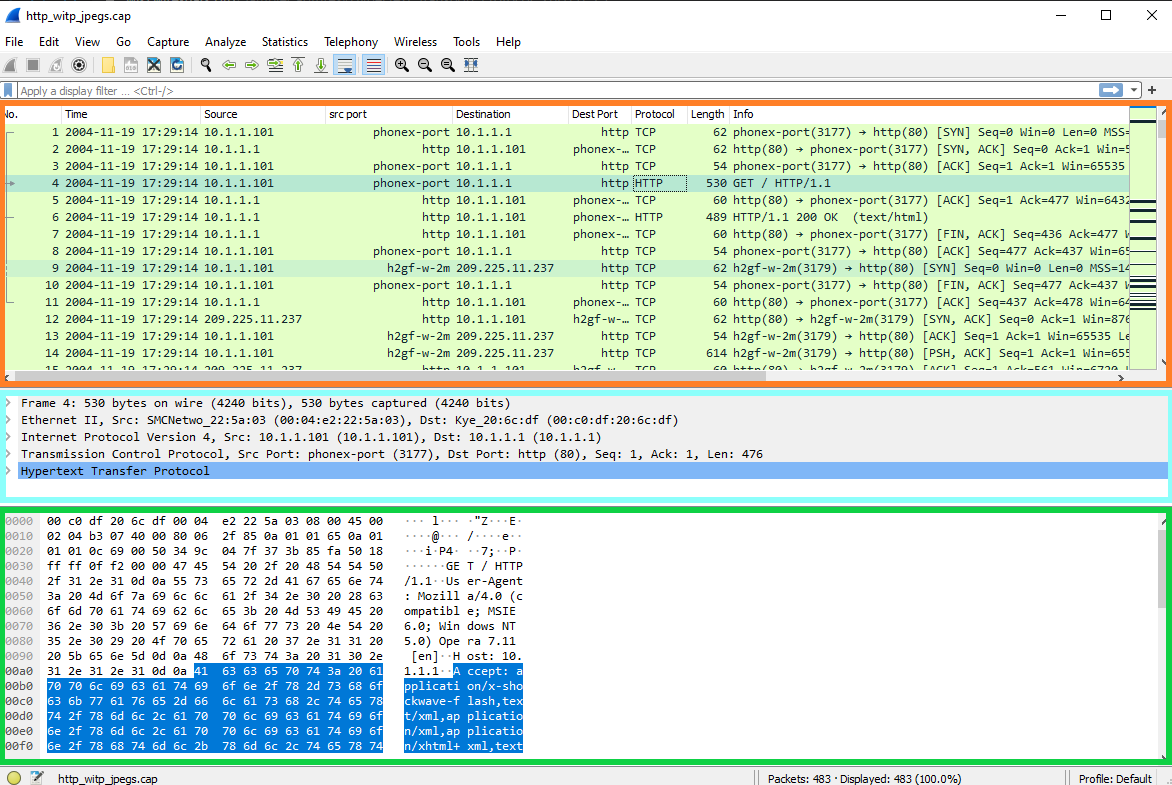
Three Main Panes: See Figure above
- Packet List: Orange
- Packet Details: Blue
- Packet Bytes: Green
Other Notable Features
When looking at the Wireshark interface, we will notice a few different option areas and radial buttons. These areas are control points in which we can modify the interface and our view of the packets in the current capture. See Figure below
Wireshark Menu
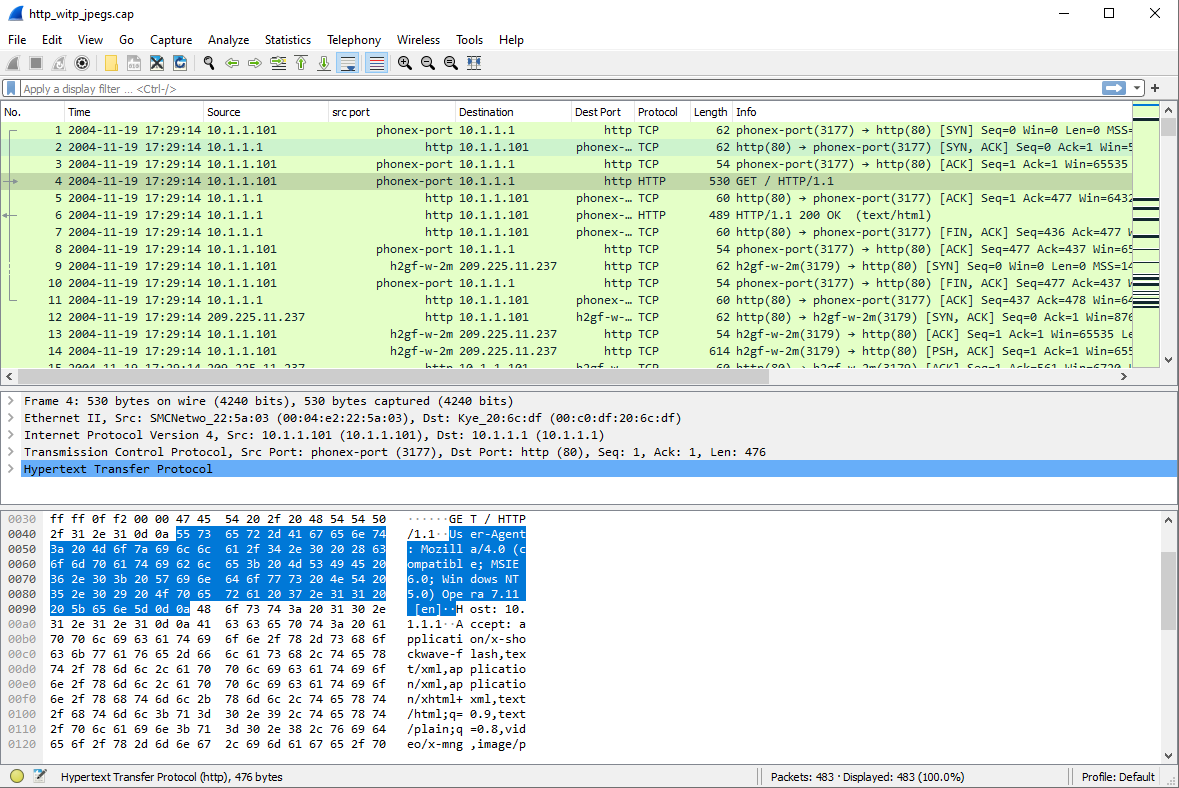
Performing our first capture in Wireshark
Starting a capture with Wireshark is a simple endeavor. The gif below will show the steps.
Steps To Start A Capture
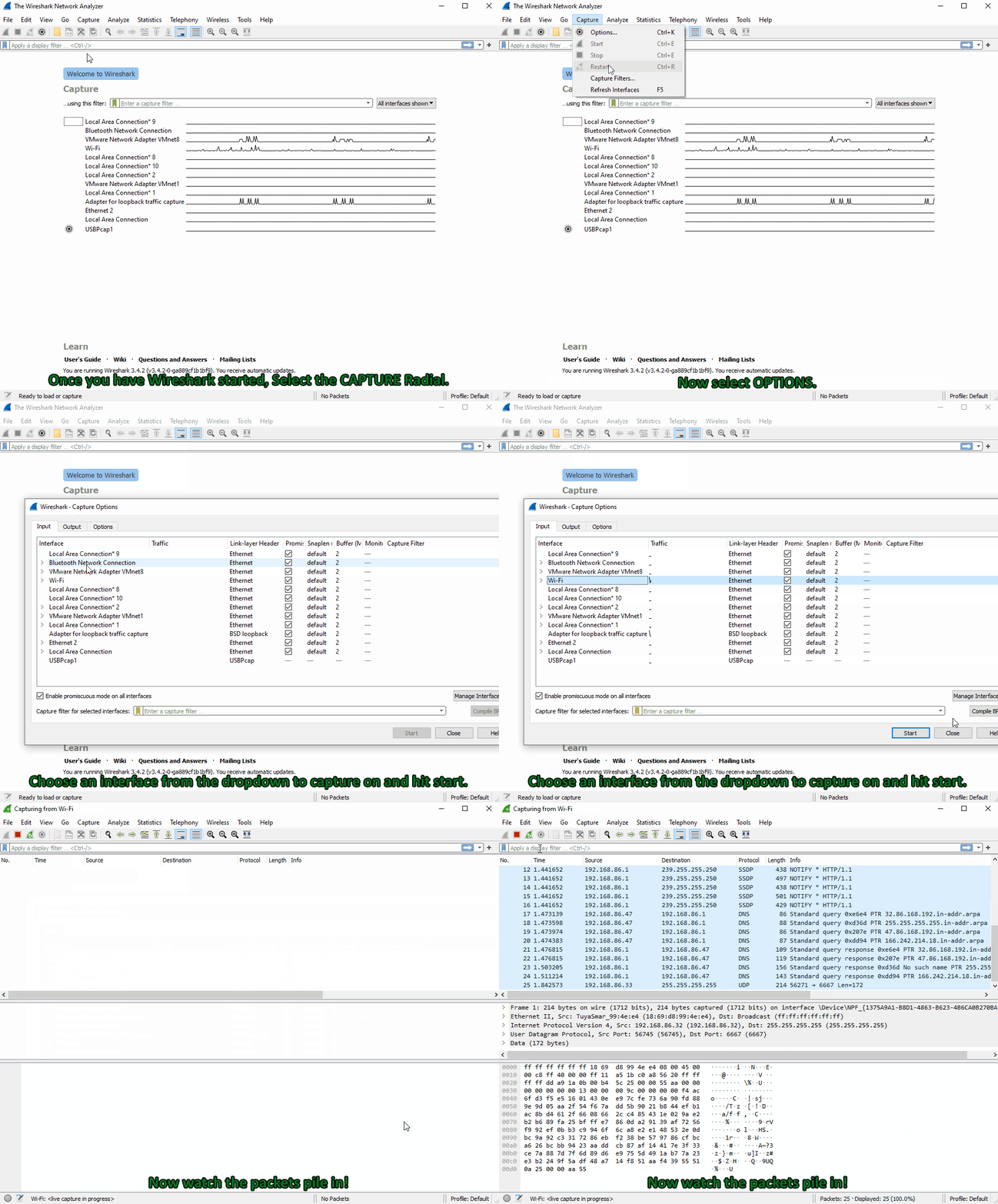
Keep in mind, any time we change the capture options, Wireshark will restart the trace. Much like TCPDump, Wireshark has capture and display filter options that can be used.
The Basics
The Toolbar

Wireshark's Toolbar is a central point to manage the many features Wireshark includes. From here, we can start and stop captures, change interfaces, open and save .pcap files and apply different filters or analysis add-ins.
How to Save a Capture
Let's say we need to capture what we have in our window currently for troubleshooting later. Saving a capture is super simple:
- Select File ⇢ save OR
- From the toolbar, select the file option and choose where to save the file and in what format.
Be aware that Wireshark can save captures into multiple formats. Choose the one needed for the scenario, but we will use the .pcap format for now.
Pre-capture and Post-capture Processing and Filtering
While capturing traffic with Wireshark, we have several options regarding how and when we filter out traffic. This is accomplished utilizing Capture and Display filters. The Former initiated before the capture starts and the latter during or after capture is complete. While Wireshark has a bunch of useful baked-in functionality, it is worth mentioning that it has a bit of trouble handling large captures. The more packets captured, the longer it will take Wireshark to run the display or analysis filter against it. It can take from just a couple of seconds to a few minutes if it completes at all. If we are working with a large pcap file, it may be best to break it up into smaller chunks first.
Capture Filters
Capture Filters- are entered before the capture is started. These use BPF syntax like host 214.15.2.30 much in the same fashion as TCPDump. We have fewer filter options this way, and a capture filter will drop all other traffic not explicitly meeting the criteria set. This is a great way to trim down the data you write to disk when troubleshooting a connection, such as capturing the conversations between two hosts.
Here is a table of common and helpful capture filters with a description of each: