Password Policies
Now that we have worked through numerous ways to capture credentials and passwords, let us turn our attention to best practices for password and identity protection. Speed limits and traffic laws exist so that we drive safely. Without them, driving would be chaotic. The same is true when a company does not have proper policies in place; users could act without constraints regardless of the consequences. This is why service providers and administrators define and enforce policies for better security.
Let us meet Mark, a new employee at Inlanefreight Corp. Mark does not work in IT and is not aware of the risks associated with weak passwords. When prompted to set his business email password, he chooses password123. However, he receives an error stating that the password does not meet the company's password policy, along with a message explaining the minimum requirements for a more secure password.
In this example, we have two major components: the definition of the password policy and its enforcement. The definition outlines the rules and expectations for password creation, while enforcement is the technology use to enforce compliance. Both are essential aspects to a successful password policy implementation. In this lesson, we will explore how to create a strong password policy and how to enforce it effectively.
Password policy
A password policy is a set of rules designed to enhance computer security by encouraging users to create strong passwords and use them appropriately according to the organization's standards. The scope of a password policy extends beyond minimum password requirements to encompass the entire password lifecycle (such as creation, storage, management, and transmission).
Password policy standards
Due to compliance requirements and best practices, many companies follow established IT security standards. While adhering to these standards does not guarantee complete security, it is a widely accepted industry practice that defines a baseline for security controls with an organization. However, compliance alone should not be the sole measure of an organization's security controls.
Some security standards include sections on password policies or guidelines. Here are a few of the most common:
- NIST SP800-63B
- CIS Password Policy Guide
- PCI DSS
These standards offer different perspectives on password security. We can study them to help shape our own password policy. Let's examine a use-case where standards differ significantly: password expiration.
In the past, we may have heard phrases such as "change your password every 90 days to stay secure." The truth is that not every organization follows this—some only required password changes in the event of a confirmed compromise. Today, the industry has shifted to recommending that password expiration be disabled, as it often leads users to adopt predictable, weak patterns.
Sample password policy
To illustrate important considerations, here is a sample password policy. It requires that all passwords:
- Minimum of 8 characters.
- Include uppercase and lowercase letters.
- Include at least one number.
- Include at least one special character.
- It should not be the username.
- It should be changed every 60 days.
Our new employee, Mark, who initially received an error when trying to set his email password to password123, now chooses Inlanefreight01! and successfully registers his account. While this password meets the company's policy requirements, it is still weak and easily guessable, as it includes the company name. We learned in the "Password Mutations" section that this is a common practice of employees, and attackers are aware of this.
Once the password reaches its expiration, Mark can simply change 01 to 02, and the new password still complies with the company's policy despite being nearly identical to the previous one. For this reason, there is ongoing debate among security professionals about the effectiveness of password expiration policies and when users should be required to change their passwords.
Based on this example, we should include certain blacklisted words in our password policies. These may include, but are not limited to:
- The company's name
- Common words associated with the company
- Names of months
- Names of seasons
- Variations on the words "welcome" and "password"
- Common and easily guessable words such as "password", "123456", and "abcde"
Enforcing password policy
A password policy is a set of guidelines for how passwords should be created, managed, and stored within an organization. To implement this policy effectively, it must be enforced using the technology at our disposal or by acquiring the necessary tools. Most applications and identity management systems offer features to support the enforcement of such policies.
For instance, if we use Active Directory for authentication, we can configure an Active Directory Password Policy GPO to ensure users comply with our policy.
Once the technical aspect is covered, the policy must be communicated to the rest of the company. Subsequently, processes and procedures should be created to guarantee that the password policy is applied everywhere.
Creating a strong password
Creating a strong password doesn't have to be difficult. Tools like PasswordMonster help evaluate the strength of passwords, while 1Password Password Generator can generate secure ones.
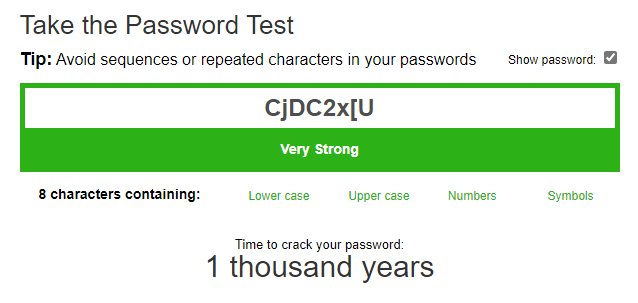
The password CjDC2x[U was generated by the tool and is considered strong. It would take a long time to crack and is unlikely to be guessed or exposed via password spraying attacks. However, it may be difficult to remember.
We can create strong passwords using ordinary words, phrases, or even lyrics from songs we like. For example, a good password might be This is my secure password or The name of my dog is Popy. To make these phrases more complex, we can add special characters, such as ()The name of my dog is Popy!. While such passwords are difficult to guess, we should keep in mind that attackers can use OSINT to learn about us, and we should keep this in mind when creating passwords.
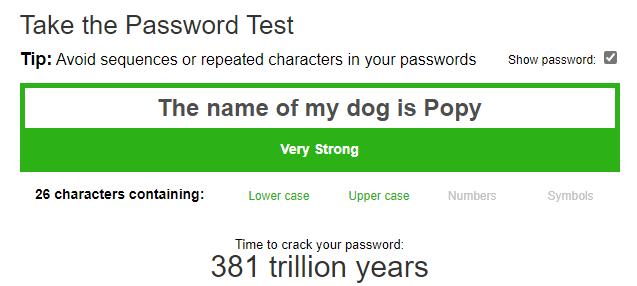
Using this method, we can create and remember several strong passwords. However, as the number grows, it becomes increasingly difficult to manage them all. In the next section, we will explore how using a password manager can help generate and securely store a large number of passwords.
Password Managers
It seems like everything requires a password nowadays. We use them for home Wi-Fi, social networks, bank accounts, business emails, and our favorite applications and websites. According to a study conducted by NordPass, the average person now has around 100 passwords. This is one of the main reasons people often reuse passwords or create overly simple ones.
Given this reality, we need to have strong, unique passwords for each service. Yet, it is unrealistic to expect anyone to memorize hundreds of complex credentials. This is where a password manager becomes essential. A password manager is an application that securely stores passwords and sensitive information in an encrypted database. In addition to keeping data safe, password managers offer features such as password generation, two-factor authentication (2FA) support, secure form filling, browser integration, multi-device synchronization, security alerts, and more.
How does a password manager work?
The implementation of password managers varies by provider, but most operate using a master password to encrypt the password database.
The Encryption and authentication rely on us cryptographic hash functions and key derivation functions to prevent unauthorized access to the encrypted database and its content. The specific mechanisms used depend on the provider and whether the password manager is cloud-based or locally stored.
Let's break down some common password managers and how they work.
Cloud password managers
One of the key considerations when choosing a password manager is convenience. The average person owns three or four devices and uses them to log into different websites and applications. A cloud-based password manager allows users to synchronize their encrypted password database across multiple devices. Most of them provide:
- A mobile application.
- A browser add-on.
- Some other features that we'll discuss later in this section.
Each password manager vendor implements security in their own way, and usually provide a technical document detailing how their system works. You can refer to the whitepapers from Bitwarden, 1Password, and LastPass as examples (though many others exist). Let's take a look at how these systems generally work.
A common implementation for cloud password managers involves deriving encryption keys from the master password. This approach supports Zero-Knowledge Encryption, which ensures that no one, not even the service provider, can access your secured data. To illustrate this, let's examine Bitwarden's approach to password derivation:
- Master key: Derived from the master password using a key derivation function.
- Master password hash: Generated using the master password (and often the master key) to authenticate the user to the cloud service.
- Decryption key: Created using the master key to form a symmetric key, which is then used to decrypt vault items.
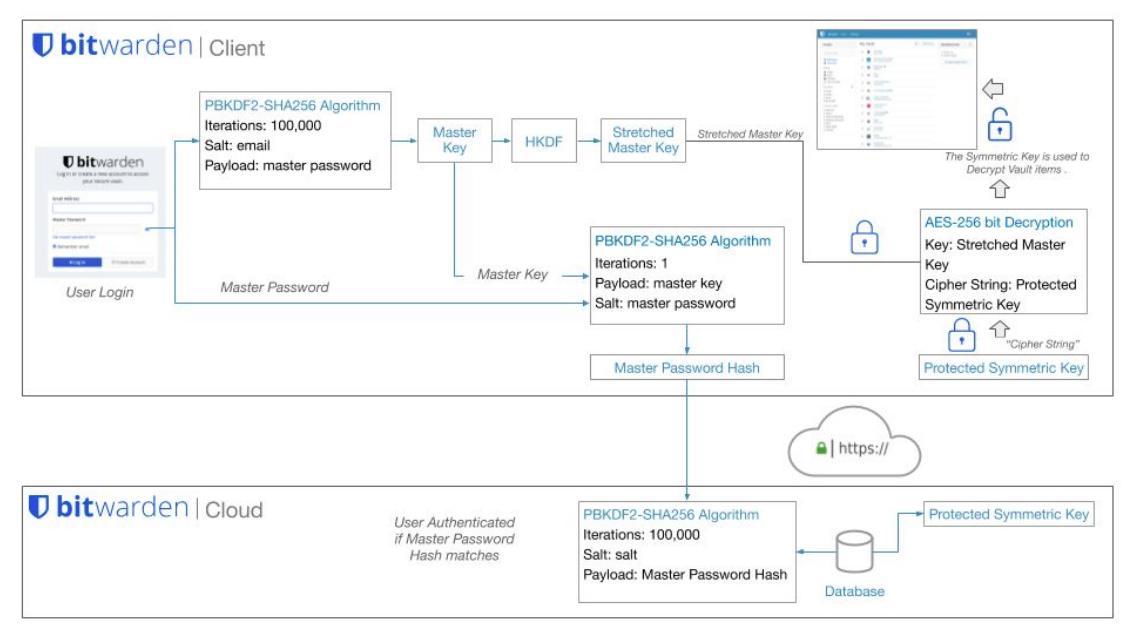
This is a simplified explanation of how password managers operate. In practice, the implementation is more complex. For deeper insight, refer to the technical documents linked above or watch the How Password Managers Work – Computerphile video.
Some of the most popular cloud password managers are:
- 1Password
- Bitwarden
- Dashlane
- Keeper
- Lastpass
- NordPass
- RoboForm
Local password managers
Some companies and individuals prefer to manage their own security for various reasons, opting not to rely on third-party services. Local password managers provide this option by storing the password database locally and placing the responsibility on the user to protect its content and storage location. Dashlane published a blog post, Password Manager Storage: Cloud vs. Local, which explores the pros and cons of each approach. As the blog states, "At first it might seem like this makes local storage more secure than cloud storage, but cybersecurity is not a simple discipline." This post serves as a useful starting point for understanding which method may better suit different password management scenarios.
Local password managers use encryption methods similar to those of cloud-based implementations. The most notable difference lies in data transmission and authentication. To encrypt the database, local password managers focus on securing the database stored on the local system, using various cryptographic hash functions (depending on the manufacturer). They also employ key derivation functions with random salt to prevent precomputed keys and to hinder dictionary and guessing attacks. Some offer additional protections such as memory protection and keylogger resistance, using a secure desktop environment similar to Windows User Account Control (UAC).
Some of the most widely used local password managers are:
- KeePass
- KWalletManager
- Pleasant Password Server
- Password Safe
Features
Let's imagine we use Linux, Android, and Chrome OS. We access our applications and websites from multiple devices and want to synchronize all passwords and secure notes across them. We also need extra protection through 2FA, and our budget is $5 per month. This information can help us identify the most suitable password manager for our needs.
When choosing between a cloud or local password manager, it's important to understand the available features. Wikipedia offers a helpful list of both online and offline password managers, along with their key capabilities. Here are some of the most common features:
- 2FA support.
- Multi-platform (Android, iOS, Windows, Linux, Mac, etc.).
- Browser Extension.
- Login Autocomplete.
- Import and export capabilities.
- Password generation.
Alternatives
Passwords are the most common form of authentication, but not the only one. As we've seen throughout this module, passwords can be compromised in many ways: cracking, guessing, shoulder surfing, and more. But what if we didn't need passwords at all? Is that even possible?
By default, most operating systems and applications are built around password based authentication. However, administrators can adopt third-party identity providers or applicationss to enhance identity protection. Some of the most common alternatives include:
- Multi-factor Authentication (MFA)
- FIDO2, an open authentication standard that enables passwordless logins using physical devices like YubiKey. For a broader list of devices, see Microsoft’s supported FIDO2 providers.
- One-Time Passwords (OTP)
- Time-Based One-Time Passwords (TOTP)
- IP restrictions
- Device compliance enforcement via tools like Microsoft Endpoint Manager or Workspace ONE
Going passwordless
Many companies—including Microsoft, Auth0, Okta, and Ping Identity—are advocating for a passwordless future. This strategy aims to remove passwords as an authentication method altogether.
Passwordless authentication is achieved when an authentication factor other than a password is used. A password is a knowledge factor, meaning it's something a user knows. The problem with relying on a knowledge factor alone is that it's vulnerable to theft, sharing, repeat use, misuse, and other risks. Passwordless authentication ultimately means no more passwords. Instead, it relies on a possession factor (something a user has) or an inherent factor (something a user is) to verify user identity with greater assurance.
As new technology and standards evolve, we need to investigate and understand the details of their implementation to determine whether those alternatives will provide the security we need for the authentication process. You can read more about Passwordless authentication and different vendor strategies:
- Microsoft Passwordless