Thick client applications are the applications that are installed locally on our computers. Unlike thin client applications that run on a remote server and can be accessed through the web browser, these applications do not require internet access to run, and they perform better in processing power, memory, and storage capacity. Thick client applications are usually applications used in enterprise environments created to serve specific purposes. Such applications include project management systems, customer relationship management systems, inventory management tools, and other productivity software. These applications are usually developed using Java, C++, .NET, or Microsoft Silverlight.
A critical security measure that, for example, Java has is a technology called sandbox. The sandbox is a virtual environment that allows untrusted code, such as code downloaded from the internet, to run safely on a user's system without posing a security risk. In addition, it isolates untrusted code, preventing it from accessing or modifying system resources and other applications without proper authorization. Besides that, there are also Java API restrictions and Code Signing that helps to create a more secure environment.
In a .NET environment, a thick client, also known as a rich client or fat client, refers to an application that performs a significant amount of processing on the client side rather than relying solely on the server for all processing tasks. As a result, thick clients can provide a better performance, more features, and improved user experiences compared to their thin client counterparts, which rely heavily on the server for processing and data storage.
Some examples of thick client applications are web browsers, media players, chatting software, and video games. Some thick client applications are usually available to purchase or download for free through their official website or third-party application stores, while other custom applications that have been created for a specific company, can be delivered directly from the IT department that has developed the software. Deploying and maintaining thick client applications can be more difficult than thin client applications since patches and updates must be done locally to the user's computer. Some characteristics of thick client applications are:
- Independent software.
- Working without internet access.
- Storing data locally.
- Less secure.
- Consuming more resources.
- More expensive.
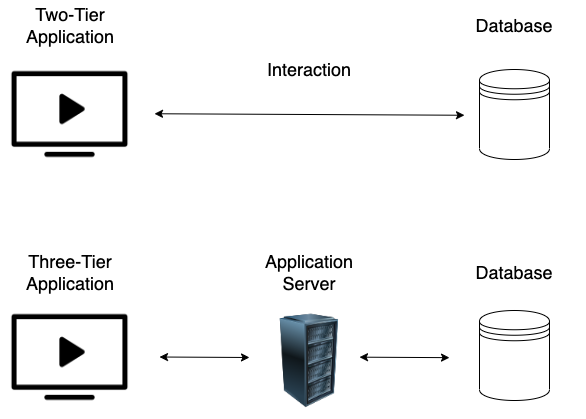
Thick client applications can be categorized into two-tier and three-tier architecture. In two-tier architecture, the application is installed locally on the computer and communicates directly with the database. In the three-tier architecture, applications are also installed locally on the computer, but in order to interact with the databases, they first communicate with an application server, usually using the HTTP/HTTPS protocol. In this case, the application server and the database might be located on the same network or over the internet. This is something that makes three-tier architecture more secure since attackers won't be able to communicate directly with the database. The image below shows the differences between two-tier and three-tier architecture applications.
Since a large portion of thick client applications are downloaded from the internet, there is no sufficient way to ensure that users will download the official application, and that raises security concerns. Web-specific vulnerabilities like XSS, CSRF, and Clickjacking, do not apply to thick client applications. However, thick client applications are considered less secure than web applications with many attacks being applicable, including:
- Improper Error Handling.
- Hardcoded sensitive data.
- DLL Hijacking.
- Buffer Overflow.
- SQL Injection.
- Insecure Storage.
- Session Management.
Penetration Testing Steps
Thick client applications are considered more complex than others, and the attacking surface can be large. Thick client application penetration testing can be done both using automated tools and manually. The following steps are usually followed when testing thick client applications.
Information Gathering
In this step, penetration testers have to identify the application architecture, the programming languages and frameworks that have been used, and understand how the application and the infrastructure work. They should also need to identify technologies that are used on the client and server sides and find entry points and user inputs. Testers should also look for identifying common vulnerabilities like the ones we mentioned earlier at the end of the About section. The following tools will help us gather information.
Client Side attacks
Although thick clients perform significant processing and data storage on the client side, they still communicate with servers for various tasks, such as data synchronization or accessing shared resources. This interaction with servers and other external systems can expose thick clients to vulnerabilities similar to those found in web applications, including command injection, weak access control, and SQL injection.
Sensitive information like usernames and passwords, tokens, or strings for communication with other services, might be stored in the application's local files. Hardcoded credentials and other sensitive information can also be found in the application's source code, thus Static Analysis is a necessary step while testing the application. Using the proper tools, we can reverse-engineer and examine .NET and Java applications including EXE, DLL, JAR, CLASS, WAR, and other file formats. Dynamic analysis should also be performed in this step, as thick client applications store sensitive information in the memory as well.
Network Side Attacks
If the application is communicating with a local or remote server, network traffic analysis will help us capture sensitive information that might be transferred through HTTP/HTTPS or TCP/UDP connection, and give us a better understanding of how that application is working. Penetration testers that are performing traffic analysis on thick client applications should be familiar with tools like:
Server Side Attacks
Server-side attacks in thick client applications are similar to web application attacks, and penetration testers should pay attention to the most common ones including most of the OWASP Top Ten.
Retrieving hardcoded Credentials from Thick-Client Applications
The following scenario walks us through enumerating and exploiting a thick client application, in order to move laterally inside a corporative network during penetration testing. The scenario starts after we have gained access to an exposed SMB service.
Exploring the NETLOGON share of the SMB service reveals RestartOracle-Service.exe among other files. Downloading the executable locally and running it through the command line, it seems like it does not run or it runs something hidden.
C:\Apps>.\Restart-OracleService.exe
C:\Apps>
Downloading the tool ProcMon64 from SysInternals and monitoring the process reveals that the executable indeed creates a temp file in C:\Users\Matt\AppData\Local\Temp.

In order to capture the files, it is required to change the permissions of the Temp folder to disallow file deletions. To do this, we right-click the folder C:\Users\Matt\AppData\Local\Temp and under Properties -> Security -> Advanced -> cybervaca -> Disable inheritance -> Convert inherited permissions into explicit permissions on this object -> Edit -> Show advanced permissions, we deselect the Delete subfolders and files, and Delete checkboxes.
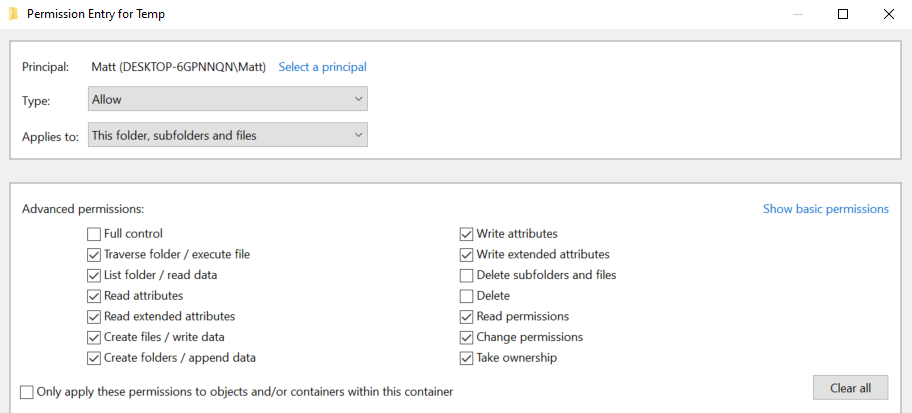
Finally, we click OK -> Apply -> OK -> OK on the open windows. Once the folder permissions have been applied we simply run again the Restart-OracleService.exe and check the temp folder. The file 6F39.bat is created under the C:\Users\cybervaca\AppData\Local\Temp\2. The names of the generated files are random every time the service is running.
C:\Apps>dir C:\Users\cybervaca\AppData\Local\Temp\2

...SNIP...
04/03/2023  02:09 PM         1,730,212 6F39.bat
04/03/2023  02:09 PM                 0 6F39.tmp
Listing the content of the 6F39 batch file reveals the following.
@shift /0
@echo off

if %username% == matt goto correcto
if %username% == frankytech goto correcto
if %username% == ev4si0n goto correcto
goto error

:correcto
echo TVqQAAMAAAAEAAAA//8AALgAAAAAAAAAQAAAAAAAAAAAAAAAAAAAAAAAAAAAAAAAAAAAAA > c:\programdata\oracle.txt
echo AAAAAAAAAAgAAAAA4fug4AtAnNIbgBTM0hVGhpcyBwcm9ncmFtIGNhbm5vdCBiZSBydW4g >> c:\programdata\oracle.txt

echo AAAAAAAAAAAAAAAAAAAAAAAAAAAAAAAAAAAAAAAAAAAAAAAAAAAAAA >> c:\programdata\oracle.txt

echo $salida = $null; $fichero = (Get-Content C:\ProgramData\oracle.txt) ; foreach ($linea in $fichero) {$salida += $linea }; $salida = $salida.Replace(" ",""); [System.IO.File]::WriteAllBytes("c:\programdata\restart-service.exe", [System.Convert]::FromBase64String($salida)) > c:\programdata\monta.ps1
powershell.exe -exec bypass -file c:\programdata\monta.ps1
del c:\programdata\monta.ps1
del c:\programdata\oracle.txt
c:\programdata\restart-service.exe
del c:\programdata\restart-service.exe
Inspecting the content of the file reveals that two files are being dropped by the batch file and being deleted before anyone can get access to the leftovers. We can try to retrieve the content of the 2 files, by modifying the batch script and removing the deletion.
@shift /0
@echo off

echo TVqQAAMAAAAEAAAA//8AALgAAAAAAAAAQAAAAAAAAAAAAAAAAAAAAAAAAAAAAAAAAAAAAA > c:\programdata\oracle.txt
echo AAAAAAAAAAgAAAAA4fug4AtAnNIbgBTM0hVGhpcyBwcm9ncmFtIGNhbm5vdCBiZSBydW4g >> c:\programdata\oracle.txt

echo AAAAAAAAAAAAAAAAAAAAAAAAAAAAAAAAAAAAAAAAAAAAAAAAAAAAAA >> c:\programdata\oracle.txt

echo $salida = $null; $fichero = (Get-Content C:\ProgramData\oracle.txt) ; foreach ($linea in $fichero) {$salida += $linea }; $salida = $salida.Replace(" ",""); [System.IO.File]::WriteAllBytes("c:\programdata\restart-service.exe", [System.Convert]::FromBase64String($salida)) > c:\programdata\monta.ps1
After executing the batch script by double-clicking on it, we wait a few minutes to spot the oracle.txt file which contains another file full of base64 lines, and the script monta.ps1 which contains the following content, under the directory c:\programdata\. Listing the content of the file monta.ps1 reveals the following code.
C:\>  cat C:\programdata\monta.ps1

$salida = $null; $fichero = (Get-Content C:\ProgramData\oracle.txt) ; foreach ($linea in $fichero) {$salida += $linea }; $salida = $salida.Replace(" ",""); [System.IO.File]::WriteAllBytes("c:\programdata\restart-service.exe", [System.Convert]::FromBase64String($salida))
This script simply reads the contents of the oracle.txt file and decodes it to the restart-service.exe executable. Running this script gives us a final executable that we can further analyze.
C:\>  ls C:\programdata\

Mode                LastWriteTime         Length Name

-a----        3/24/2023   1:01 PM            273 monta.ps1
-a----        3/24/2023   1:01 PM         601066 oracle.txt
-a----        3/24/2023   1:17 PM         432273 restart-service.exe
Now when executing restart-service.exe we are presented with the banner Restart Oracle created by HelpDesk back in 2010.
C:\>  .\restart-service.exe

    ____            __             __     ____                  __
   / __ \___  _____/ /_____ ______/ /_   / __ \_________ ______/ /__
  / /_/ / _ \/ ___/ __/ __ `/ ___/ __/  / / / / ___/ __ `/ ___/ / _ \
 / _, _/  __(__  ) /_/ /_/ / /  / /_   / /_/ / /  / /_/ / /__/ /  __/
/_/ |_|\___/____/\__/\__,_/_/   \__/   \____/_/   \__,_/\___/_/\___/

                                                by @HelpDesk 2010


PS C:\ProgramData>
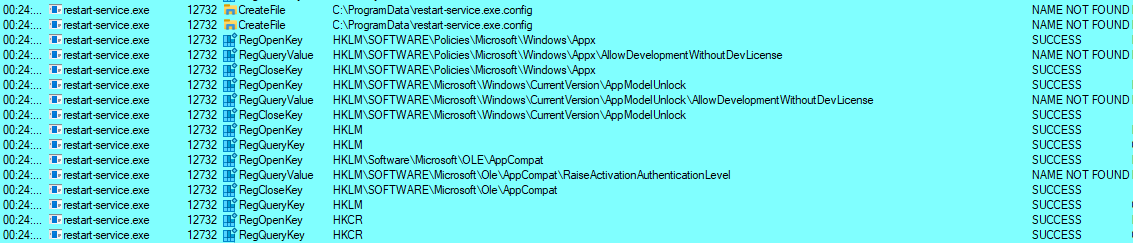
Inspecting the execution of the executable through ProcMon64 shows that it is querying multiple things in the registry and does not show anything solid to go by.
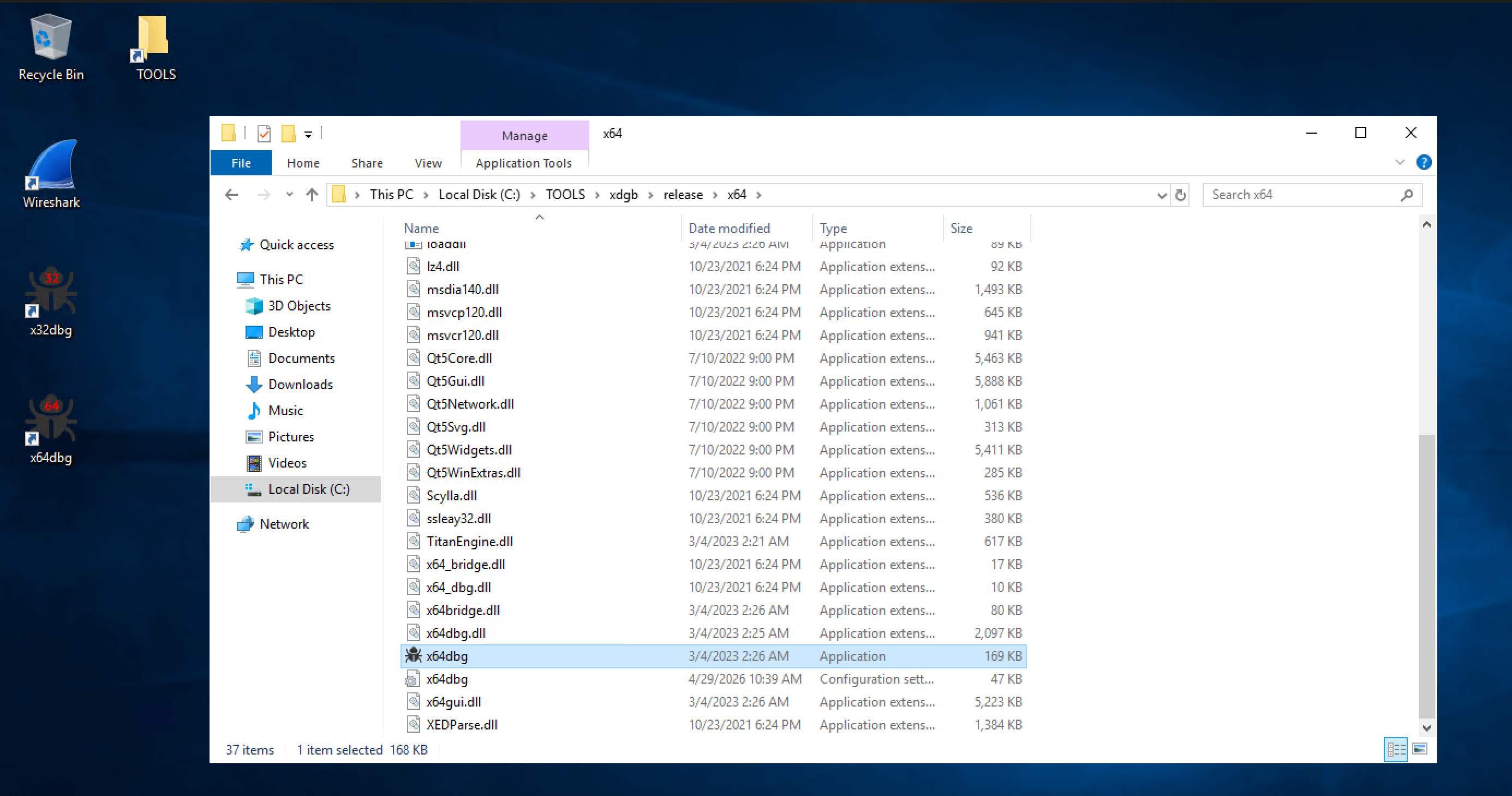
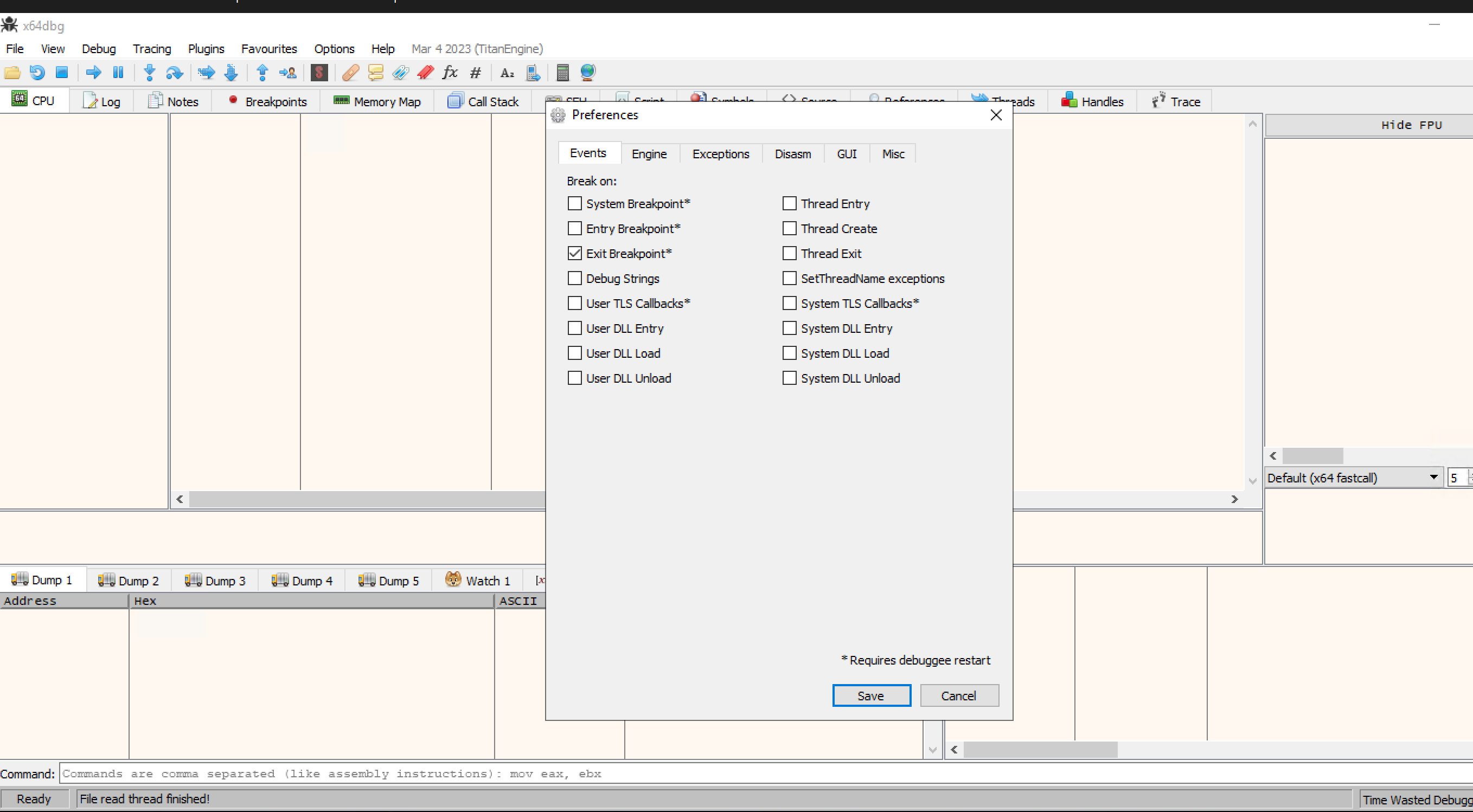
Let's start x64dbg, navigate to Options -> Preferences, and uncheck everything except Exit Breakpoint:
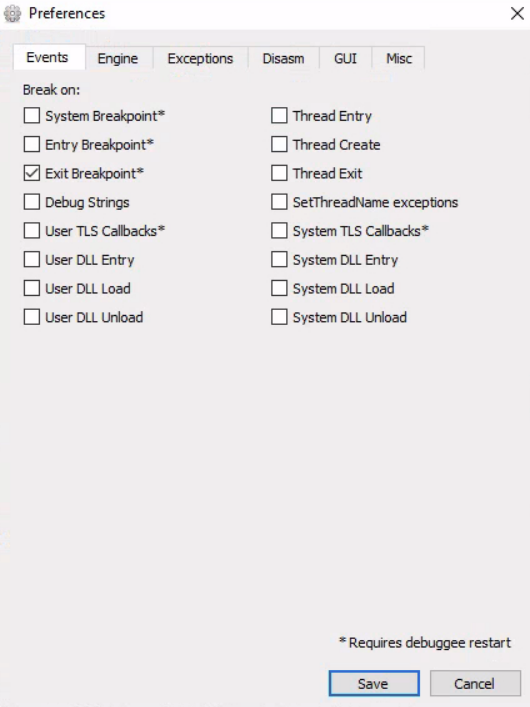
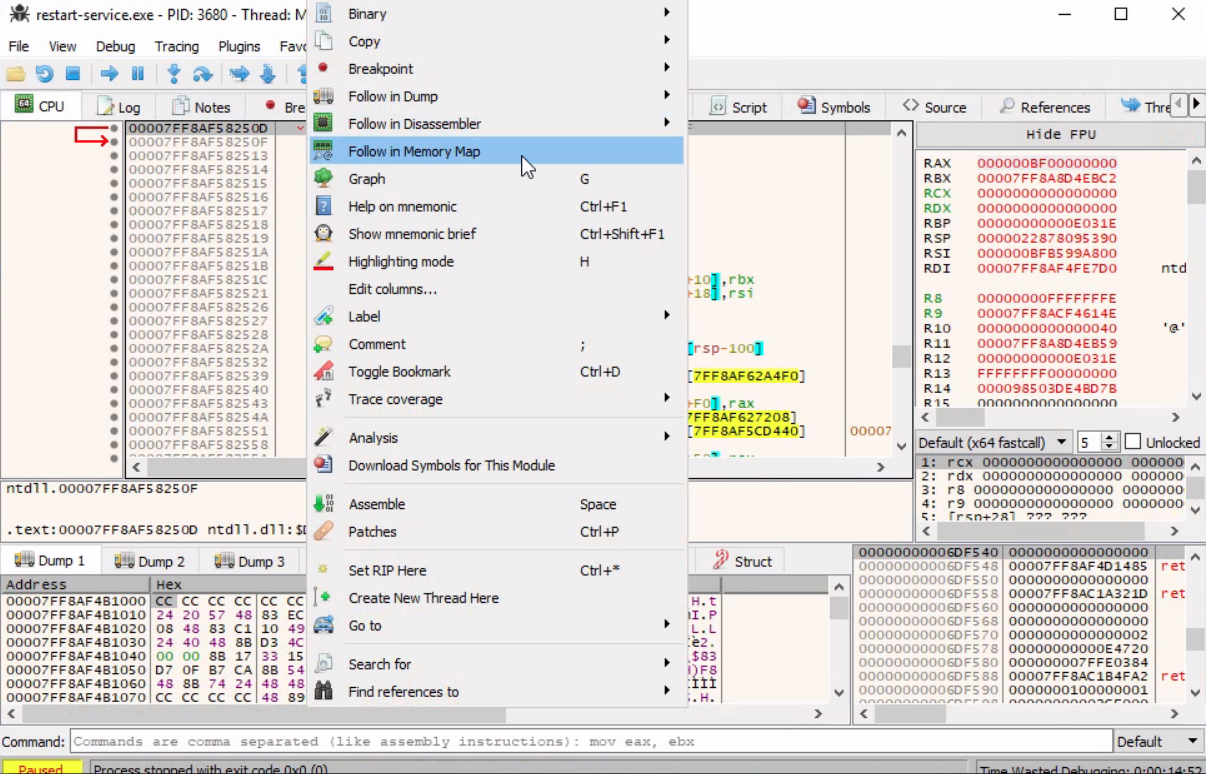
By unchecking the other options, the debugging will start directly from the application's exit point, and we will avoid going through any dll files that are loaded before the app starts. Then, we can select file -> open and select the restart-service.exe to import it and start the debugging. Once imported, we right click inside the CPU view and Follow in Memory Map:
Checking the memory maps at this stage of the execution, of particular interest is the map with a size of 0000000000003000 with a type of MAP and protection set to -RW--.
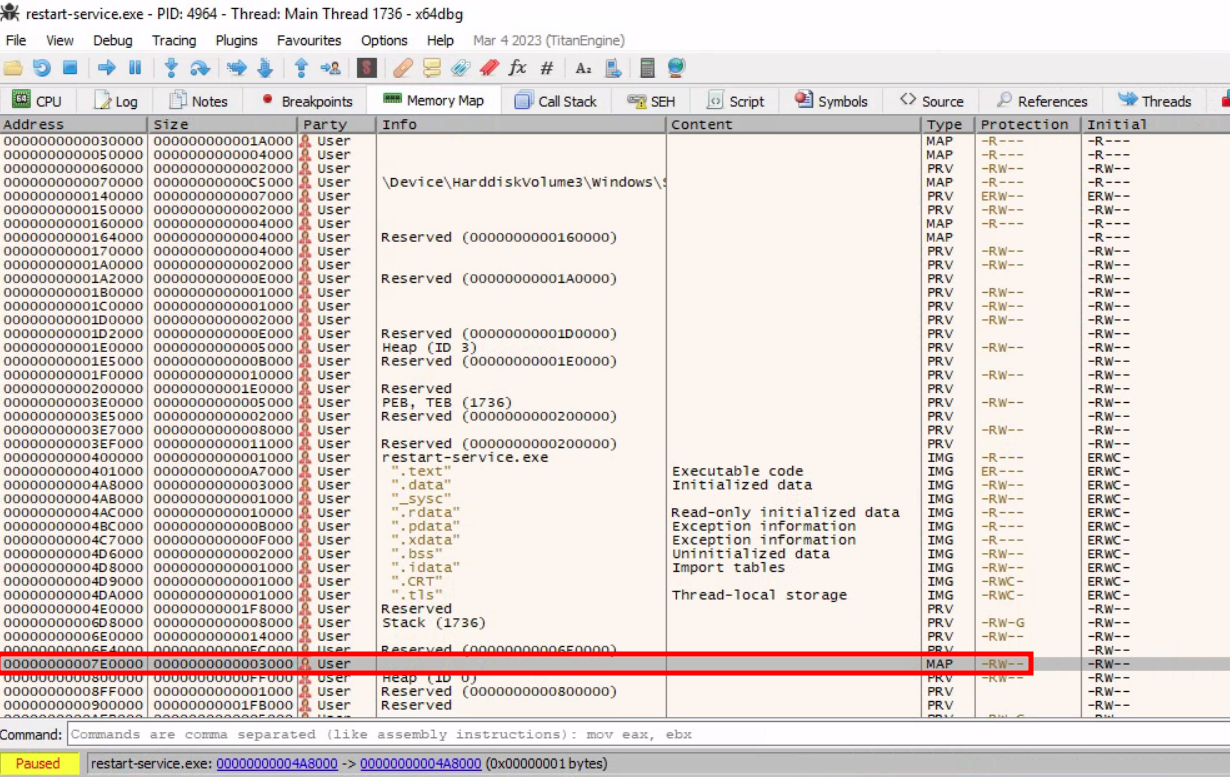
Memory-mapped files allow applications to access large files without having to read or write the entire file into memory at once. Instead, the file is mapped to a region of memory that the application can read and write as if it were a regular buffer in memory. This could be a place to potentially look for hardcoded credentials.
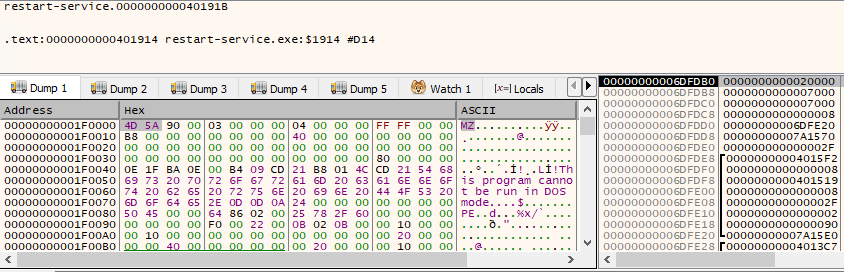
If we double-click on it, we will see the magic bytes MZ in the ASCII column that indicates that the file is a DOS MZ executable.
Let's return to the Memory Map pane, then export the newly discovered mapped item from memory to a dump file by right-clicking on the address and selecting Dump Memory to File. Running strings on the exported file reveals some interesting information.
C:\> C:\TOOLS\Strings\strings64.exe .\restart-service_00000000001E0000.bin


"#M
z\V
).NETFramework,Version=v4.0,Profile=Client
FrameworkDisplayName
.NET Framework 4 Client Profile
Reading the output reveals that the dump contains a .NET executable. We can use De4Dot to reverse .NET executables back to the source code by dragging the restart-service_00000000001E0000.bin onto the de4dot executable.
de4dot v3.1.41592.3405

Detected Unknown Obfuscator (C:\Users\cybervaca\Desktop\restart-service_00000000001E0000.bin)
Cleaning C:\Users\cybervaca\Desktop\restart-service_00000000001E0000.bin
Renaming all obfuscated symbols
Saving C:\Users\cybervaca\Desktop\restart-service_00000000001E0000-cleaned.bin


Press any key to exit...
Now, we can read the source code of the exported application by dragging and dropping it onto the DnSpy executable.
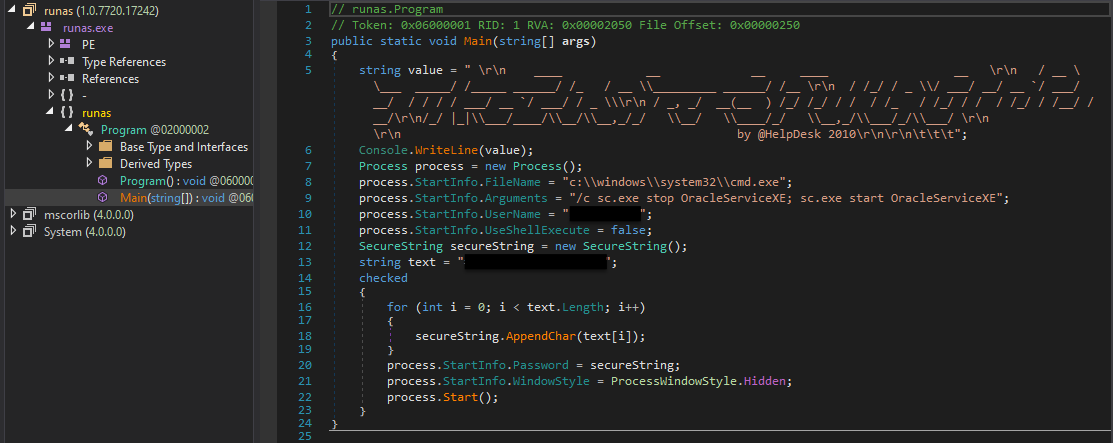
With the source code disclosed, we can understand that this binary is a custom-made runas.exe with the sole purpose of restarting the Oracle service using hardcoded credentials.
Questions:
Perform an analysis of C:\Apps\Restart-OracleService.exe and identify the credentials hidden within its source code. Submit the answer using the format username:password.
RDP to 10.129.228.115 (ACADEMY-ACA-PIVOTAPI), with user "cybervaca" and password "&aue%C)}6g-d{w"
first have to change permission of cybervaca not to delete the file when run
.\Restart-OracleService.exe in the temp directory
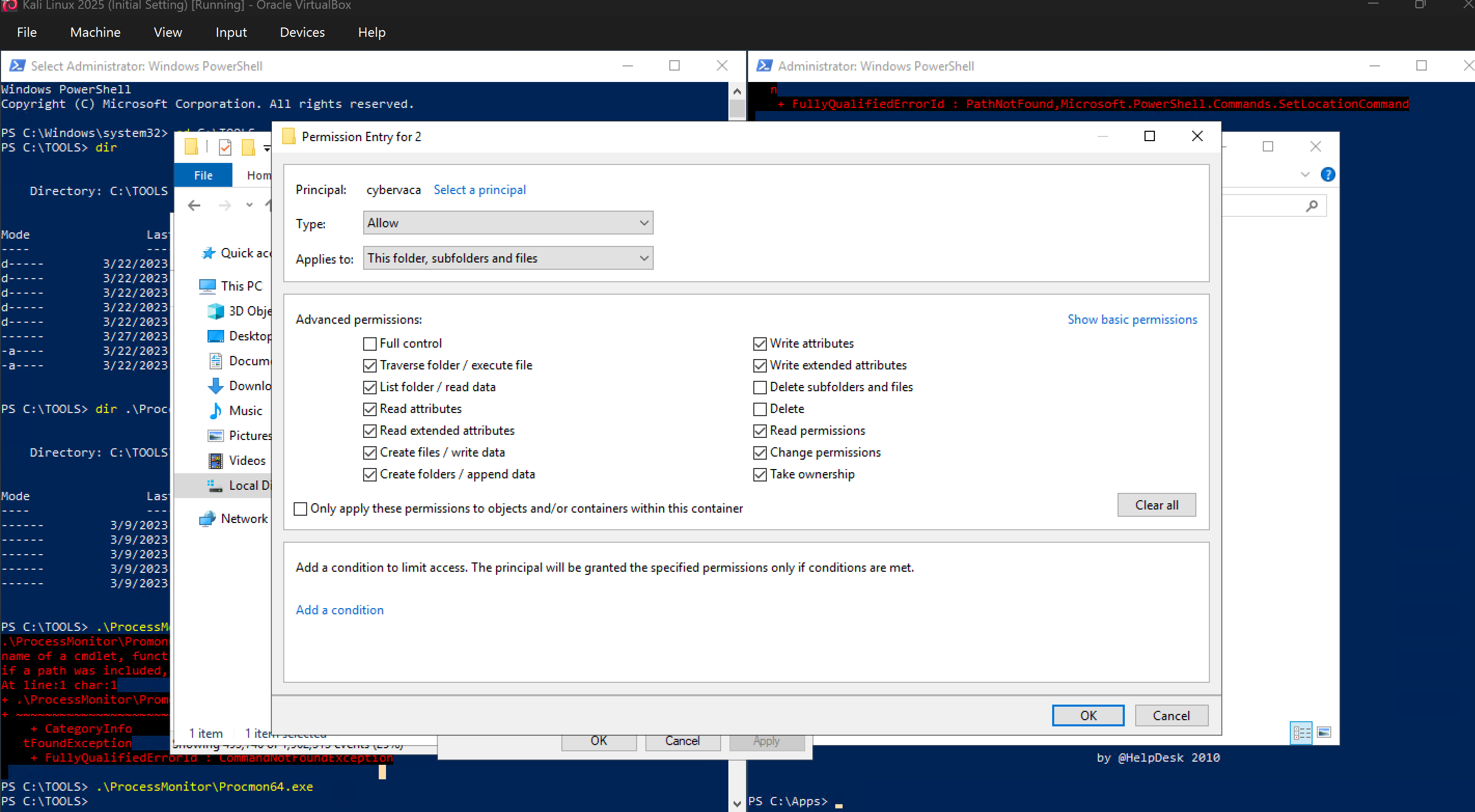
i dont know why it didn’t create temp file in Temp\2, it created in Temp directory
and
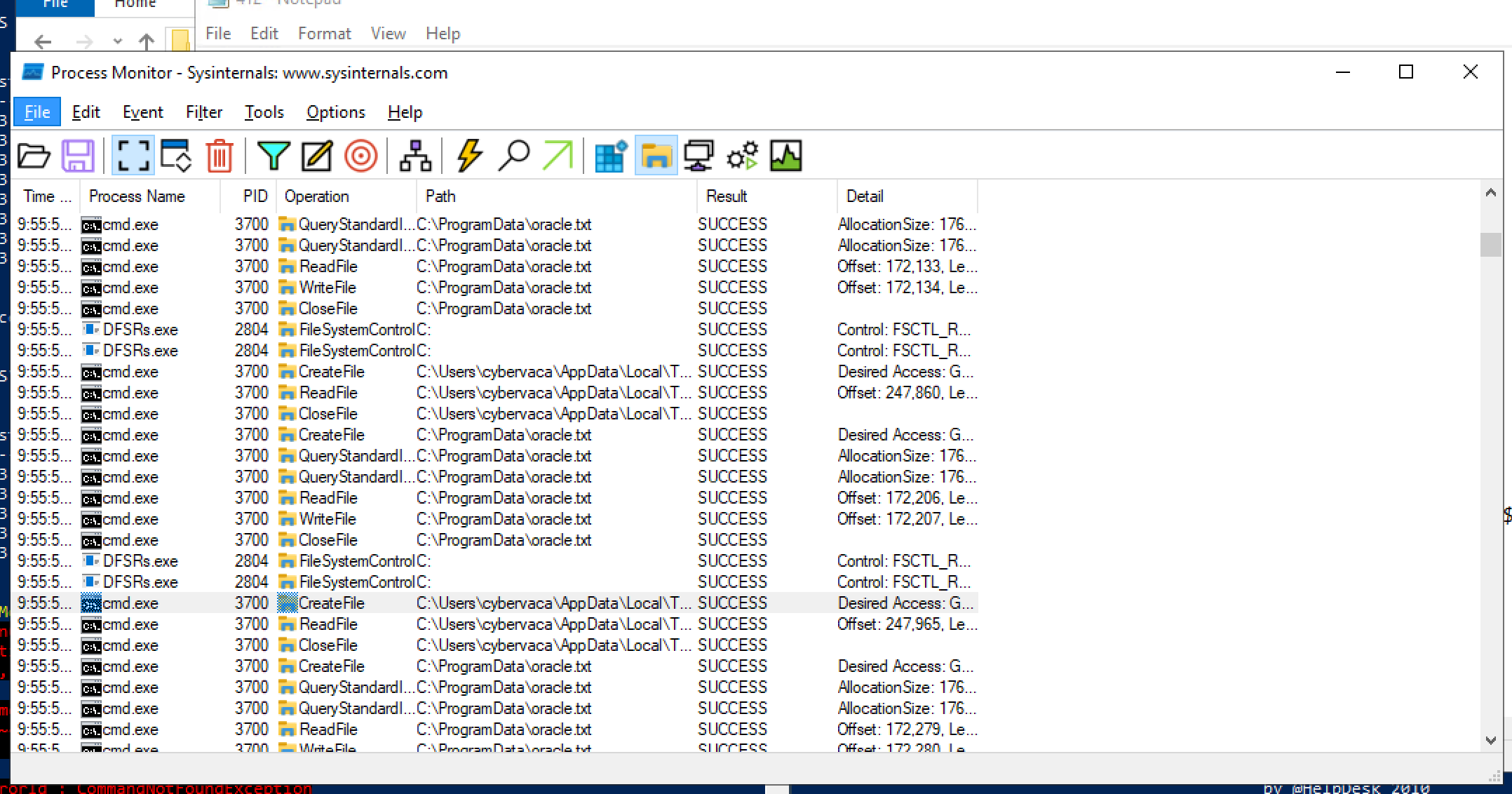
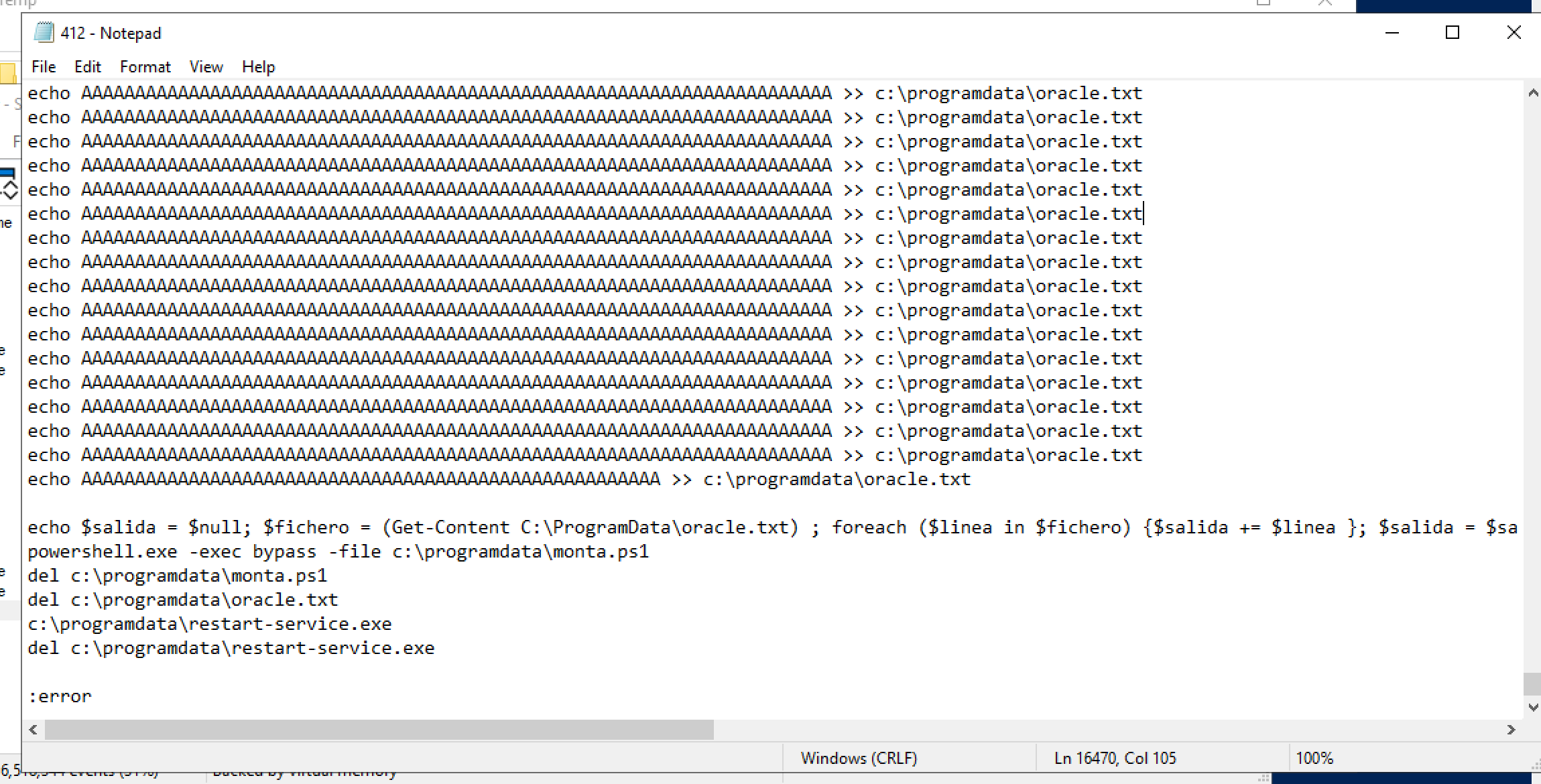
keep delete 3 line that deleted files, we run again
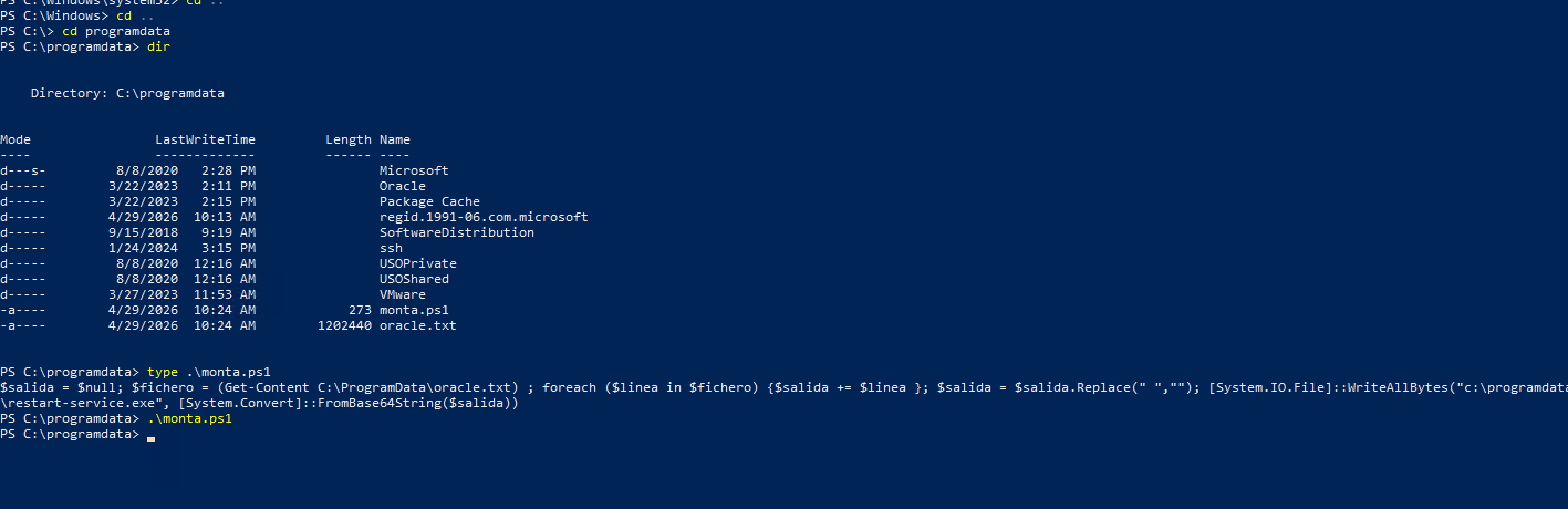
it created 2 files in that directory and 3 files exists in ProgramData folders
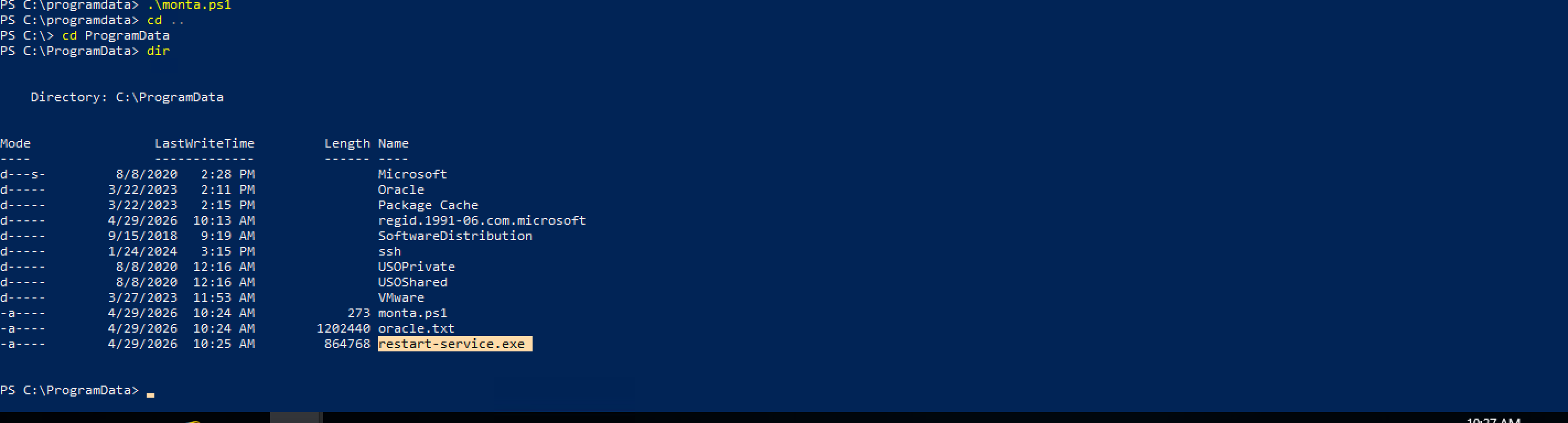
we run restart-service.exe
and start x64debug
when its open, we go to “Options” → “Preferences”
go to “Memory map”:
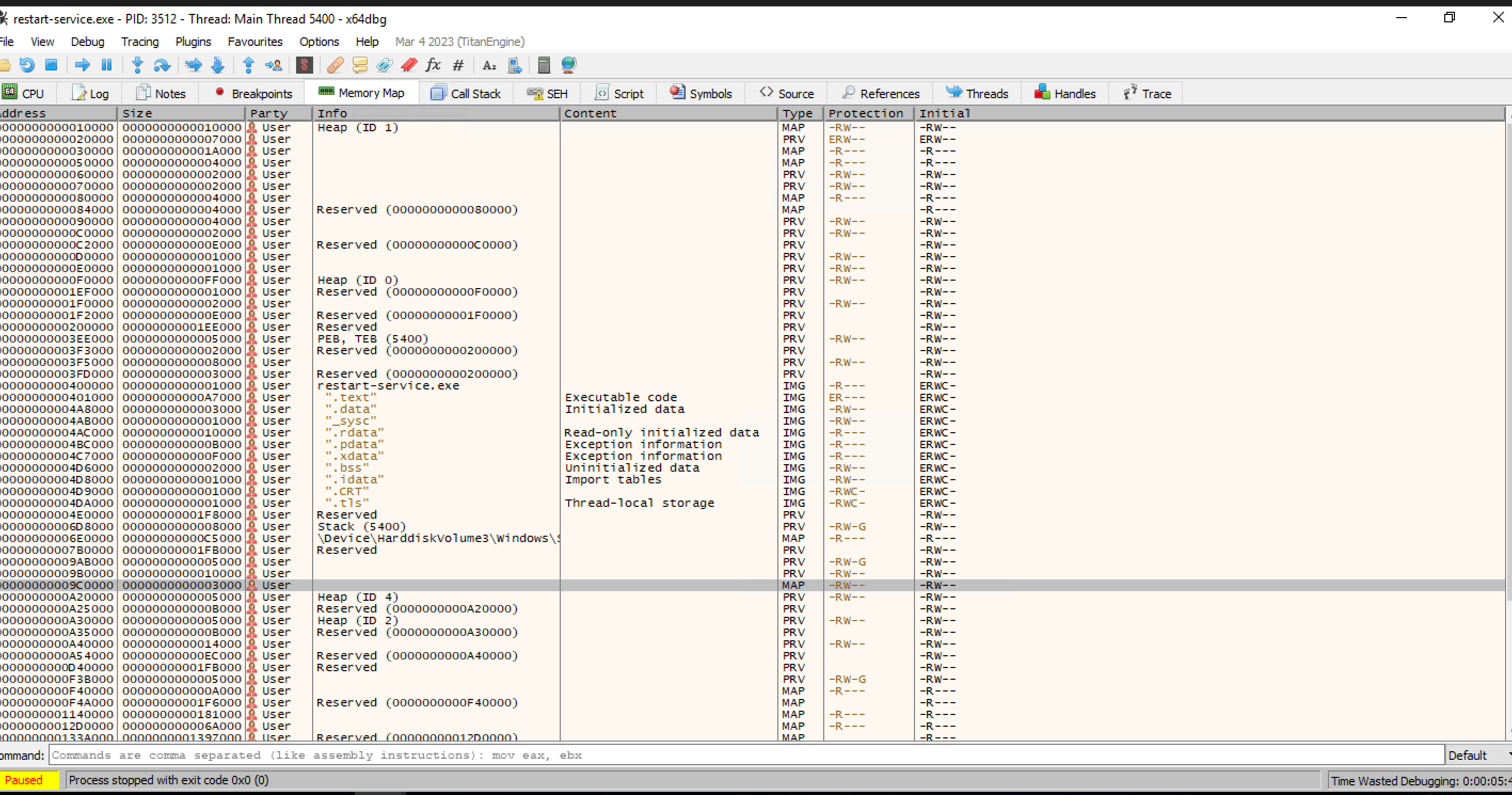
and dump that file from marked line above:
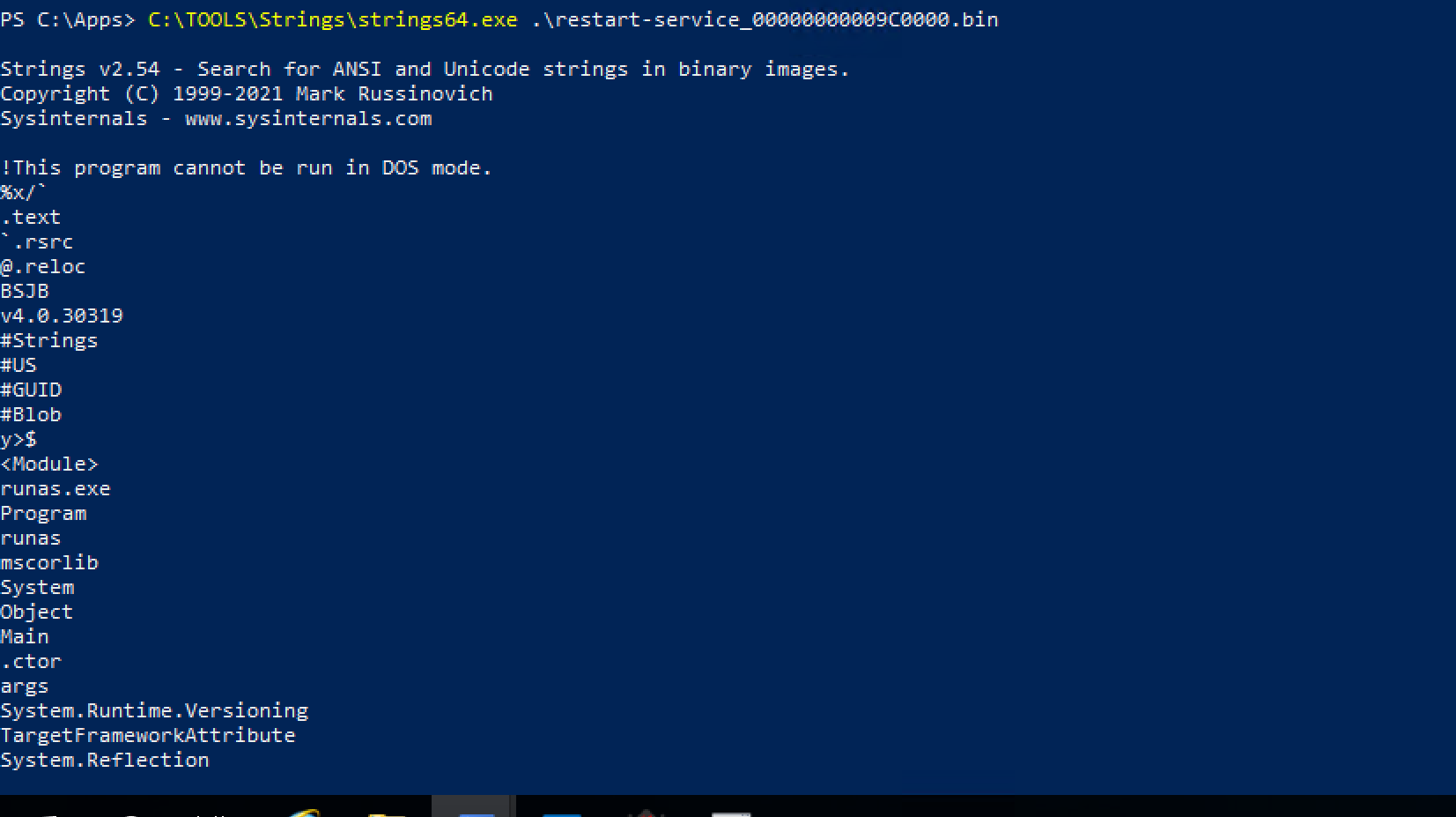
following the module
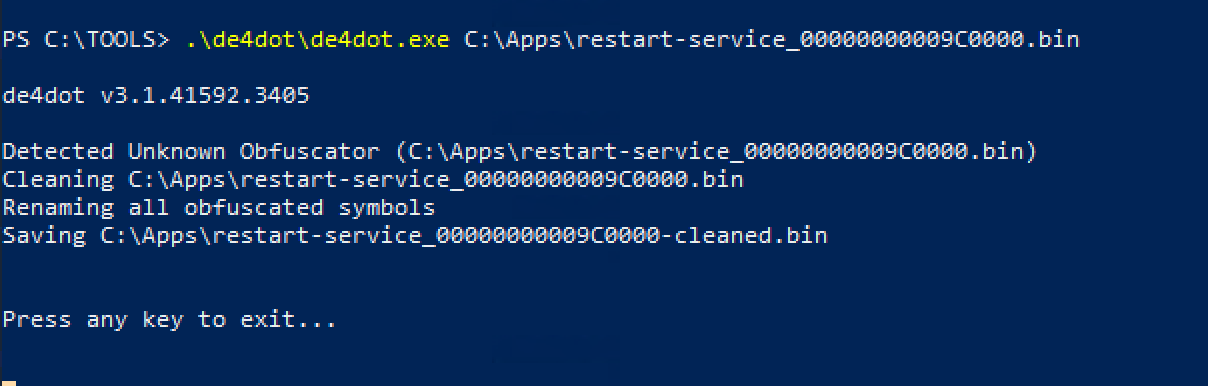
after clean by de4dot we use dnspy